
Random Distribution
Overview
Random Distribution Settings in Groundhogg CRM provide a probabilistic method for directing contacts through multiple branches in a flow, using assigned weights to determine the likelihood of each path. Unlike condition-based triggers or A/B testing, this approach allows you to control traffic allocation across branches without strict rules, offering a flexible way to balance experimentation, prioritize paths, or distribute contacts based on proportional shares. By setting numerical weights, you can customize how contacts are randomly assigned, making it ideal for testing variations or managing traffic flow with intentional emphasis.
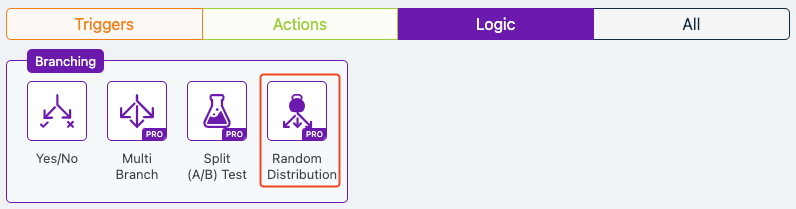
Extension Required!
The Randon Distribution Logic is available with the Advanced Features addon. It can be purchased separately or as part of the Agency, Pro or Plus Plans.
When to Use
Use Random Distribution when you want to:
- Introduce variety in content delivery, such as sending different newsletters to subscribers.
- Allocate contacts across multiple paths with specific proportions (e.g., 60% to one offer, 30% to another, 10% to a third).
- Test multiple strategies simultaneously without condition-based routing.
- Gradually roll out new campaigns by directing a small percentage of contacts to a new path.
- Distribute contacts to different teams or resources based on capacity (e.g., support tickets to different teams).
How It Works
Random Distribution functions like a weighted lottery system:
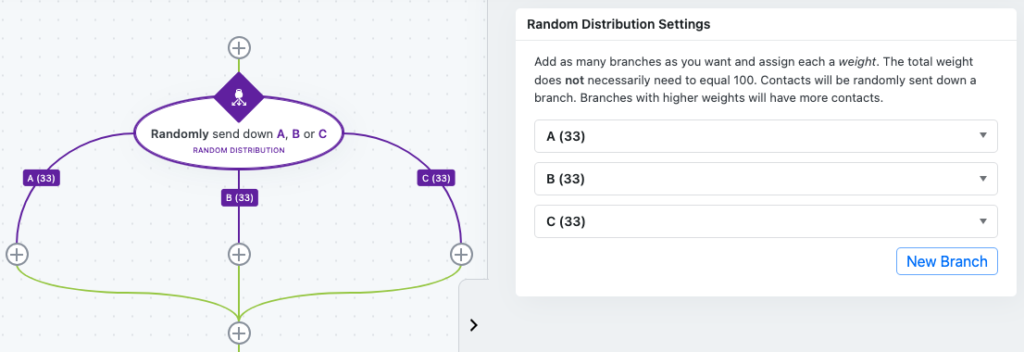
- Randomized Routing: Contacts are randomly assigned to branches based on these proportions, with higher-weighted branches receiving more contacts over time. In Groundhogg, this is implemented as a Random Split step, where you define branches and weights, and the system handles the probabilistic distribution.
- Multiple Branches: You create several branches within a flow, each representing a distinct path (e.g., different emails or actions).
- Assign Weights: Each branch is assigned a numerical weight (e.g., Branch A: 50, Branch B: 30, Branch C: 20), which dictates its share of traffic.
- Proportional Allocation: The system calculates the proportion of traffic for each branch based on the weights. For example, if the total weight is 100 (50+30+20), Branch A gets 50% of contacts, Branch B 30%, and Branch C 20%. If the total isn’t 100 (e.g., 40+30+10=80), proportions adjust accordingly (50%, 37.5%, 12.5%).
Setup Instructions
- Access Your Flow: In Groundhogg CRM, navigate to the flow builder and open the flow where you want to add Random Distribution.
- Add Random Split Step: Drag and drop the “Random Split” trigger into your flow.
- Configure Branches:
- Create the desired number of branches (e.g., Branch A, Branch B, Branch C).
- Assign a specific action to each branch, such as sending an email or applying a tag.
- Set Weights:
- For each branch, enter a numerical weight (e.g., 50, 30, 20).
- Optionally, ensure the total weight sums to 100 for intuitive percentage-based distribution, though this is not required.
- Save and Test:
- Save the flow configuration.
- Test the flow by sending a few contacts through to verify the distribution aligns with your weights.
- Monitor Results: Use Groundhogg’s analytics to track how contacts are distributed across branches and adjust weights if needed.
Example Use Case
WA small e-commerce business wants to diversify its email marketing by sending different promotional emails to its subscribers. Using Random Distribution in a Groundhogg flow, they set up three branches: Branch A (weight: 50) sends a premium product offer, Branch B (weight: 30) promotes a mid-tier product, and Branch C (weight: 20) shares educational content about product usage. With a total weight of 100, approximately 50% of subscribers receive the premium offer, 30% get the mid-tier promotion, and 20% receive the educational email. Over time, the business monitors click-through rates in Groundhogg’s reporting to determine which email performs best and adjusts the weights to favor the highest-converting option.
FAQs / Troubleshooting
Q: Do the weights need to sum to 100?
A: No, the total weight can be any number. Groundhogg calculates the proportion based on the ratio of each branch’s weight to the total. However, summing to 100 makes the percentages easier to interpret.
Q: Why isn’t the distribution exactly matching my weights?
A: With small sample sizes, randomness can cause slight deviations. Over a larger number of contacts, the distribution should align closely with the assigned proportions. Check Groundhogg’s analytics to confirm trends.
Q: Can I use Random Distribution for condition-based routing?
A: No, Random Distribution is probabilistic and doesn’t use contact-specific data like tags or behaviors. For condition-based routing, use Yes/No or Multi Branch triggers.
Q: How do I know which branch is performing best?
A: Use Groundhogg’s reporting to track metrics like email opens, clicks, or conversions for each branch. Compare performance and adjust weights to favor high-performing paths.
Q: What if I have too many branches?
A: Too many branches with small weights can dilute focus and make analysis complex. Start with 2-3 branches and scale up as needed, ensuring each branch has a clear purpose.