
Loop
Overview
The Loop logic in Groundhogg allows you to repeatedly execute a set of actions for contacts who meet specific conditions, creating a continuous cycle until the conditions are no longer met or the loop is manually stopped. This feature is designed to automate repetitive tasks within a flow, ensuring that contacts are processed through a defined sequence of actions multiple times, with a required delay to prevent infinite looping. It’s a powerful tool for scenarios where ongoing engagement or repeated checks are necessary.
Extension Required!
The Loop Logic is available with the Advanced Features addon. It can be purchased separately or as part of the Agency, Pro or Plus Plans.
When to Use
Use the Loop logic when you need to repeatedly apply actions to contacts based on dynamic conditions, such as re-engaging inactive subscribers, nurturing leads over time, or checking for updated contact data. It’s ideal for situations where a single pass through a flow isn’t sufficient, and you need to cycle contacts through a process until a specific goal is achieved or a condition changes.
How It Works
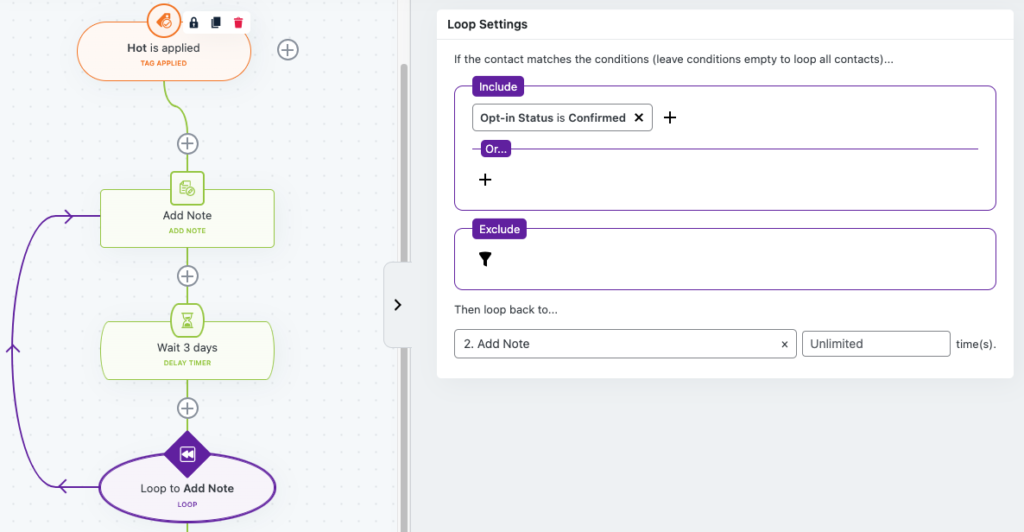
The Loop logic evaluates contacts against a set of conditions (which can be left empty to loop all contacts). Contacts are then split into two branches: “Include” or “Exclude.” Those who match the conditions (Include) proceed through the loop’s actions, while those who don’t (Exclude) are directed to an alternative path. After completing the loop’s actions, contacts are cycled back to the Loop action for re-evaluation. A delay (via a timer or another trigger) is mandatory between the loop logic and the actions to prevent accidental infinite looping, ensuring the system has time to process each cycle.
Setup Instructions
- Add the Loop logic to Your Flow: Drag and drop the Loop logic into your flow from the logic panel.
- Configure Loop Settings: Define the conditions for looping (e.g., “Has tag: ‘Lead'” or leave empty to include all contacts). Click “Add a filter” to specify conditions if needed.
- Set Up the Include Branch: Add the actions you want to repeat for contacts who match the conditions (e.g., send an email, apply a tag).
- Set Up the Exclude Branch: Define actions for contacts who don’t match the conditions (e.g., exit the flow or apply a different tag).
- Add a Delay: Insert a delay (such as a timer delay or another trigger) between the Loop logic and the repeated actions to prevent infinite loops. This is mandatory.
- Connect the Loop: Ensure the last action in the Include branch loops back to the Loop action for re-evaluation.
- Save and Test: Save your flow and test it with sample contacts to confirm the loop behaves as expected.
Example Use Case
A business wants to nurture leads who haven’t converted after receiving an initial email. They set up a Loop logic in their flow with the condition “Has tag: ‘Lead’ AND Did not open email in last 7 days.” Contacts who meet this condition are sent a re-engagement email every 3 days (with a timer delay ensuring the loop doesn’t run endlessly). If a contact opens the email, they no longer meet the condition and are excluded from the loop, moving to a new sequence where they receive a special offer. This ensures continuous nurturing until the lead engages or opts out.
FAQs / Troubleshooting
Why is my loop running infinitely? Ensure you’ve added a delay (e.g., a timer) between the Loop logic and the repeated actions. Groundhogg requires this to prevent infinite loops, which can overload the system.
Can I loop logic in different branches? No, you can only loop logic within the same branch as the Loop logic (Include branch). Actions in the Exclude branch won’t loop.
What happens if I don’t set conditions? If no conditions are set, the Loop will include all contacts, cycling them through the Include branch actions repeatedly until manually stopped or a delay condition changes their path.
How do I stop a loop? To stop a loop, either set conditions that will eventually exclude contacts (e.g., applying a tag that removes them from the loop criteria) or manually pause the flow.