
Stop
Overview
The Stop logic is a critical component in your automation flow that allows you to halt a contact’s progression through the flow based on specific conditions. When a contact meets the defined criteria, they are removed from the flow and will not proceed to subsequent steps.
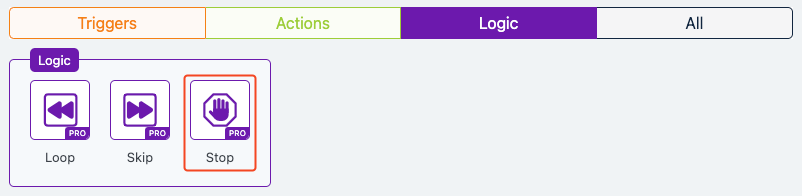
Extension Required!
The Stop Logic is available with the Advanced Features addon. It can be purchased separately or as part of the Agency, Pro or Plus Plans.
When to Use
Use the Stop logic when you need to terminate a contact’s journey in a flow due to certain conditions being met. This is useful for scenarios where a contact no longer qualifies for the flow, such as opting out, completing a goal, or meeting exclusion criteria.
How It Works
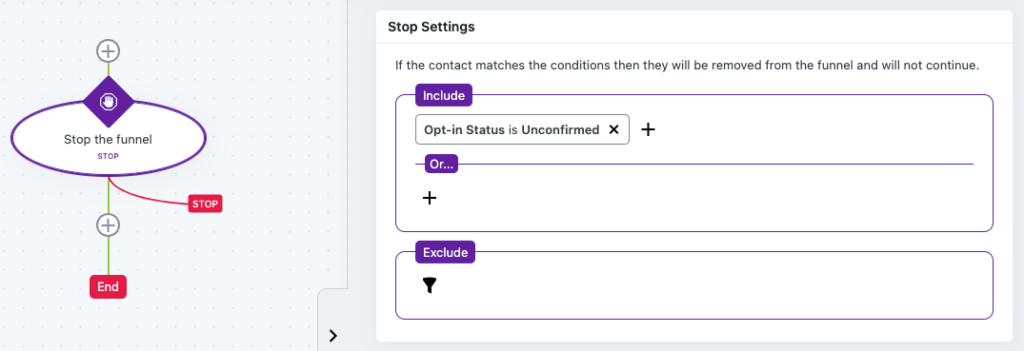
The Stop logic evaluates conditions you set in its settings. If a contact matches the “Include” conditions and does not match the “Exclude” conditions, they are immediately removed from the flow. The flow ends for that contact, and they will not proceed to any further triggers or actions.
Setup Instructions
- Add the Stop logic to your flow by dragging it from the logic menu.
- Click on the Stop logic to open its settings.
- Define the “Include” conditions to specify which contacts should be stopped (e.g., “Has Tag: Unsubscribed”).
- Optionally, set “Exclude” conditions to prevent certain contacts from being stopped (e.g., “Does Not Have Tag: VIP”).
- Save the settings. The Stop logic will now evaluate contacts as they reach this point in the flow.
Example Use Case
Imagine you’re running a marketing flow for a product launch. You want to stop sending promotional emails to contacts who have already purchased the product. You add a Stop logic with the condition “Include: Has Tag ‘Purchased'” and “Exclude: Has Tag ‘VIP'”. Once a contact buys the product and gets the “Purchased” tag, the Stop logic removes them from the flow, ensuring they no longer receive promotional emails unless they are a VIP.
FAQs / Troubleshooting
Q: What happens if a contact doesn’t meet the conditions?
A: If a contact does not match the “Include” conditions or matches the “Exclude” conditions, they will continue through the flow as normal.
Q: Can I add multiple conditions?
A: Yes, you can add multiple “Include” and “Exclude” conditions to fine-tune which contacts are stopped.
Q: Why is the Stop logic not working?
A: Double-check your conditions to ensure they are correctly set. Also, verify that the contact has the required tags or attributes to match the conditions.