


Overview
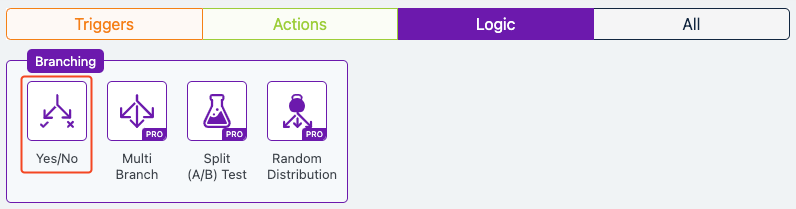
Yes/No logic, also known as conditional branching or binary decision-making, is a core feature in Groundhogg CRM’s flow automation system. It enables dynamic routing of contacts (e.g., leads, customers, subscribers) through different paths in a flow based on whether they meet specific conditions. This functionality supports personalized experiences, audience segmentation, and automated decision-making, making it essential for efficient marketing automation.
When to Use
Use Yes/No logic when you need to:
- Create scalable, dynamic flows that adapt to contact data or actions.
- Segment contacts based on attributes (e.g., tags, custom fields) or behaviors (e.g., email opens, link clicks).
- Deliver tailored content or actions to different audience groups.
- Automate decision points in flows, such as lead qualification or cart abandonment follow-ups.
How It Works
Yes/No logic functions as a decision point in a flow:
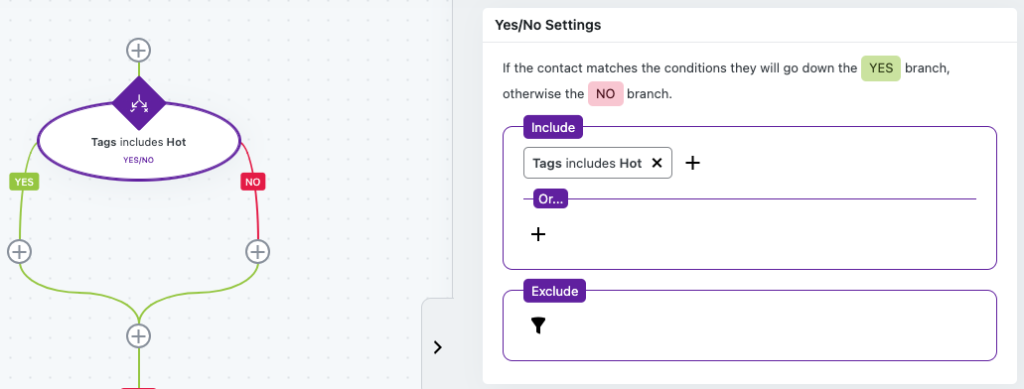
- No Path: If the condition(s) are not met, the contact takes the “No” branch, which may lead to alternative actions, a delay, or exiting the flow. Groundhogg’s “If/Else” trigger implements this logic, allowing multiple conditions to be combined using AND/OR operators for precise control.
- Condition Evaluation: A predefined condition (or set of conditions) is checked for each contact, such as whether they have a specific tag or performed an action like clicking a link.
- Yes Path: If the contact meets the condition(s), they follow the “Yes” branch, triggering actions like sending a targeted email or applying a tag.
Setup Instructions
- Add If/Else Trigger:
- Define Conditions:
- Click the trigger to open its settings.
- Set conditions, e.g., “Has tag: ‘VIP’” or “Opened email in last 7 days.”
- Use AND/OR logic to combine multiple conditions if needed.
- Configure Paths:
- For the “Yes” path, add actions like sending an email or applying a tag.
- For the “No” path, specify alternative actions, such as a delay or tagging for follow-up.
- Test and Save:
Example Use Case
A small e-commerce business uses Yes/No logic to recover abandoned carts. They set up a flow with an “If/Else” trigger to check if a contact abandoned their cart (condition: “Added to cart but no purchase within 24 hours”). If “Yes,” the contact receives a cart recovery email with a discount code, encouraging them to complete the purchase. If “No,” they are moved to a general promotional sequence to maintain engagement. This approach increases conversions by targeting relevant contacts with timely, personalized actions.
FAQs / Troubleshooting
Q: Why are contacts not following the expected path?
A: Ensure conditions are specific and mutually exclusive. Check that the data (e.g., tags, fields) is up-to-date, as outdated data can cause misrouting. Test both paths in the flow builder.
Q: Can I use multiple conditions in one trigger?
A: Yes, combine conditions using AND/OR logic in the “If/Else” trigger settings for more granular control.
Q: How do I avoid overcomplicating my flow?
A: Keep Yes/No branches streamlined. Avoid excessive nesting and use Groundhogg’s reporting to monitor path performance and simplify as needed.
Q: What happens if a contact doesn’t meet any conditions?
A: They will follow the “No” path. Ensure the “No” path has appropriate actions or an exit to prevent contacts from being stuck.
Was this helpful?
Let us know if this document answered your question. That’s the only way we can improve.