


Overview
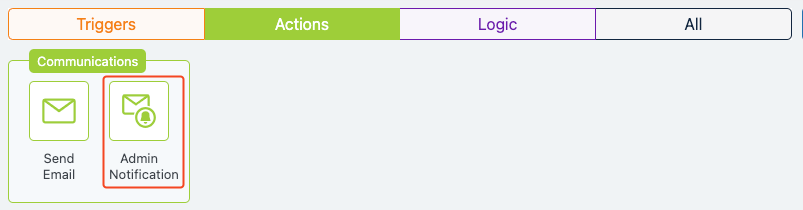
The Admin Notification action in Groundhogg sends an email to specified administrators or users when a contact reaches a particular step in a flow. This action keeps team members informed about critical contact activities, ensuring timely responses to important events within your Groundhogg workflows.
When to Use
Use the Admin Notification action to:
- Ensure key stakeholders are informed without manual intervention.
- Notify team members about high-value leads or specific contact actions.
- Keep sales, support, or management teams updated on flow progress.
- Trigger alerts for specific events, such as form submissions or plan selections.
How It Works
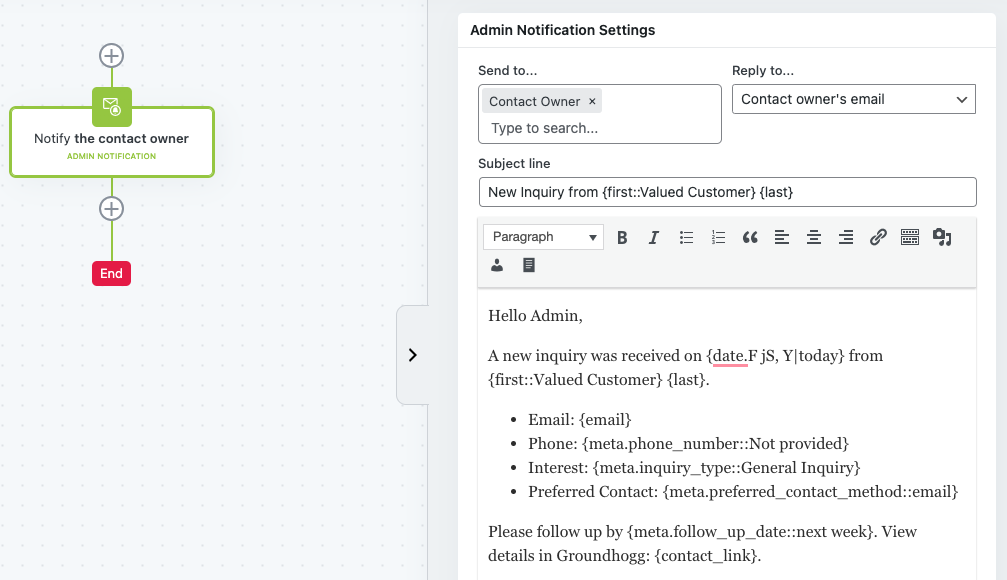
When a contact reaches the Admin Notification step in a flow, Groundhogg sends a customized email to the designated recipients. The email can include dynamic contact data (e.g., name, email) using replacement codes and supports a WYSIWYG editor for formatting. You can set the reply-to address, include or exclude admin links to the contact record, and add custom notes for internal reference. The action logs activity in the contact’s record for tracking.
Setup Instructions
- Add the Action to Your Flow
- Configure Recipients
- In the “Send to…” field, enter the email address(es) of the admin(s) or user(s) to notify. You can add multiple recipients or search for users.
- The contact’s assigned owner is included by default unless removed.
- Set the Reply-To Address
- In the “Reply to…” dropdown, select one of:
- Contact’s email address.
- Contact owner’s email address.
- A custom email address.
- In the “Reply to…” dropdown, select one of:
- Define the Subject Line
- Enter the email subject, using replacement codes (e.g., {full_name}, {email}) for personalization.
- Write the Email Content
- Use the WYSIWYG editor to compose the notification message.
- Insert replacement codes (e.g., {first_name}, {date}) for dynamic content.
- Optionally, apply predefined note templates for quick formatting.
- Manage Admin Links
- Check “Don’t show admin links to the contact record in the notification” to exclude links for security or simplicity.
- Save Changes
Example Use Case
A software company uses Groundhogg to manage leads for its subscription plans. When a contact selects the $500/month premium plan via a form, the flow tags them as a “Premium Lead” and triggers an Admin Notification. The action sends an email to salesmanager@company.com and the contact’s owner with the subject “New Premium Lead: {full_name}” and a message: “Hi Team, New lead: {full_name}, {email}, Premium Plan, {date}. Follow up ASAP!” When Jane Doe submits the form, the sales manager receives an email titled “New Premium Lead: Jane Doe” with her details, enabling a quick follow-up to secure the high-value client.
FAQs / Troubleshooting
Q: Can I send notifications to multiple recipients?
A: Yes, you can add multiple email addresses in the “Send to…” field or select users via search.
Q: Why aren’t my replacement codes working?
A: Ensure the codes (e.g., {full_name}) are spelled correctly and correspond to available contact data.
Q: How do I prevent sensitive contact data from being shared?
A: Check “Don’t show admin links” to exclude direct links to the contact record, and avoid including sensitive replacement codes in the email content.
Q: The action isn’t triggering. What should I check?
A: Verify that the flow is active, the action is properly configured, and the contact has reached the step. Check the activity log for errors or contact Groundhogg support.
Q: Can I use HTML in the notification email?
A: Yes, the WYSIWYG editor supports HTML formatting, including bold, italic, lists, and more.
Was this helpful?
Let us know if this document answered your question. That’s the only way we can improve.