
Edit Custom Fields
Overview
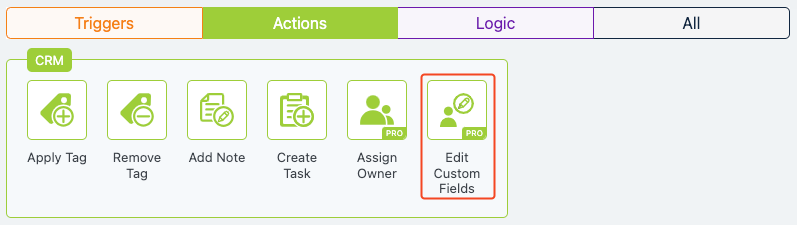
The Edit Custom Fields action in Groundhogg allows you to update metadata associated with a contact or user profile within a flow. This action enables dynamic modifications to contact data, such as adding, subtracting, multiplying, dividing, or deleting custom field values, making it a powerful tool for managing and personalizing contact information.
Extension Required!
The Edit Custom Fields Action is available with the Advanced Features addon. It can be purchased separately or as part of the Agency, Pro or Plus Plans.
When to Use
Use the Edit Custom Fields action when you need to:
- Automate data management tasks to keep contact records accurate and up-to-date.
- Update contact metadata based on flow interactions, such as incrementing a purchase count.
- Perform calculations on existing metadata, like adjusting a loyalty points balance.
- Remove outdated or irrelevant metadata from a contact’s profile.
How It Works
The Edit Custom Fields action is added to a Groundhogg flow, where it modifies metadata for the contact at that stage. You can specify the metadata key, the operation (e.g., add, subtract, multiply, divide, delete), and the value to apply. The action supports numerical and text-based metadata, and changes are saved automatically once the flow is published. This action requires the Groundhogg Advanced Features addon, available separately or as part of the Agency, Pro, or Plus Plans.

Setup Instructions
- Add the Action to Your Flow
- Configure the Settings
- Click on the Edit Custom Fields action to open the settings panel.
- In the “Meta Changes” section, click the “+” to add a row.
- Enter the metadata key (e.g., loyalty_points).
- Select the operation: Add, Subtract, Multiply, Divide, or Delete.
- Enter the value (e.g., 10 for adding 10 points).
- Add additional rows for multiple metadata changes if needed.
- Save Your Changes
Example Use Case
A fitness center uses a Groundhogg flow to manage member check-ins. After a member submits a check-in form, the Edit Custom Fields action is triggered to increment the visit_count metadata by 1. For example, when member Jane checks in, her visit_count increases from 5 to 6. Additionally, the action multiplies her reward_points by 1.1 to give a 10% bonus for consistent visits. These updates help the center track attendance and reward loyal members automatically.
FAQs / Troubleshooting
Q: Why isn’t the Edit Custom Fields action available in my Groundhogg installation?
A: This action requires the Groundhogg Advanced Features addon. Ensure it is installed and activated. You can purchase it at Groundhogg Advanced Features or as part of the Agency, Pro, or Plus Plans.
Q: Can I use this action to update text-based metadata?
A: Yes, you can use the “Add” operation to set or update text-based metadata, or “Delete” to remove it. Numerical operations (Add, Subtract, Multiply, Divide) are suited for numeric values.
Q: What happens if the metadata key doesn’t exist for a contact?
A: If the metadata key doesn’t exist, Groundhogg will create it and apply the specified value (e.g., setting loyalty_points to 10 if it was previously undefined).
Q: How do I verify the metadata was updated?
A: Check the contact’s profile in Groundhogg under the “More” tab to view the updated metadata values.