
Assign Owner
Overview
The Assign Owner action in Groundhogg enables you to assign or reassign a contact to one or more owners within a flow. This action, available with the Advanced Features addon, is ideal for managing lead distribution and ensuring the right team member handles a contact at specific stages of the flow.
Extension Required!
The Assign Owner Action is available with the Advanced Features addon. It can be purchased separately or as part of the Agency, Pro or Plus Plans.
When to Use
Use the Assign Owner action when you need to:
Update ownership when a contact moves from marketing to sales.
- Assign a new lead to a specific sales representative after form submission.
- Reassign a contact to a different owner based on their behavior or stage in the flow.
- Distribute contacts among multiple team members for load balancing.
How It Works
When a contact reaches the Assign Owner action, Groundhogg updates the contact’s owner field to the selected user(s). This ensures the assigned owner(s) can view and manage the contact in their Groundhogg dashboard. The action requires the Advanced Features addon, which can be purchased separately or as part of the Agency, Pro, or Plus plans.

Setup Instructions
- Ensure the Advanced Features Addon is Installed
- Add the Action to Your Flow
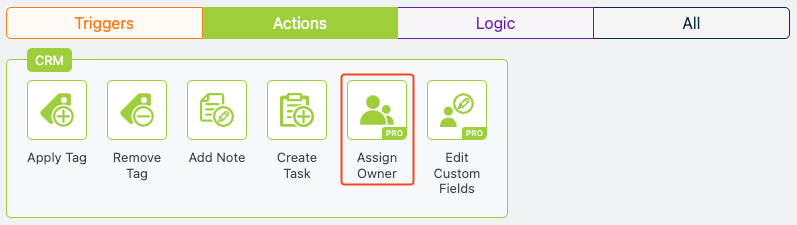
- In the flow builder, find the Assign Owner action in the right-hand panel.
- Drag and drop it into your flow at the desired step.
- Configure Owner Settings
- Assign Owner: Select one or more users to assign as the contact’s owner(s).
- Ensure the selected users have appropriate roles (e.g., Administrator, Sales Manager).
- Save Your Changes
Example Use Case
A real estate agency uses a flow to handle inquiries from potential buyers. After a contact submits a property inquiry form, the Assign Owner action assigns the contact to a specific agent based on the property’s location. For instance, a contact inquiring about a downtown listing is assigned to Agent Jane, who specializes in that area. Jane receives the contact in her dashboard and follows up promptly, improving response time and customer satisfaction.
FAQs / Troubleshooting
Q: Why can’t I see the Assign Owner action?
A: The Assign Owner action requires the Advanced Features addon. Ensure it’s installed and activated.
Q: Can I assign multiple owners to a single contact?
A: Yes, you can select multiple owners in the settings, and the contact will be assigned to all of them.
Q: What happens if no owner is selected?
A: If no owner is selected, the contact’s owner field remains unchanged. Always verify your settings before saving.
Q: Where can I purchase the Advanced Features addon?
A: Visit Groundhogg’s pricing page to purchase the addon or a plan that includes it.