
Send Email
Overview
The Send Email action in Groundhogg allows you to automatically send an email to a contact as part of a flow. This action is highly customizable, enabling you to select from pre-existing emails or create new ones to fit your marketing needs. It’s a key component for engaging contacts at the right moment.
When to Use
Use the Send Email action when you need to deliver a specific email to a contact immediately after a trigger or event in your flow. Common scenarios include sending welcome emails, follow-up messages, promotional offers, or transactional confirmations like order receipts. This action is ideal for time-sensitive communications or nurturing leads through targeted email sequences.
How It Works
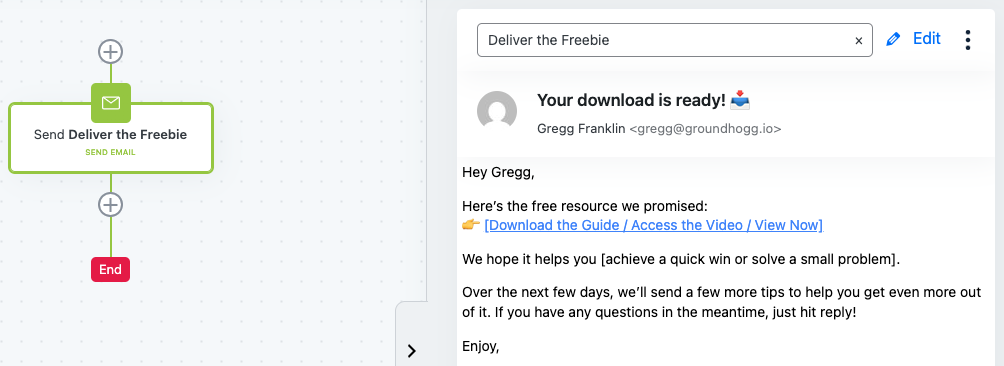
The Send Email action is added to a flow as a step. Once added, you select an email from your Groundhogg email library or create a new one. The action triggers when a contact reaches that step in the flow, sending the chosen email instantly. You can customize the email content, use replacement codes for personalization.
Setup Instructions
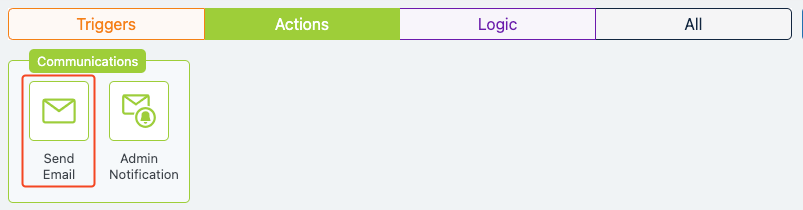
- Add the Action to Your Flow: In the Groundhogg flow builder, drag the “Send Email” action from the right-hand sidebar into your flow at the desired step.
- Select an Email: Click the action to open its settings. Use the dropdown menu to choose an existing email from your Groundhogg email library. If needed, create a new email by clicking the edit option.
- Save and Test: Save the flow and test it using Groundhogg’s flow testing feature to ensure the email sends as expected.
Example Use Case
A small e-commerce business uses the Send Email action in a flow to automate order confirmations. After a contact completes a purchase (triggered by a “Purchase” event), the flow moves to the Send Email action, which sends a pre-designed order confirmation email. The email includes the customer’s name, order details, and a thank-you message, all personalized using replacement codes. This automation saves time and ensures customers receive immediate confirmation, improving their experience.
FAQs / Troubleshooting
Q: Why isn’t my email sending?
A: Ensure an email is selected in the action settings (a triangle icon indicates no email is chosen). Check if conditional logic is preventing the email from sending and verify that the flow is active.
Q: Can I edit the email after adding it to the flow?
A: Yes, you can edit the email directly from the action settings by selecting the email and clicking the edit option, or by updating it in the Groundhogg email library.
Q: How do I personalize emails?
A: Use replacement codes like {first_name} or {email} in the email content. These codes pull data from the contact’s profile for personalization.
Q: Can I send emails based on specific conditions?
A: Yes, you can use delay timers, Logic steps, and conditional logic settings to send emails only when certain criteria are met, such as specific time, tags, or contact actions.