
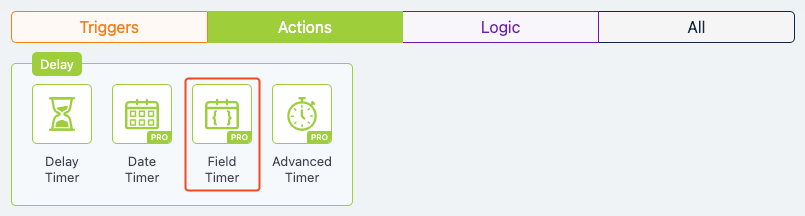
Field Timer
Overview
The Field Timer action in Groundhogg allows you to pause a flow until a specific date stored in a contact’s custom field is reached. This action is ideal for scheduling flow steps based on dynamic, contact-specific dates, such as follow-ups or reminders tied to user-provided information. Note that this action requires the Advanced Features addon, available separately or as part of the Agency, Pro, or Plus Plans.
Extension Required!
The Field Timer Action is available with the Advanced Features addon. It can be purchased separately or as part of the Agency, Pro or Plus Plans.
When to Use
Use the Field Timer action when you need to delay a flow step until a date stored in a contact’s custom field, such as a preferred follow-up date, subscription renewal, or event registration. It’s particularly useful for personalized automation where timing depends on individual contact data rather than a fixed schedule.
How It Works
The Field Timer action pauses the flow until the date specified in a selected custom field is reached. You can configure whether the action runs in the contact’s local time and define what happens if the specified date has already passed (e.g., pass through, skip to another step, or stop the flow). Once the designated date arrives, the flow resumes with the next step.
Setup Instructions
- Add the Action to Your Flow: Drag the “Field Timer” action from the right-hand panel into your flow at the desired point.
- Configure Settings:
- Custom Field: Select the custom field containing the date (e.g., {preferred_date}).
- Run in Local Time: Check the box to run the action based on the contact’s local time zone, if applicable.
- If Date Has Passed: Choose an action for when the date has already passed:
- Pass Through: Continue to the next step immediately.
- Skip to Step: Jump to a specified step in the flow.
- Stop the Flow: Halt the flow entirely.
- Save Changes: Click the “Publish Changes” button to save your settings.
Example Use Case
A fitness coaching business uses a flow to manage client onboarding. After a client submits a web form with their preferred start date for training, stored in the {training_start_date} custom field, the Field Timer action pauses the flow until that date. Once the date arrives, the flow sends a welcome email and assigns a coach, ensuring the client receives timely communication aligned with their chosen schedule.
FAQs / Troubleshooting
Q: What happens if the custom field is empty or contains an invalid date?
A: If the custom field is empty or the date is invalid, the action will treat it as a passed date and follow the “If Date Has Passed” setting (e.g., pass through, skip, or stop).
Q: Does the Field Timer require the Advanced Features addon?
A: Yes, the Field Timer action is only available with the Groundhogg Advanced Features addon, which can be purchased separately or as part of the Agency, Pro, or Plus Plans. Visit Groundhogg Pricing for details.
Q: Can I use replacement codes in the custom field selection?
A: The Field Timer relies on a specific custom field containing a valid date. Replacement codes can be used in other actions (e.g., Add Note) but not directly in the field selection for this action.
Q: Why isn’t the flow resuming on the correct date?
A: Ensure the custom field contains a properly formatted date and that the “Run in the contact’s local time” setting aligns with your needs. Also, check if the flow is active and the Advanced Features addon is installed and activated.