


Overview
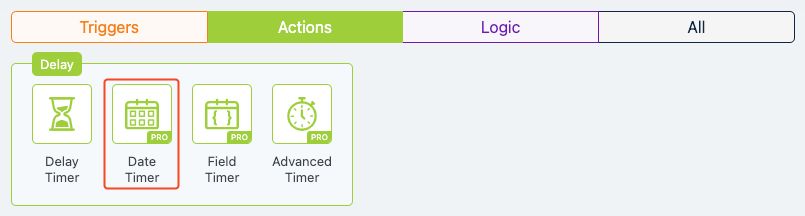
The Date Timer action in Groundhogg allows you to schedule a specific action to occur at a precise date and time within a flow. This action is ideal for time-sensitive tasks, ensuring that the next step in your flow triggers exactly when needed, with the option to account for the contact’s local time.
Extension Required!
The Date Timer Action is available with the Advanced Features addon. It can be purchased separately or as part of the Agency, Pro or Plus Plans.
When to Use
Use the Date Timer action when you need to:
- Control the flow’s progression based on a deadline or event date, with options to handle cases where the specified date has already passed.
- Schedule a flow step to run at a specific date and time, such as sending a reminder email for an event.
- Align actions with a contact’s local time for personalized timing.
How It Works
The Date Timer action pauses the flow until the specified date and time are reached. You can configure it to run in the contact’s local time or a fixed time. If the designated date has passed when a contact reaches this step, you can choose one of three outcomes: pass through to the next step, skip to a specific step, or stop the flow entirely. This action requires the Advanced Features addon, which is available with the Agency, Pro, or Plus Plans or as a standalone purchase.
Setup Instructions
- Add the Action to Your Flow:
- Configure Settings:
- Click the Date Timer action to open the settings panel.
- Wait till: Enter the specific date (e.g., 01/14/2023) and time (e.g., 09:00 AM). Optionally, check “Run in the contact’s local time” for time zone alignment.
- If date has passed: Select an option:
- Pass Through: Continue to the next step.
- Skip to Step: Jump to a designated step in the flow.
- Stop the Flow: Halt the flow for this contact.
- Save Changes:
Example Use Case
A webinar host uses a Groundhogg flow to manage registrations. After a contact signs up via a web form, the Date Timer action is set to trigger a reminder email exactly one day before the webinar on March 10, 2025, at 10:00 AM in the contact’s local time. If a contact joins the flow after the webinar date, the “Pass Through” option ensures they proceed to a step offering a recording of the session, maintaining engagement without manual intervention.
FAQs / Troubleshooting
Q: What happens if I don’t have the Advanced Features addon?
A: The Date Timer action requires the Advanced Features addon. You can purchase it separately or as part of the Agency, Pro, or Plus Plans at Groundhogg Pricing.
Q: Can I use replacement codes in the Date Timer settings?
A: Replacement codes are not supported in the Date Timer action, as it focuses on static date and time inputs. Use custom fields or other actions for dynamic data.
Q: Why isn’t the action triggering at the correct time?
A: Ensure the date and time are set correctly and check if “Run in the contact’s local time” is enabled. Verify that your Groundhogg installation has the correct time zone settings. If issues persist, contact support at Groundhogg Support.
Q: What if the date has already passed for some contacts?
A: Configure the “If date has passed” setting to handle these cases appropriately (e.g., skip to a relevant step or stop the flow).
Was this helpful?
Let us know if this document answered your question. That’s the only way we can improve.