


Overview
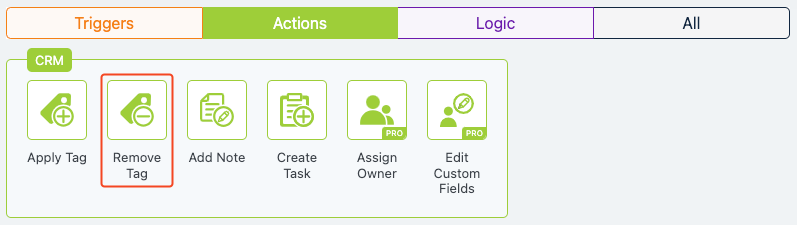
The Remove Tag action in Groundhogg allows you to automatically remove one or more tags from a contact within a flow. This action is useful for updating a contact’s status, cleaning up outdated tags, or ensuring accurate segmentation.
When to Use
Use the Remove Tag action when you want to:
- Stop other flows triggered by specific tags.
- Remove tags that are no longer relevant (e.g., “Prospect” after a contact becomes a customer).
- Update a contact’s status to prevent them from receiving certain emails.
- Clean up tags to maintain accurate segmentation.
How It Works
When a contact reaches the Remove Tag action, Groundhogg removes the specified tags from the contact’s record. This ensures the contact’s tag list remains accurate and relevant, which is critical for segmentation and flow triggers. If a tag doesn’t exist on the contact, the action simply skips it.

Setup Instructions
- Add the Action to Your Flow
- Configure Tag Settings
- Remove These Tags: Enter the tags you want to remove, separated by commas (e.g., “Prospect, Follow-Up”).
- Verify that the tags match those already applied to contacts.
- Save Your Changes
Example Use Case
A fitness coaching business uses a flow to onboard new clients. After a contact completes their onboarding process, the Remove Tag action removes the “New Lead” and “Onboarding” tags, replacing them with a “Client” tag using the Apply Tag action. This ensures the contact no longer receives onboarding emails and is correctly segmented for client-specific campaigns.
FAQs / Troubleshooting
Q: What happens if I try to remove a tag that isn’t on the contact?
A: The action will skip any tags that don’t exist on the contact, and no error will occur.
Q: Can I remove multiple tags at once?
A: Yes, enter multiple tags separated by commas in the Remove These Tags field.
Q: Why aren’t the tags being removed?
A: Ensure the flow is active and the contact has reached the Remove Tag step. Double-check the tag names for accuracy.
Q: Can I undo a tag removal?
A: Tag removal is permanent, but you can add the tags back using the Apply Tag action in another flow step.
Was this helpful?
Let us know if this document answered your question. That’s the only way we can improve.