


Overview
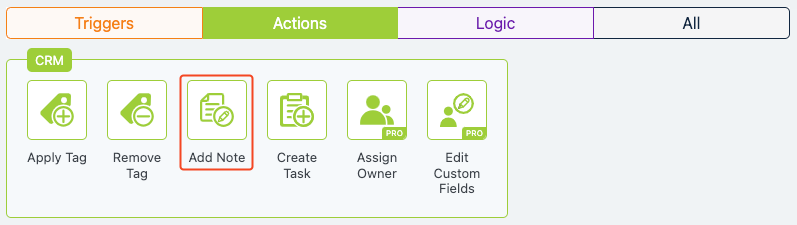
The Add Note action lets you automatically attach a note to a contact’s record while they move through a flow. Notes are helpful for tracking context, recording milestones, or adding internal comments your team can refer to later.
All notes appear in the Notes section of the contact profile and are timestamped.
When to Use
Use this action when you want to:
- Leave a record of important events or decisions
- Add internal commentary about the contact’s journey
- Flag actions taken in the flow for future reference
- Support sales, support, or success teams with contextual info
How It Works
When this action runs, a note is created and added to the contact’s profile. Notes are internal — the contact won’t see them.
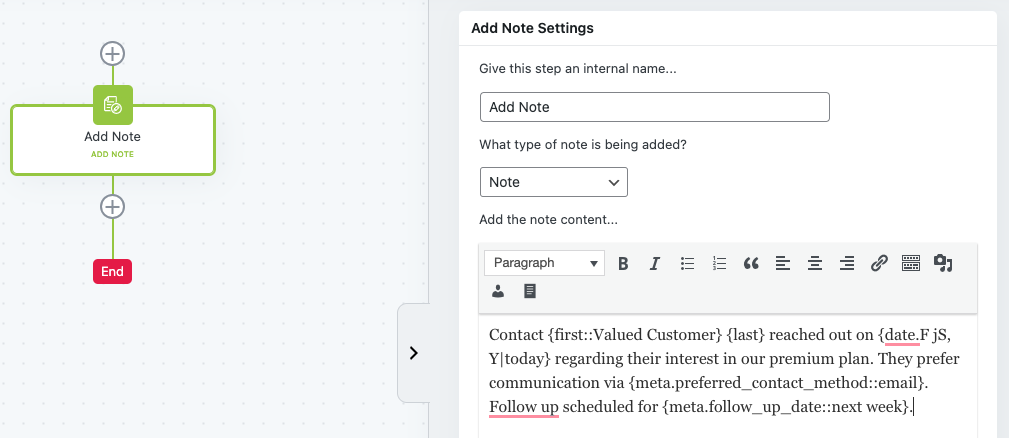
You can include dynamic content in the note using replacement codes like {first_name}, {current_date}, or any custom field.
Finally, select the note type to best describe what the note is being added for.
- Note – for generic notes
- Calls – for phone or video calls
- Email – for email replies or other email activity
- Meeting – for digital or in person meetings
Setup Instructions
- In your flow, add a new action step.
- Choose Add Note from the list.
- Write your note content in the text area.
- Select the most appropriate note type.
- Use replacement codes to include dynamic data.
Example Use Case
When a lead submits a demo request form, you can add a note with the request details:
{first_name} submitted the demo form on {date.Y-m-d|now}. Is curious about {interest::CRM}.This helps your team stay in the loop as the contact moves through the flow and their broader customer journey.
FAQs / Troubleshooting
Q: Can the contact see the note?
A: No — notes are internal only. They appear in the contact’s record under the Notes section.
Q: Can I tag team members or assign notes?
A: Notes are not assignable by default, but you can mention context like “Assigned to John” in the note content.
Q: Can I include dynamic info?
A: Yes! Replacement codes like {email}, {tag_names}, or any custom field will work inside the note.
Was this helpful?
Let us know if this document answered your question. That’s the only way we can improve.