
Documentation » Troubleshooting
Recommended Test Procedures
Testing Flows
To test flows the best method is to use the Flow Simulator. It provides as easy and interactive UI to walk you through your flows as any contact in your CRM.
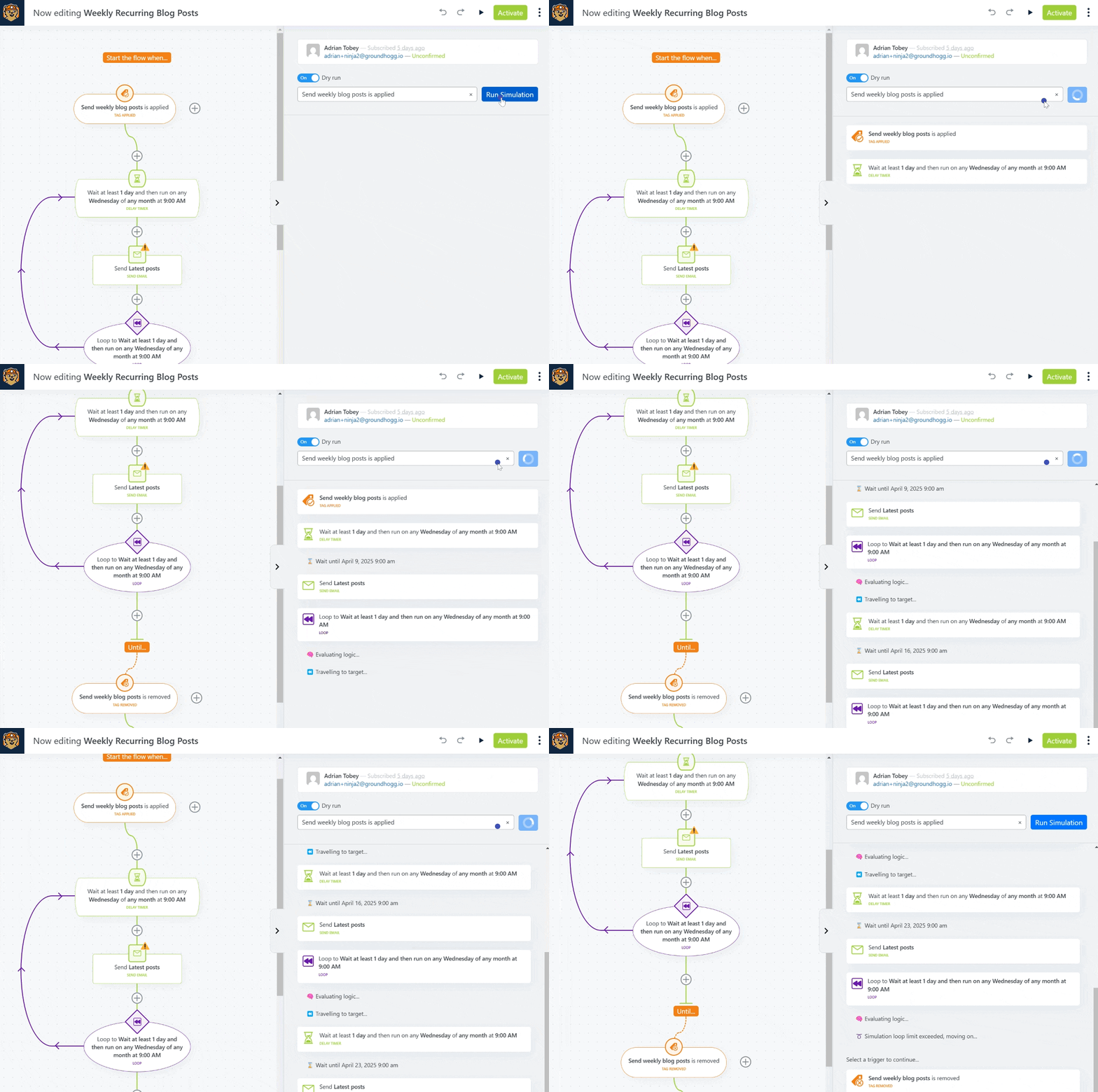
Testing Emails
To test an email, open any email in the email editor (Groundhogg >> Emails >> Select any template, or create a new one).
In the header you will see 4 adjacent buttons, click the ✉️ icon to send a test email to yourself.
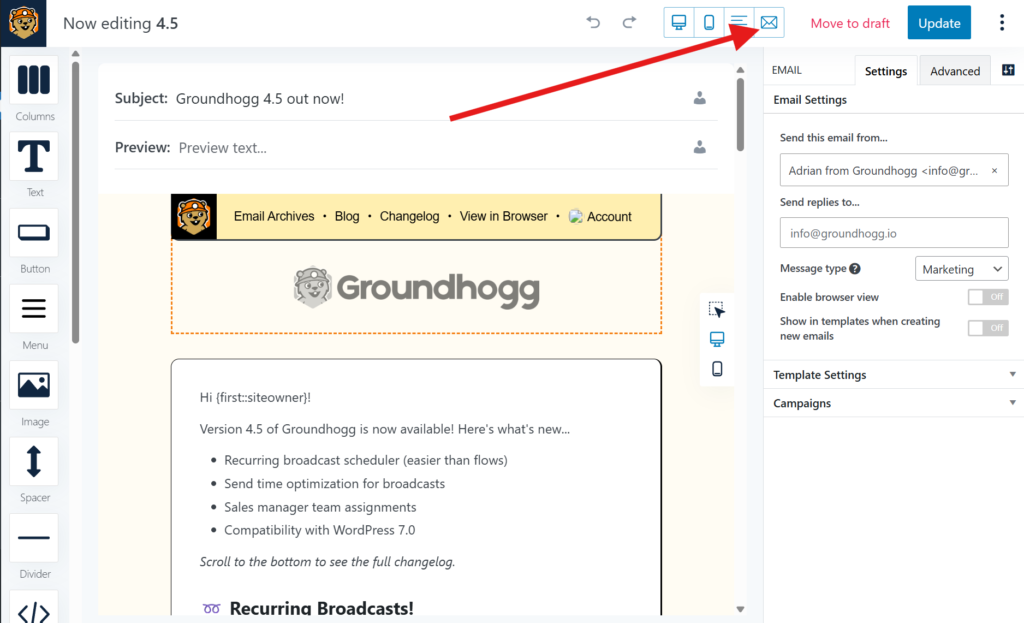
You’ll have two options:
- Design Test
A design test sends the email as a design only preview, with no tracking links, conditional content, or other features functioning. - Simulated Test
A simulated test sends a test email as if it were sent through a flow or broadcast, so all the features will work as intended based on the contact profile you used for the test.
Pick the test option that’s best suited.
Testing Links in Emails
When clicking and testing tracking links or superlinks in emails, we always recommend opening links in an incognito window. That’s because there might be a mismatch between the contact record you’re testing with, and the user account you’re logged in with.
Groundhogg treats the logged in user as precedent, meaning in the case of a mismatch any tracking activity during the session is applied to the logged-in user and not the identified contact from the tracking links.
Testing Content Restriction
When you’re logged in as an administrator, content restriction will not apply to you, even if the linked contact record should theoretically match your filters. So you should open your site in a new incognito window and open a tracking link to the site from the contact record you want to test with in that incognito window.