
Documentation » Troubleshooting
Tracking links/superlinks not working
If you’ve noticed that tracking links, superlinks, or confirmation links are not working, follow this guide to understand what’s happening, and how to fix it!
Fix permalinks
If you’ve just spun up a new WordPress site and just installed Groundhogg, chances are WordPress permalinks are not configured correctly.
Easy fix!
- Go to WordPress >> Settings >> Permalinks
- You’ll notice that the current setting is likely set to Plain, change it to any other, we recommend Post Name.
- Save your changes!
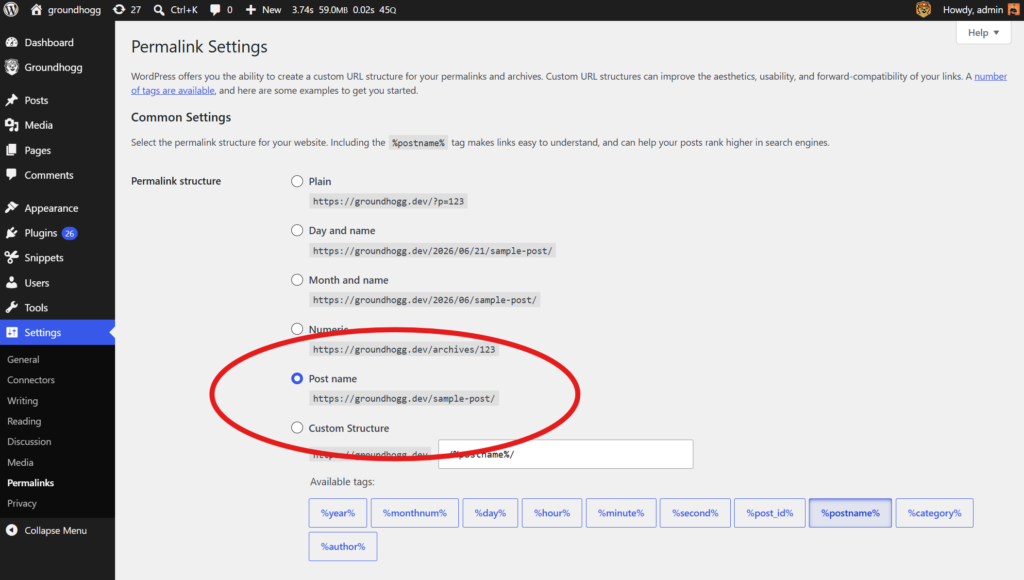
Tracking links should now be working.
Logged-in user/contact mismatch
It could also be that you’re clicking tracking links (trying to test them) while logged in as an administrator or other user account. Groundhogg treats the current logged in user as precedent meaning tracking activity for a session is applied to the logged-in user and not necessarily the contact identified by the tracking link itself.
So you’re looking in a contact record wondering why activity is not showing up, while it’s in the contact record associated with your user account (if there is one).
You can change this behavior by disabling Logged-in user tracking precedence in Groundhogg >> Settings >> Misc >> Site Activity Tracking.
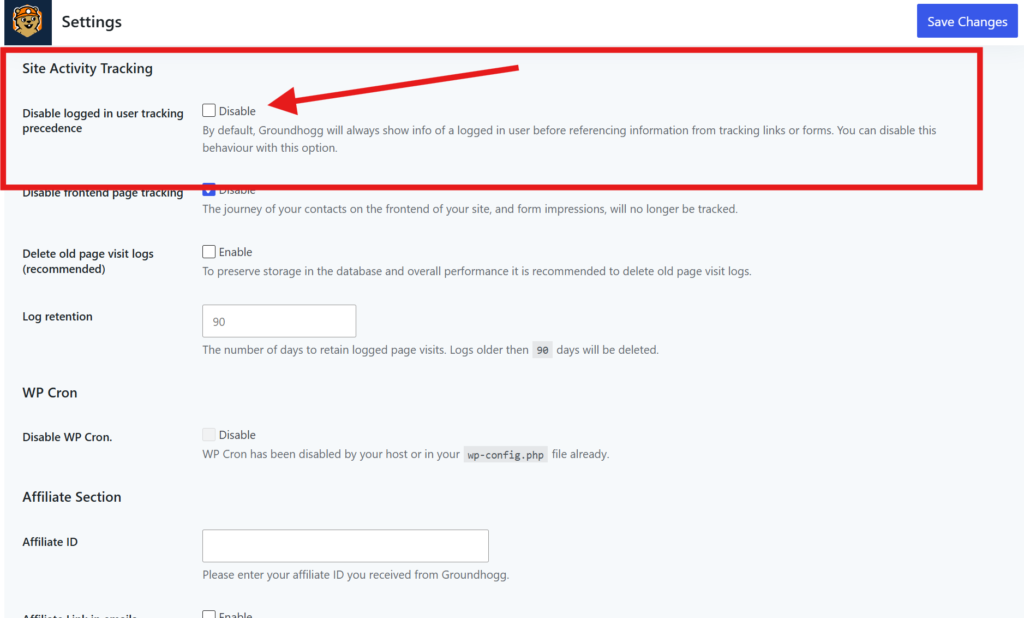
If disabled, tracking activity will be applied to the identified contact from the tracking link regardless of whether or not you are logged in.
Clicks are recorded but flows don’t run
If you see link clicks in a contact’s activity, but Link Click triggers, superlinks, or other tracked activity aren’t firing for that contact, the tracking cookie is likely not being set.
When a contact clicks a tracking link in an email, Groundhogg records the click and sets the groundhogg-tracking cookie during the redirect to the destination. Some hosts and CDNs strip cookies from redirect responses. When that happens the click is still logged, but on the next page Groundhogg doesn’t know who the visitor is, so nothing fires for them.
This often shows up as triggers that work for some contacts and not others.
To fix it, enable the tracking redirect page.
- Go to Groundhogg >> Settings >> Email
- Scroll down to the Tracking section.
- Check Use Tracking Redirect Page.
- Save your changes!
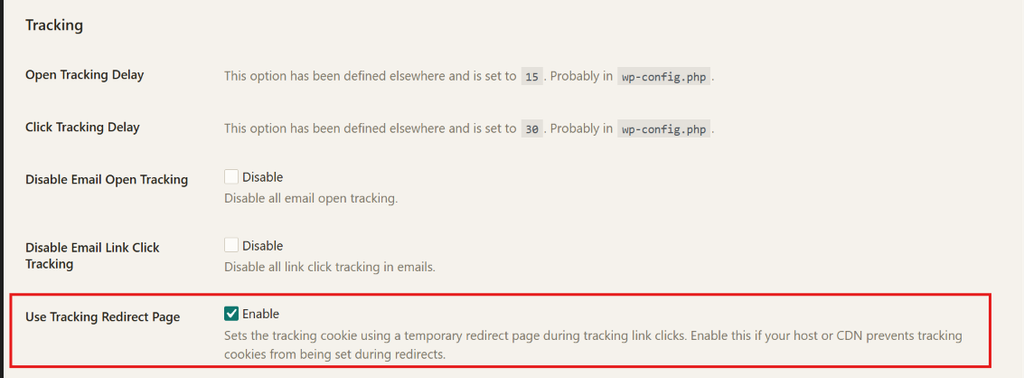
With this enabled, Groundhogg sets the tracking cookie on a brief in-between page before sending the contact on to the destination, so the cookie can’t be stripped by the redirect.
To test, send a fresh email to a test contact, open it in a private browser window where you’re not logged in, and click a link. The expected trigger should now fire.
It’s also worth making sure /gh/* is excluded from your page cache. See Caching Compatibility for recommended exclusions.