


Overview
The Create User action in Groundhogg enables the automatic creation of a WordPress user account for a contact within a flow. This action streamlines user management by assigning roles and handling existing users, making it ideal for membership sites, online courses, or any system requiring user account creation tied to contact interactions. Note that this action requires the Groundhogg Advanced Features addon.
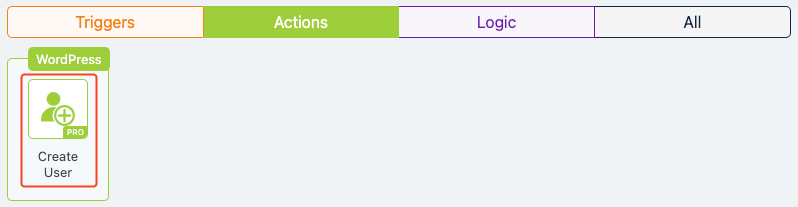
Extension Required!
The Create User Action is available with the Advanced Features addon. It can be purchased separately or as part of the Agency, Pro or Plus Plans.
When to Use
Use the Create User action when you need to:
- Integrate user creation into automated workflows for seamless onboarding.
- Automatically generate WordPress user accounts for contacts submitting forms (e.g., for course enrollment or membership registration).
- Assign specific user roles to contacts based on their actions in a flow.
- Send notifications to newly created users or handle cases where a user already exists.
How It Works
When a contact reaches the Create User action in a flow, Groundhogg creates a WordPress user account using the contact’s details (e.g., email, first name, last name). You can define the user role, username format, and whether to send a notification to the new user. If the user already exists, you can choose to do nothing, set a new role, or add an additional role. For security, Groundhogg prevents editing users with the edit_contacts capability to avoid unintended role changes, such as demoting an administrator.
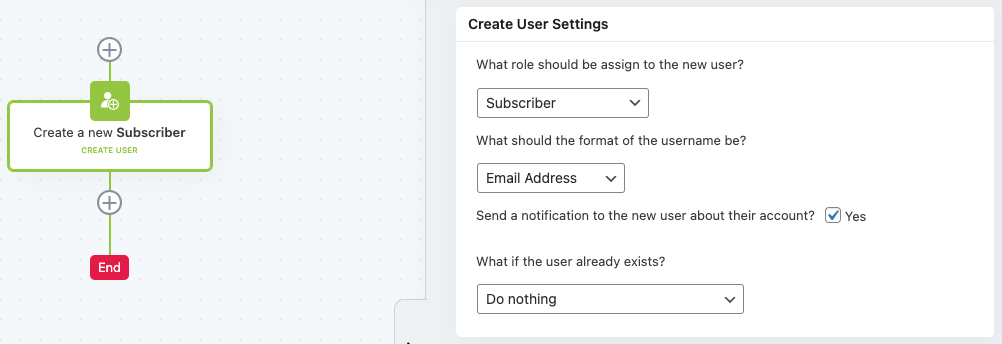
Setup Instructions
- Add the Action to Your Flow
- Configure User Role
- Select the desired user role (e.g., Subscriber, Contributor) from the “User Role” dropdown.
- Set Username Format
- Choose the username format from options like Email Address, First + Last, Last + First, or Custom Format.
- Enable New User Notification
- Check the “Send new user notification?” box to email the newly created user with their account details.
- Handle Existing Users
- Select an option for cases where the user already exists:
- Do nothing
- Set the role to the selected role
- Add the selected role as an additional role
- Select an option for cases where the user already exists:
- Save Changes
Example Use Case
Imagine you run an online learning platform where users sign up for a course via a Groundhogg form. When a contact submits the form, the flow tags them as a “Course Registrant” and triggers the Create User action. The action creates a WordPress user with the “Subscriber” role, using their email as the username, and sends a welcome email with login details. If the contact already has an account, the flow adds the “Subscriber” role without altering their existing permissions. This automation ensures seamless access to course content while keeping your user management organized.
FAQs / Troubleshooting
Q: Why isn’t the Create User action available in my Groundhogg installation?
A: The Create User action requires the Groundhogg Advanced Features addon. Ensure it’s installed and activated. You can purchase it at Groundhogg Pricing.
Q: Can I create users with administrator roles?
A: For security, Groundhogg restricts modifying users with the edit_contacts capability, which includes administrators. Choose a non-admin role like Subscriber or Contributor.
Q: What happens if the contact’s email is already associated with a user?
A: You can configure the action to do nothing, set a new role, or add the selected role as an additional one, depending on your needs.
Q: Why didn’t the new user receive a notification?
A: Ensure the “Send new user notification?” box is checked in the action settings. Also, verify that your WordPress email settings are correctly configured to send emails.
Q: Can I customize the username format?
A: Yes, you can select from predefined formats (e.g., Email, First + Last) or use a custom format to suit your needs.
Was this helpful?
Let us know if this document answered your question. That’s the only way we can improve.