


Overview
The Advanced Timer action in Groundhogg allows you to schedule flow steps using flexible, human-readable time expressions, such as “next Friday at 6:00 PM” or “last day of this month.” Unlike fixed-date timers, it supports dynamic scheduling based on relative dates and times, stored in UTC. This action is available in the Basic plan or higher and requires the Advanced Features addon.
Extension Required!
The Advanced Timer Action is available with the Advanced Features addon. It can be purchased separately or as part of the Agency, Pro or Plus Plans.
When to Use
Use the Advanced Timer when you need to delay flow steps until a specific relative time or date, such as a particular day of the week, a time frame (e.g., “next week”), or a recurring schedule (e.g., “first Monday of the month”). It’s ideal for flows requiring precise timing without hard-coded dates, like scheduling follow-up emails or tasks aligned with business cycles.
How It Works
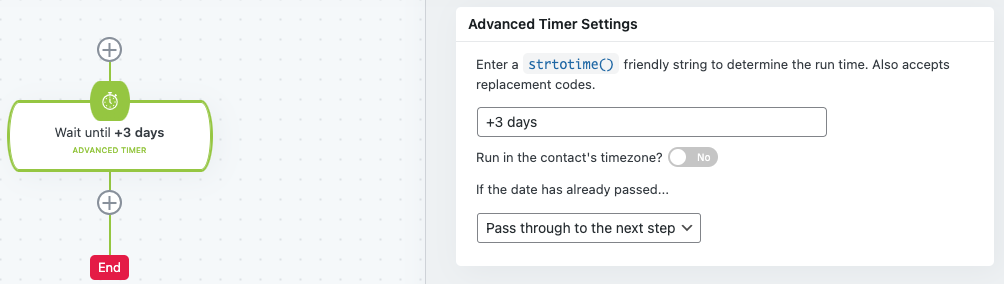
The Advanced Timer uses PHP’s strtotime function to interpret natural language time inputs, storing all times in UTC. It does not rely on your WordPress local time settings, so you may need to adjust for your timezone. After setting a time (e.g., “Friday 6:00 PM”), the flow pauses until the specified time, then proceeds to the next step. You can verify the calculated run time after saving the flow.
Setup Instructions
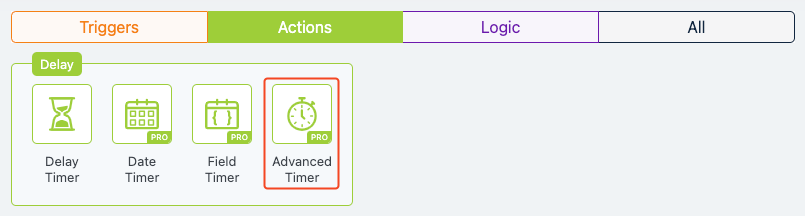
- Add the Action to Your Flow
- Configure the Timer Settings
- Time Input: Enter a time expression, such as “Monday 9:00 AM,” “last Friday of this month,” or “next week.” Supported formats include:
- Days of the week (e.g., “Monday,” “Mon”)
- Days with times (e.g., “Friday 6:00 PM”)
- Time frames (e.g., “today,” “next week”)
- Specific relative dates (e.g., “first Friday,” “last day of this month”)
- Time Input: Enter a time expression, such as “Monday 9:00 AM,” “last Friday of this month,” or “next week.” Supported formats include:
- Save and Verify
- Click “Publish Changes” to save. Check the displayed “next run” time to ensure it matches your expectations.
Example Use Case
A marketing agency wants to send a promotional email every first Monday of the month at 10:00 AM to re-engage leads. They add an Advanced Timer action to their flow, setting it to “first Monday of this month 10:00 AM.” After a lead submits a web form, the flow pauses until the specified time, then triggers the email. The agency confirms the timing using the displayed run time and adjusts for their CST timezone, ensuring consistent delivery.
FAQs / Troubleshooting
Q: Why is my flow running at the wrong time?
A: The Advanced Timer uses UTC, not your WordPress local time. Convert your desired time to UTC using a tool like utctime.net and input accordingly.
Q: Can I use specific dates like “2025-04-30”?
A: Yes, but formats like “last day of 2021-4 6:00 AM” work best. Avoid ambiguous formats like “last day of 4/2021,” which may cause errors.
Q: What happens if I set a time like “2:00 PM”?
A: Without a date, it runs daily at 2:00 PM UTC. Specify a date or relative time (e.g., “next Friday 2:00 PM”) for one-time execution.
Q: Why did my “fifth Friday” setting run unexpectedly?
A: Numerical strings like “fifth Friday” count from when the flow is saved, not the current month. Use “last Friday of this month” for monthly precision.
Q: Is the Advanced Timer included in my plan?
A: It requires the Advanced Features addon, available with the Basic plan or higher. Check groundhogg.io/pricing for details.
Was this helpful?
Let us know if this document answered your question. That’s the only way we can improve.