


Overview
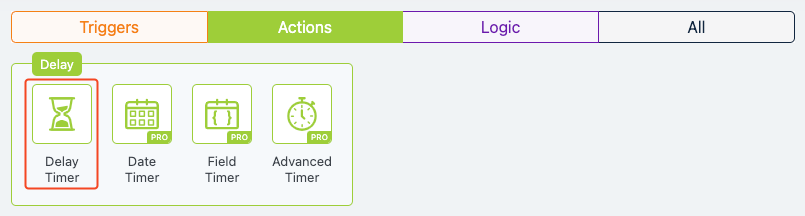
The Delay Timer action in Groundhogg allows you to pause the progression of a flow for a specified duration before triggering the next step. This action provides flexibility in scheduling subsequent actions by setting precise time intervals and conditions for when the next step should execute, such as specific days or times.
When to Use
Use the Delay Timer action when you need to:
- Align flow steps with a contact’s expected response time or campaign timeline.
- Space out automated actions, such as emails or tasks, to avoid overwhelming contacts.
- Schedule follow-ups at optimal times, like during business hours or on specific days.
How It Works
The Delay Timer action halts the flow for a defined period (e.g., minutes, hours, days) and can be configured to resume on specific days (e.g., weekdays, weekends, or a particular day of the week/month) and at specific times (e.g., 9:00 AM). Once the delay conditions are met, the flow proceeds to the next step. This action is added to the flow via a drag-and-drop interface and configured through a settings panel.
Setup Instructions
- Add the Action to Your Flow:
- Configure Delay Settings:
- Click the Delay Timer action to open the settings panel.
- Wait at least…: Enter a numeric value and select a time unit (Minutes, Hours, Days, Weeks, Months, Years, or No delay).
- Then run on…: Choose when the next step should run (Any day, Weekday, Weekend, Day of week, or Day of month). If selecting a specific day, choose from Monday, Tuesday, etc.
- Then run at…: Select Any time or a Specific time. If specific, input the desired time (e.g., 05:00 PM).
- Save Your Changes:
- Click the “Publish Changes” button to save the settings.
- The Delay Timer will now pause the flow according to your specified duration and conditions before proceeding.
Example Use Case
A small business uses a flow to onboard new subscribers who sign up via a web form. After sending a welcome email, they add a Delay Timer action set to wait 3 days and run on weekdays at 10:00 AM. This ensures the next step, a promotional offer email, is sent during business hours when the contact is more likely to engage, improving open rates and conversions.
FAQs / Troubleshooting
Q: What happens if the specified day/time has passed?
A: If the delay period ends on a non-qualifying day (e.g., a weekend when set to weekdays), Groundhogg will wait until the next valid day/time to proceed.
Q: Can I use replacement codes in the Delay Timer settings?
A: No, replacement codes are not supported in the Delay Timer action, as it deals with time-based settings rather than contact-specific data.
Q: Why isn’t the next step triggering after the delay?
A: Ensure the flow is active, the delay settings are correctly configured, and the specified day/time is in the future. Check the contact’s flow history for any errors.
Q: Is the Delay Timer action available in all Groundhogg plans?
A: Yes, the Delay Timer action is available in all Groundhogg plans, as it is a core feature of the flow builder.
Was this helpful?
Let us know if this document answered your question. That’s the only way we can improve.