


Overview
The Create Task action in Groundhogg allows you to automatically generate tasks for contacts within a flow. This action is designed to streamline task management by assigning tasks to specific team members, setting due dates, and categorizing tasks by type (e.g., General Task, Call, Email, Meeting). It’s an effective way to ensure follow-ups and actions are tracked directly in the contact’s record.
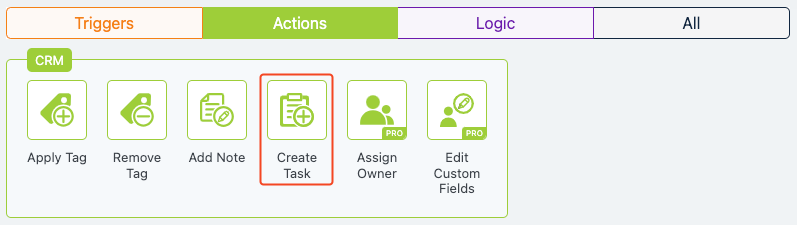
When to Use
Use the Create Task action when you need to assign actionable follow-ups to team members as part of an automated flow. Common scenarios include:
- Ensuring tasks are logged for sales reps to act on high-priority leads.
- Scheduling a follow-up call after a contact submits a form.
- Assigning a meeting task when a lead reaches a specific stage.
- Creating a general task for an administrator to review a contact’s details.
How It Works
When a contact reaches the Create Task action in a flow, Groundhogg creates a task in the contact’s record under the Tasks tab. The task includes a summary, detailed description (supporting replacement codes for dynamic data), a due date, a type, and an assigned user (e.g., Contact Owner or a specific team member with roles like Administrator, Marketer, Sales Manager, or Sales Representative). The assigned user can then view and manage the task within Groundhogg.
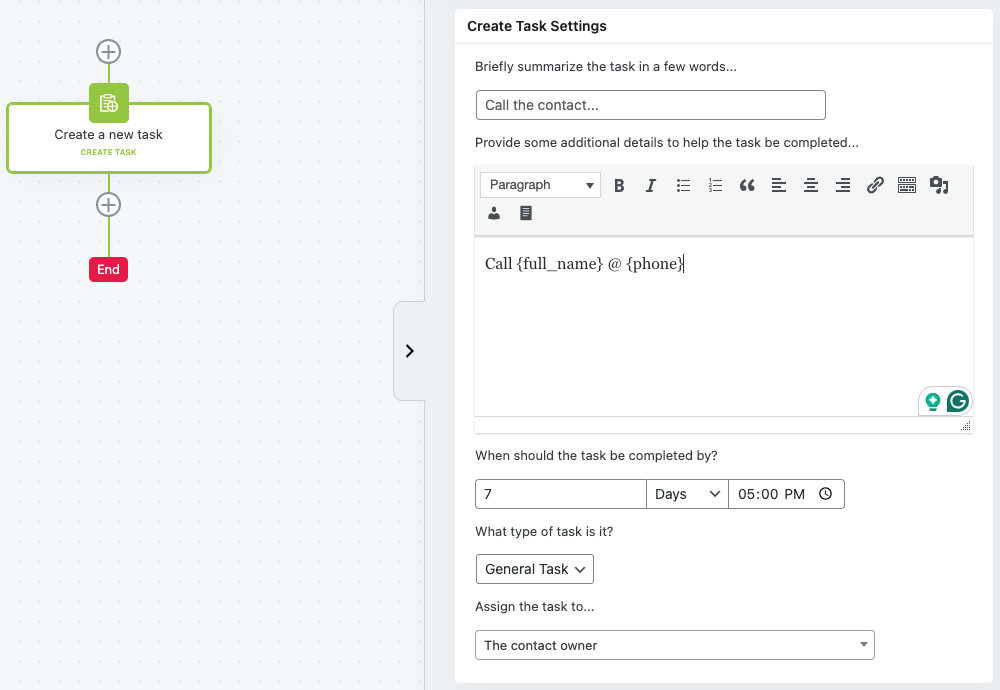
Setup Instructions
- Add the Action to Your Flow
- Configure Task Settings
- Task Summary: Enter a brief description of the task (e.g., “Follow up with contact”).
- Details: Provide detailed instructions or context. Use replacement codes (e.g., {first_name}) for personalization.
- Task Due Date: Specify the deadline in days, weeks, or months, and set a time (e.g., 7 days at 5:00 PM).
- Type: Choose the task type (General Task, Call, Email, or Meeting).
- Assigned to: Select the Contact Owner or a user with an Administrator, Marketer, Sales Manager, or Sales Representative role.
- Save Your Changes
Example Use Case
WA digital marketing agency uses a flow to manage new leads. After a contact submits a consultation form, the flow triggers the Create Task action to assign a “Call” task to the contact’s owner. The task summary is “Call {first_name} for consultation,” with details noting the contact’s interest in SEO services and a due date of 3 days. The sales representative receives the task in the contact’s Tasks tab, makes the call, and updates the task status, ensuring no lead is overlooked.
FAQs / Troubleshooting
Q: Can I assign tasks to multiple users?
A: No, the Create Task action assigns a task to a single user. To assign tasks to multiple users, create separate Create Task actions in the flow.
Q: Why isn’t the task appearing in the contact’s record?
A: Ensure the flow is active and the contact has reached the Create Task step. Check that the task is assigned to a valid user with the appropriate role.
Q: Can I use replacement codes in the task summary?
A: Yes, replacement codes are supported in both the summary and details fields. Refer to the Groundhogg documentation on replacement codes for more details.
Q: What happens if the due date passes?
A: The task will be marked as overdue in the contact’s Tasks tab, alerting the assigned user to take action.
Was this helpful?
Let us know if this document answered your question. That’s the only way we can improve.