


The Contact Record is the detailed view of a single contact, showing all of their information, activity, and interactions in one place. Open a contact record by clicking a contact’s email address, or the Edit action, from the Contact Table.
The record is organized into three columns — a profile and contact details on the left, activity and notes in the center, and additional insights on the right — so you can view contact details, track activity, and manage CRM interactions without leaving the page.
Contact Profile
At the top of the left column, the Contact Profile card displays the contact’s basic identity: profile picture or avatar, name, email address, website, primary and mobile phone, location, contact status, local time and subscription date (hover over either date to see the full date and time), and birthdate. Additional fields can appear here depending on which extensions you have installed.
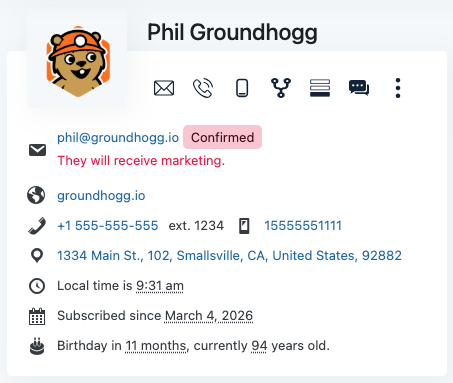
Next to the profile picture is a quick actions menu:
- Send Envelope Icon – send an email directly to the contact.
- Mobile Phone Icon – initiate a phone call using the stored mobile number.
- Flow Icon – add the contact to an automation flow.
- Form Icon – trigger internal processes or record data.
- Kebab icon – open the options to merge or delete the contact.

Tags
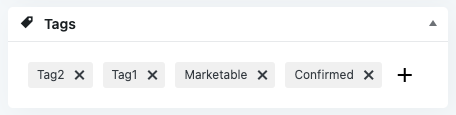
The Tags card displays every tag assigned to the contact, and lets you add or remove tags directly. Tags are one of the primary ways contacts are segmented, used throughout Groundhogg to organize your CRM and trigger automations.
Contact Information
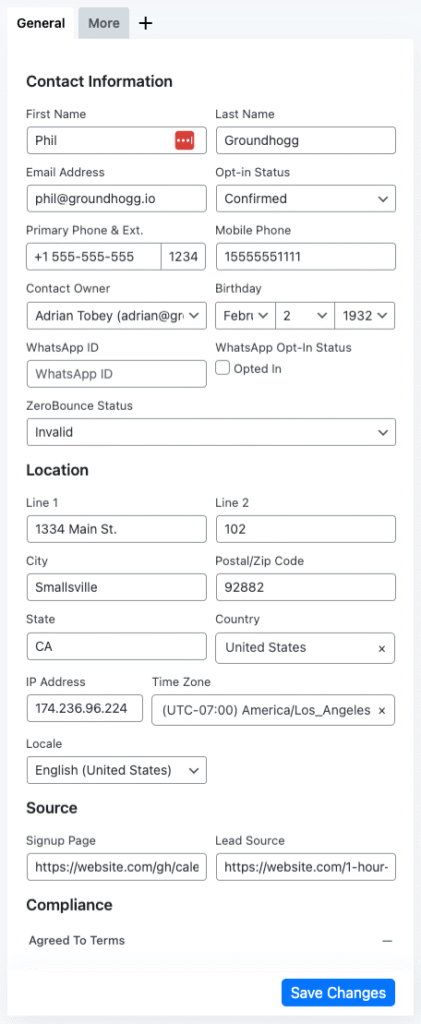
Below the profile and tags is the Contact Information panel, with editable fields organized into tabbed sections.
General
The General tab holds the core contact fields, grouped into four sections: contact information (first name, last name, email address, opt-in status, primary phone and extension, mobile phone, contact owner, and birthday), location (address lines, city, postal code, state, country, IP address, time zone, and locale), source (signup page and lead source), and compliance (agreed to terms, data processing consent, and marketing consent). These fields are used throughout Groundhogg for personalization and segmentation.
More
The More tab holds additional contact methods and metadata, giving advanced users and integrations a place to store extra information about a contact.
Custom Tabs
You can create custom tabs containing custom fields — for example, social media information, feedback or survey responses, or CRM fields specific to your business — so the contact record can be extended and adapted to your workflow.
Activity
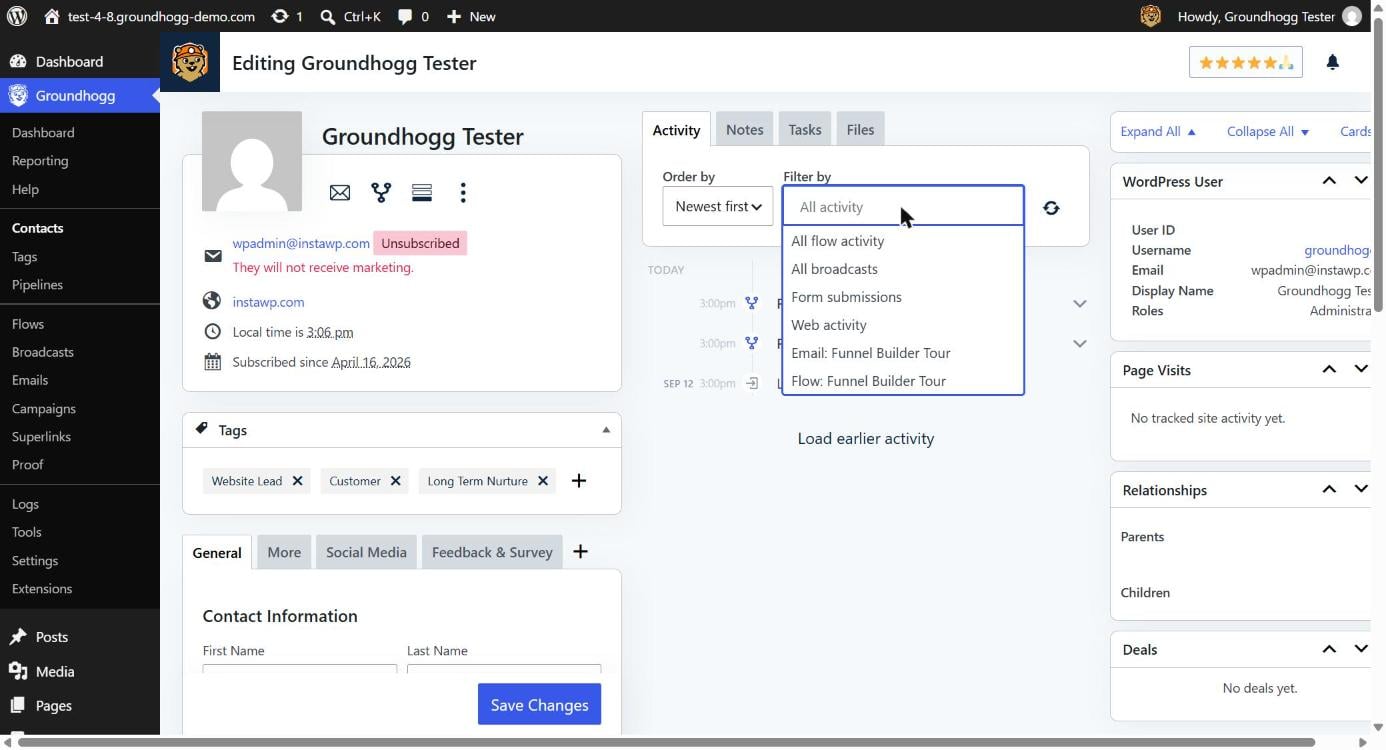
The Activity tab, in the center column, shows a chronological timeline of everything the contact has done across your website, emails, and automations — emails sent and opened, links clicked, forms submitted, pages visited, flow steps completed, and other automation events.
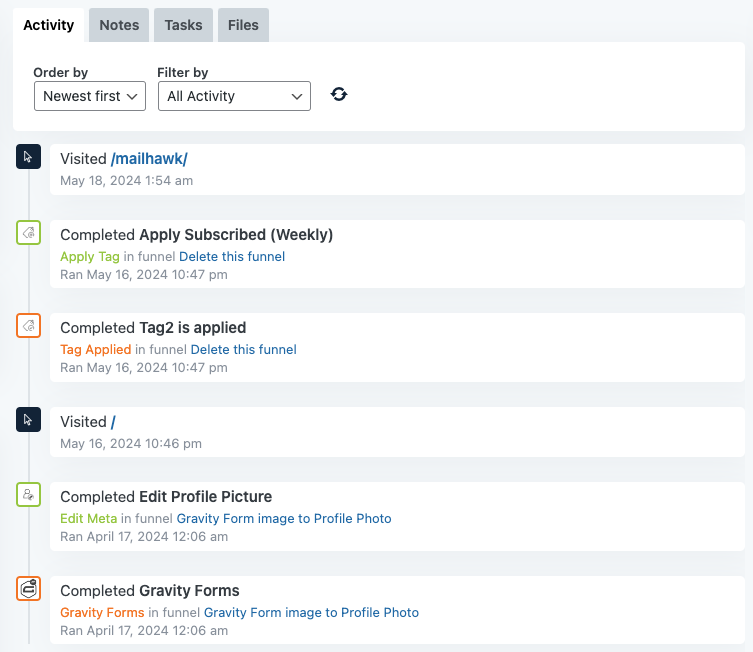
The timeline stays readable even for highly active contacts, since related events are grouped automatically: the individual steps of a flow run collapse into a single entry, and each browsing session becomes one entry that expands to show the pages visited during it. Email opens and clicks are nested under the email they belong to, so you can see at a glance whether an email was opened or clicked without a separate line for every event. If a flow step fails, the failure appears directly in the timeline along with its error, so you don’t have to leave the contact record to see what went wrong.
Use the Filter by dropdown above the timeline to narrow the feed to a specific type of activity, or to a specific email or flow: All activity shows every event; All flow activity shows only automation events, including failures; All broadcasts shows only broadcast opens and clicks; Form submissions shows only submitted forms; Web activity shows only page visits and browsing sessions; and the dropdown also lists individual emails and flows so you can isolate activity for just one of them.
Notes
The Notes tab lets you record internal notes about a contact — useful for documenting conversations, tracking important events, or storing context about your relationship with them. Notes are internal only and are never visible to the contact, helping your team maintain a clear history of interactions.
To add a note, open the contact record, click the Notes tab, and enter and save your note. Notes are displayed in chronological order, and Groundhogg supports note templates so you can quickly insert pre-written notes for common situations like call summaries, meeting notes, or support interactions.
Tasks
The Tasks tab, also in the center column, lets you create and manage tasks tied to a specific contact — commonly used to track follow-ups, schedule calls, assign work to team members, or manage sales and support activities.
To create a task, open the contact record, click the Tasks tab, and create a new task, assigning it to a user if needed. A task can include a description, due date, and assigned user, and Groundhogg supports task templates so you can quickly create commonly used tasks such as follow-up calls, onboarding steps, or sales activities.
Files
The Files tab lets you upload and store files associated with a contact — contracts, signed agreements, invoices, screenshots, documents, or other supporting materials. Files are stored per contact, so each contact has its own set of uploaded files.
Uploading Files
Open the contact record, click the Files tab, click Upload Files, and select a file from your computer. Once uploaded, it appears in that contact’s file list — use the search field to quickly locate a file if several have been uploaded.
Supported File Types
Groundhogg accepts the most common file types supported by WordPress, including PDFs, images (JPG, PNG, GIF), text files, spreadsheets, and documents (DOCX, XLSX, and similar). Exactly which types are allowed can depend on your WordPress configuration and server settings.
Managing Files
Each uploaded file can be downloaded to your computer or deleted to permanently remove it from the contact record.
Using Files in Emails
Files uploaded to a contact can be referenced in an email or automation using the files replacement code, which outputs a list of files associated with the contact:
{files}This is useful for sending a contact links to documents or attachments that have been uploaded to their profile.
Contact Insights
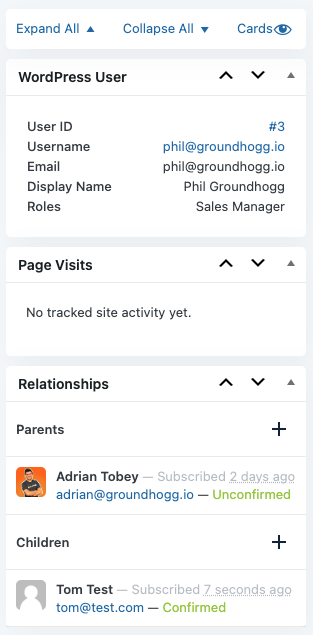
The right column displays additional information about the contact, including system data, website activity, and relationships with other contacts. The cards shown here can vary depending on the extensions and integrations installed on your site, and can be expanded, collapsed, or reordered. By default it includes WordPress User, Page Visits, and Relationships; additional cards may appear if integrations such as eCommerce or memberships are connected to Groundhogg.
Managing Contact Insight Cards
At the top of the column, Expand All and Collapse All adjust every card at once, and Cards lets you toggle specific cards on or off. Individually, you can expand or collapse a card using the arrow icon in its header, drag it to reorder it, or hide it from the Cards menu — so you can keep the cards you use most, like Page Visits, expanded while collapsing the rest.
WordPress User
The WordPress User card shows the WordPress user account linked to the contact, or an option to Create User Account if none exists yet. When a contact is linked to a WordPress user, Groundhogg can sync their email address, user role, login activity, and account information — letting Groundhogg work seamlessly with membership sites, learning platforms, and other plugins that rely on WordPress user accounts.
Page Visits
The Page Visits card shows pages the contact has visited on your website, collected through Groundhogg’s tracking system. It can help you identify highly engaged contacts, understand what content interests someone, and trigger automations based on website behavior — for example, starting an automation when a contact visits a specific page. If no visits have been tracked yet, the card will say so.
Relationships
The Relationships card lets you connect a contact to other contacts in your CRM as a Parent or Child — useful for representing real-world connections such as family members, team members, managers and employees, or other business relationships. A relationship appears in both contact records once created, and a single contact can have multiple parent or child relationships.
Extension Cards
Depending on which extensions and integrations you have installed, additional cards may appear here — for example, WooCommerce customer data, membership information, company records, booking information, or sales pipeline details.
Was this helpful?
Let us know if this document answered your question. That’s the only way we can improve.