Search Filters
Search filters are Groundhogg’s primary tool for contact segmentation. You’ll also find them everywhere in Groundhogg since we use them for search the contact list, flow logic, content restriction, and more!
Groundhogg’s search filters are the more powerful than any other CRM’s segmentation tool because of the sheer amount of data you can segment on and our ability to integrate directly with other plugins.
How it works
You’ll see search filters in many places. The first place will be above the contact list.
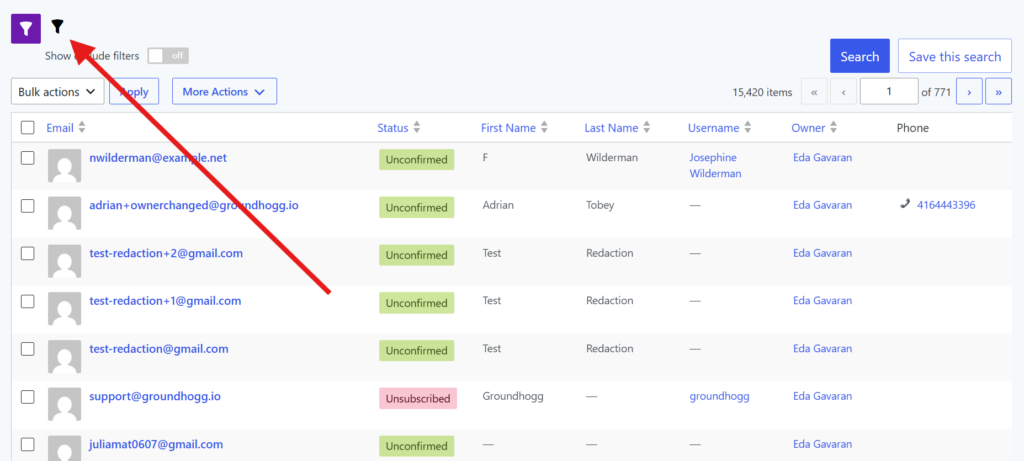
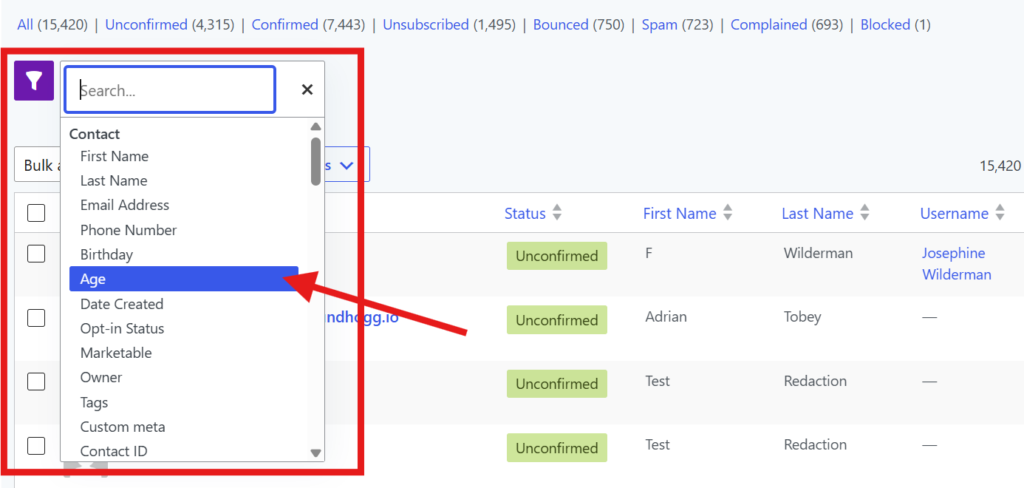
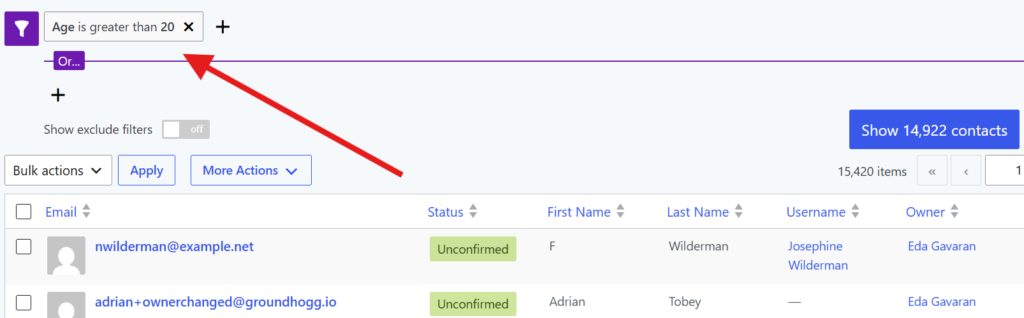
To start segmenting with filters, click the filter icon and select a filter from the dropdown list.
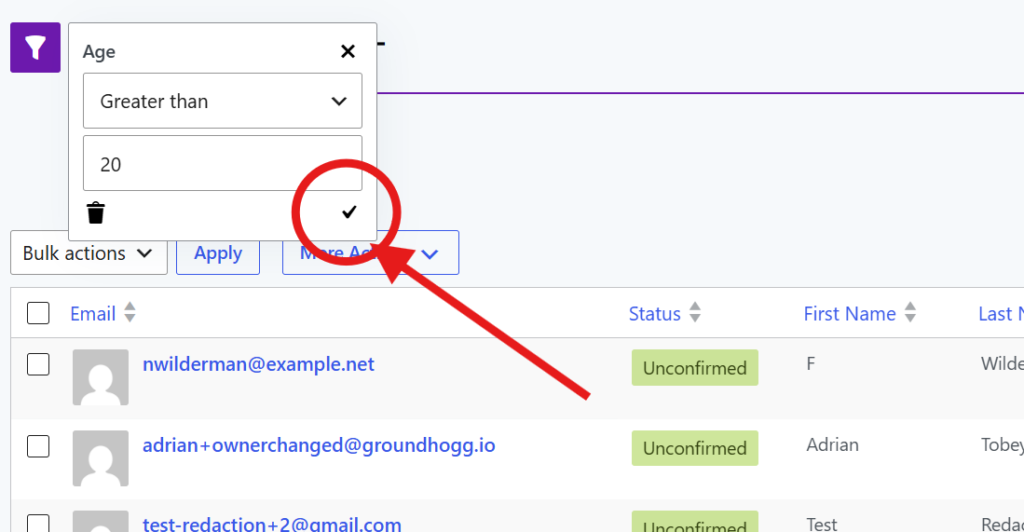
Configure the filter’s settings, then click the [✓] button to apply the filter to your search.
You’ll then see the filter apply to your search with the option to add additional filters.
Combining Multiple Filters
Our search filter system allows to combine filters with AND and OR conditions.
Adjacent filters function as an AND while the purple separator line functions as an OR.
So the resulting logic is ( condition AND condition AND condition ) OR ( condition AND condition )
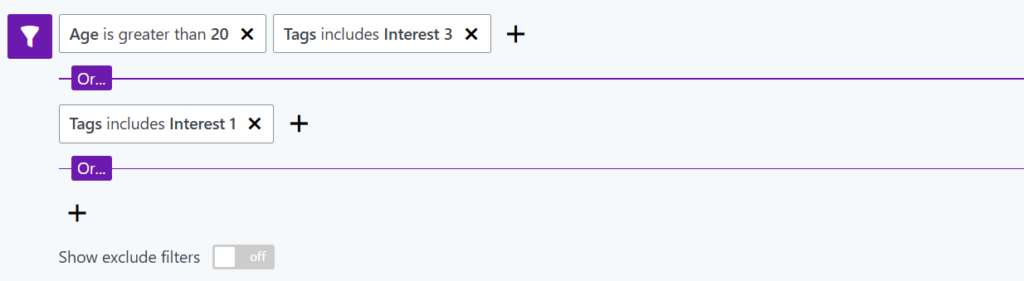
This allows you to create complex queries to get the exact segment you need.
Exclusion Filters
You’ll also see include and exclude filter groups in many places. On the contact list it can be toggled with the Show exclude filters toggle, but in many places it will appear by default.
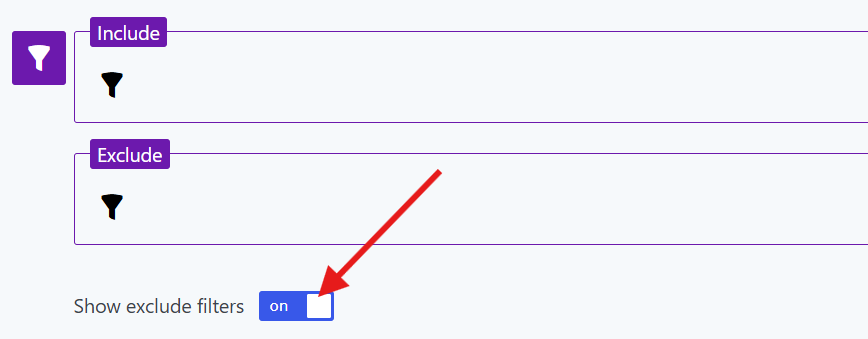
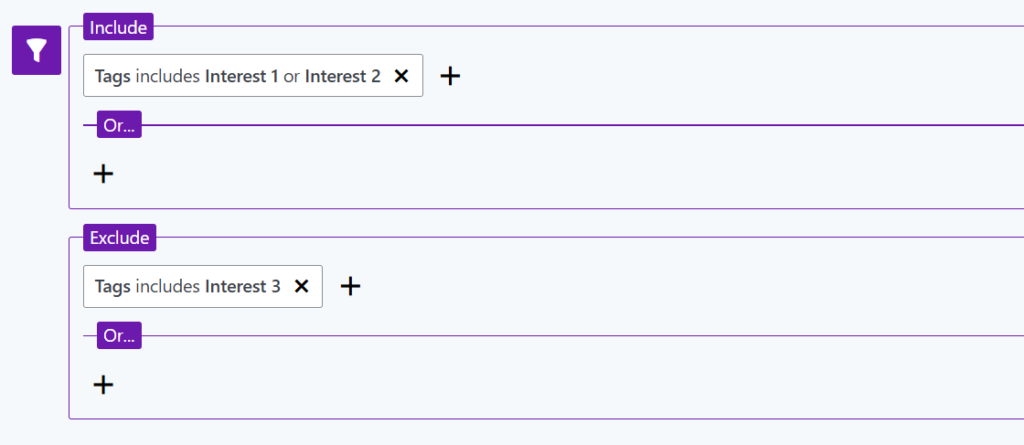
Any filters you add to the exclude group will ensure that any contacts that match those filters will NOT be in the search results.
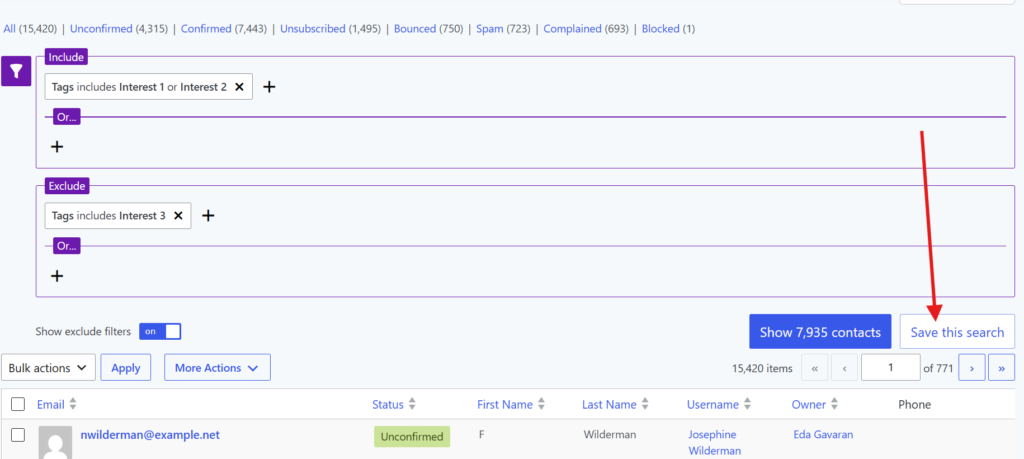
In the following example, contacts that have the Interest 1 or Interest 2 tag will be in the results, but it will exclude anyone that also has the Interest 3 tag, even if they have the other tags.
Saved searches
When you create a search with multiple filters that you plan on re-using, it would be prudent to save it so you can quickly reuse it later.
Whenever you create a search on the contact list only you will see an option to save it next to the search button.
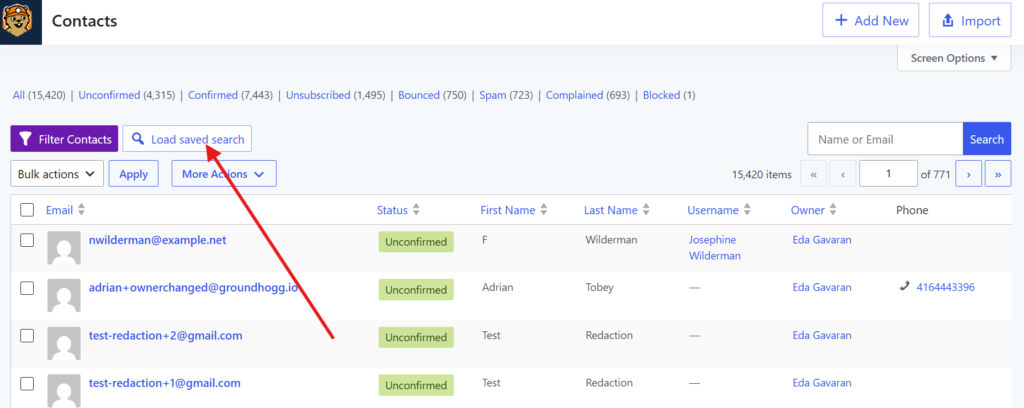
Once you’ve saved your search you can access load it again from the Load Save Search button. Saved searches also appear in other areas in Groundhogg, like in the broadcast scheduler.