


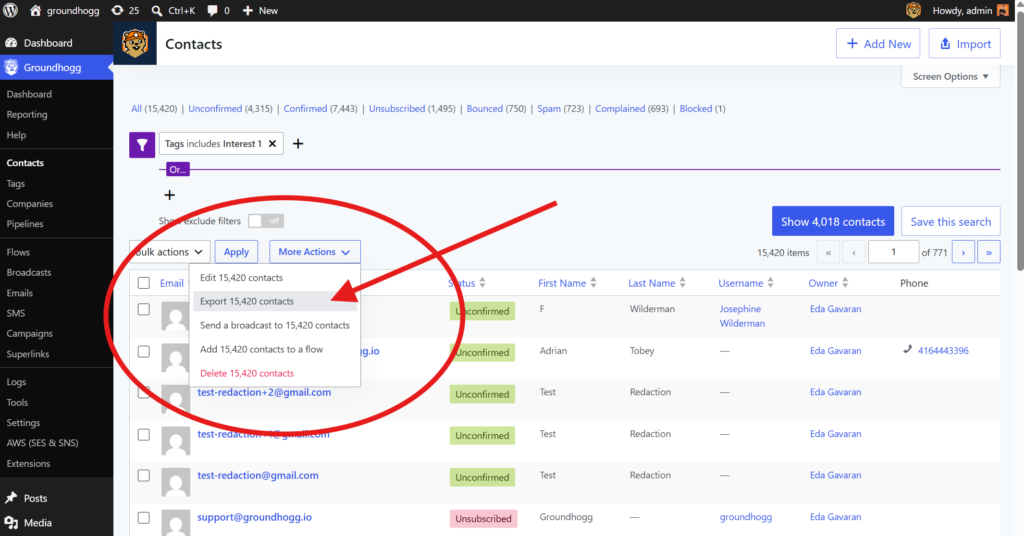
To export your contacts to a CSV file, navigated to Groundhogg >> Contacts and use the search filters to select the contacts you’d like to export.
Once you’ve selected your segment, click on More Actions and select Export Contacts.
You’ll be brought to a screen to select what information you’d like to export. Toggle the fields on the left side and a preview of your export will appear on the right side.
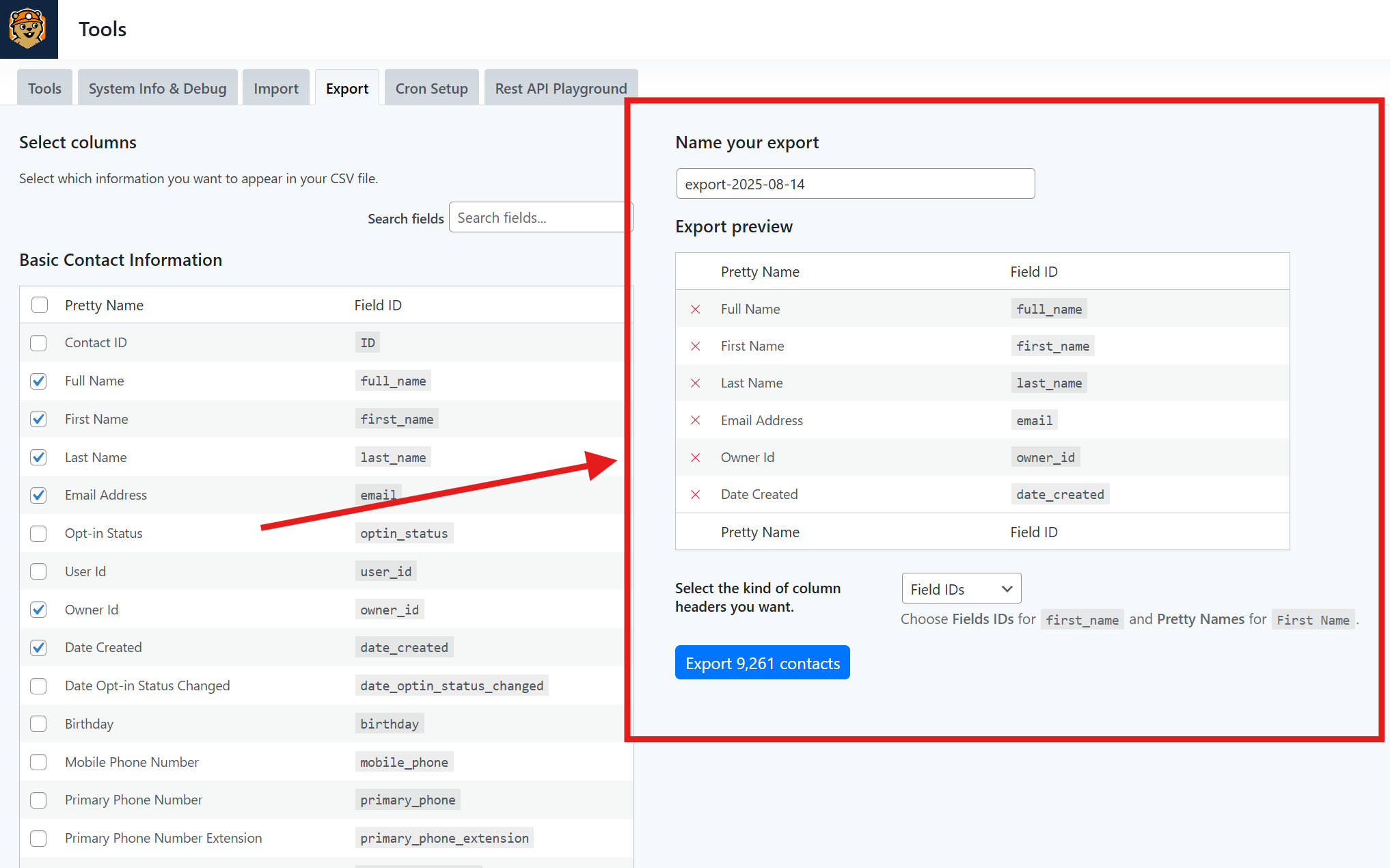
Name your export, and then select which type of column headers you want. You can choose Field Ids which is like first_name, last_name, email, etc… or Pretty Names which is “First Name, Last Name, Email, etc…”
When you click export, it may take a moment for the CSV to be generated. You’ll recieve an email notification to the email address of the logged in account creating the export when it’s ready for download.
Was this helpful?
Let us know if this document answered your question. That’s the only way we can improve.