


You can customize the email editor to match your brand and workflow. Configure reusable fonts, default block settings, color palettes, and social media profiles so every email starts with the right foundation.
These settings help ensure consistency across your email templates while reducing the amount of manual editing required when creating new emails.
Access the Editor Settings
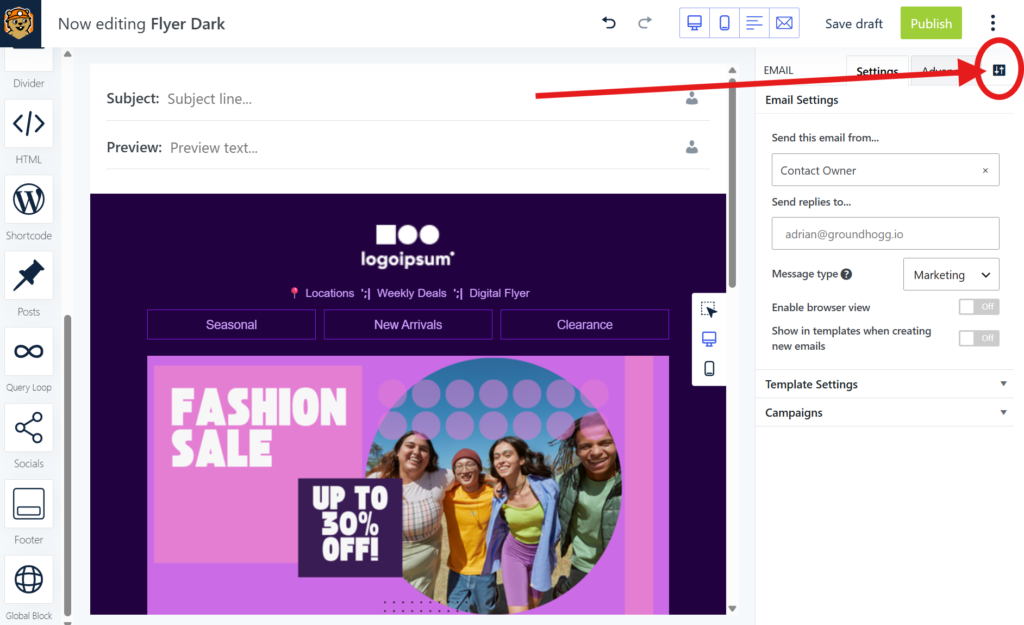
To access the editor settings open any email and click the settings Icon next to the email’s Advanced tab.
Global Fonts
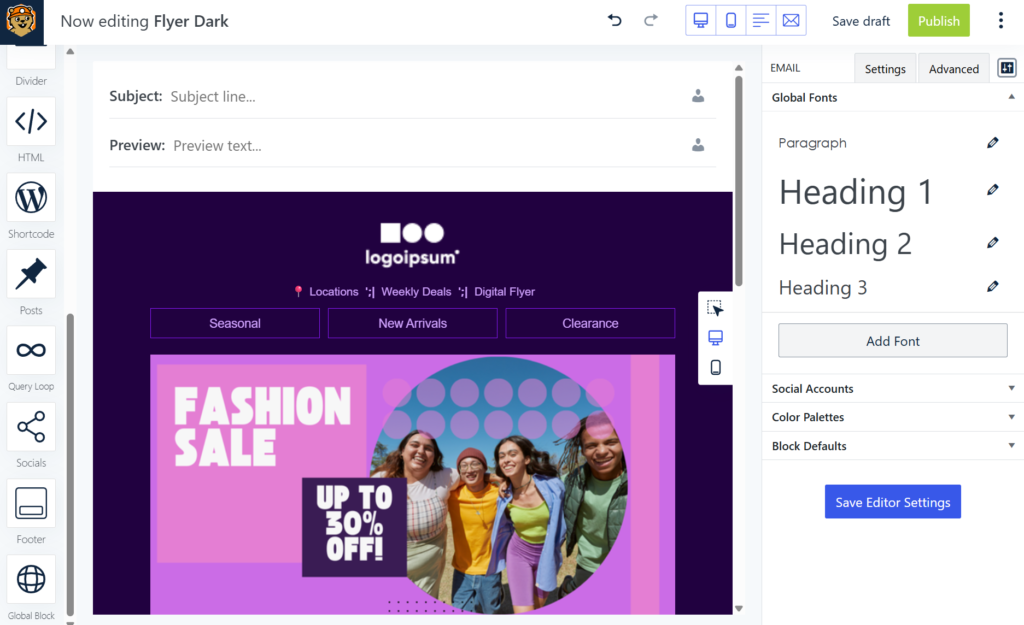
Global Fonts allow you to create reusable font styles that can be applied throughout your emails.
Instead of manually configuring font families, sizes, colors, and styling every time you create content, you can define a set of branded font presets and reuse them whenever needed.
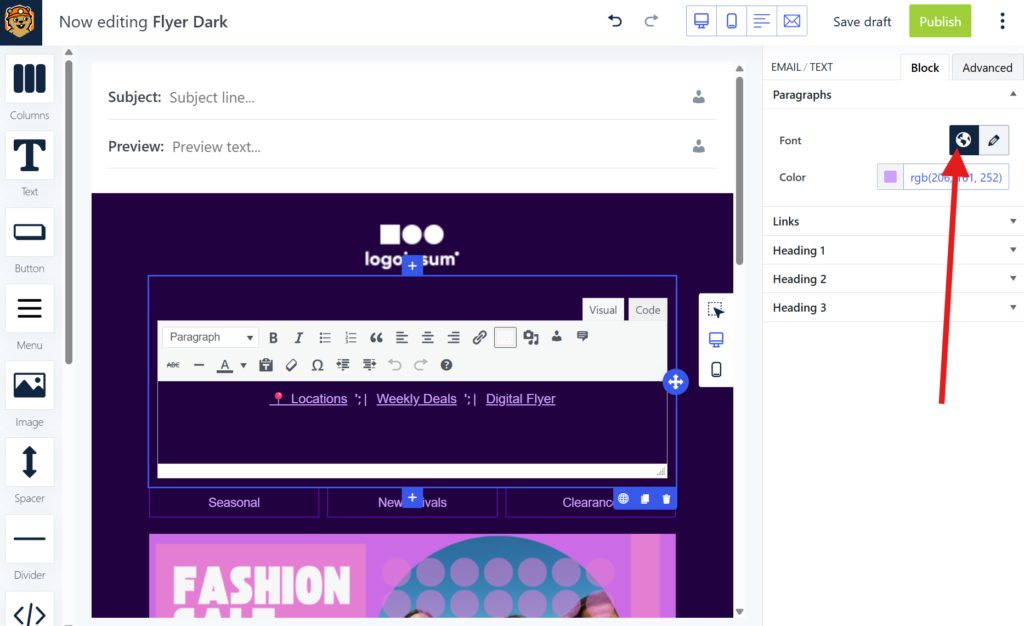
To use a global font in a block, find the block’s font settings and click the 🌍 icon so select your font.
Block Defaults
Block Defaults define the initial settings used whenever a new block is added to an email.
For example, you can configure default padding, spacing, colors, borders, typography, button styles, and other design properties so that new content automatically follows your preferred design standards.
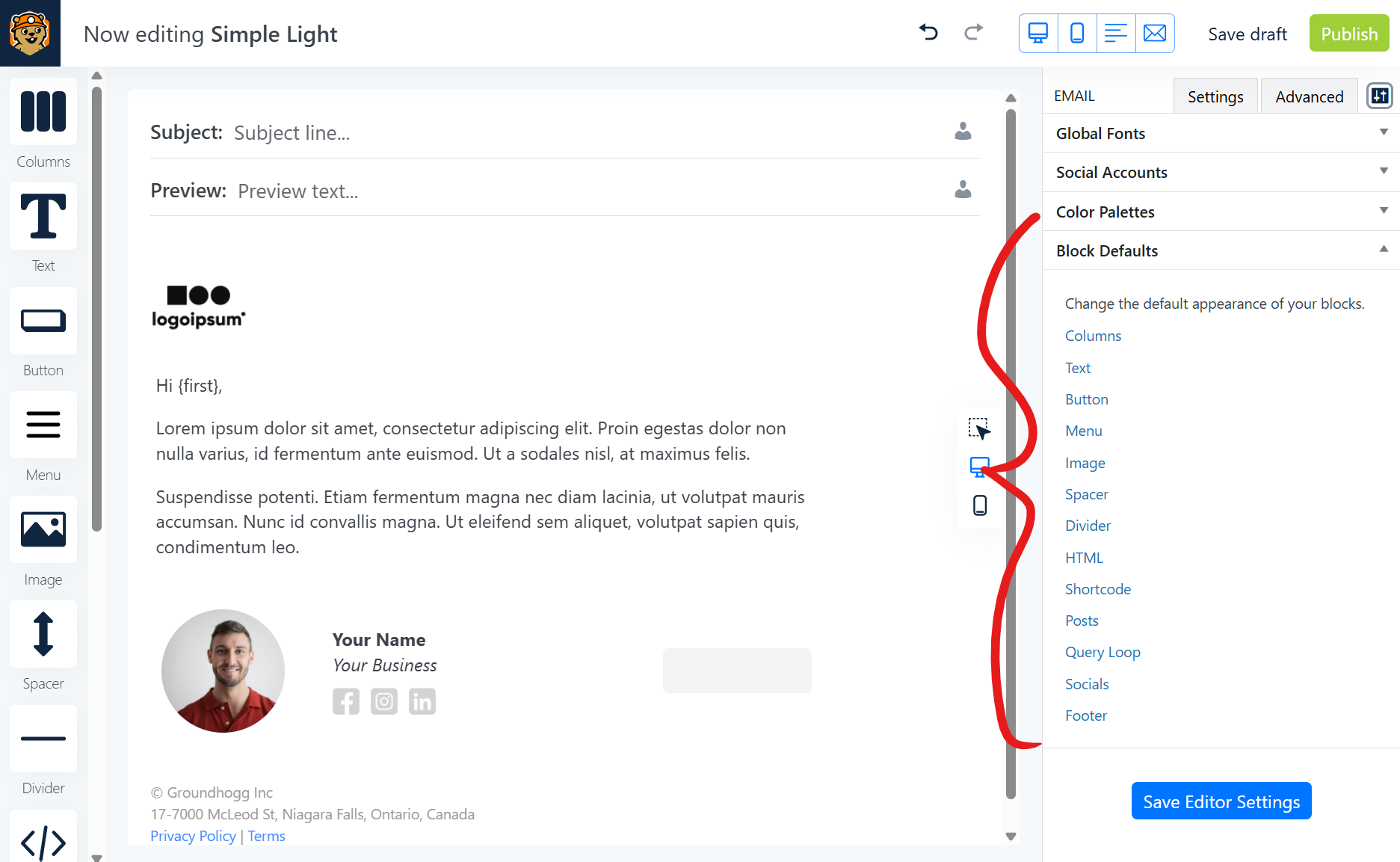
By customizing block defaults, you can significantly reduce repetitive design work and ensure every email starts with a consistent appearance.
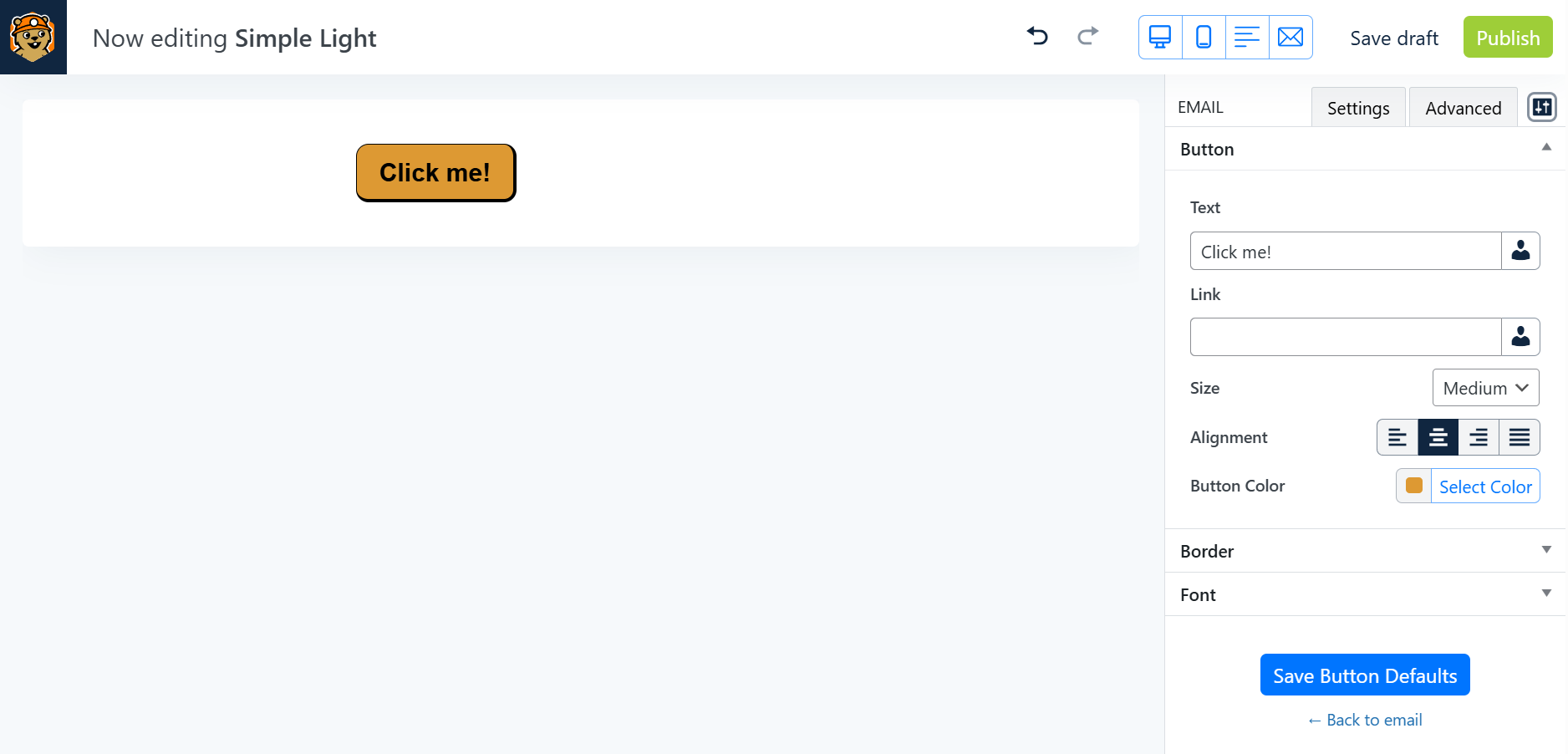
Color Palette
The Color Palette feature allows you to define custom brand colors that are available throughout the editor.
Instead of repeatedly entering color values, your approved brand colors are displayed directly within the color picker for quick access.
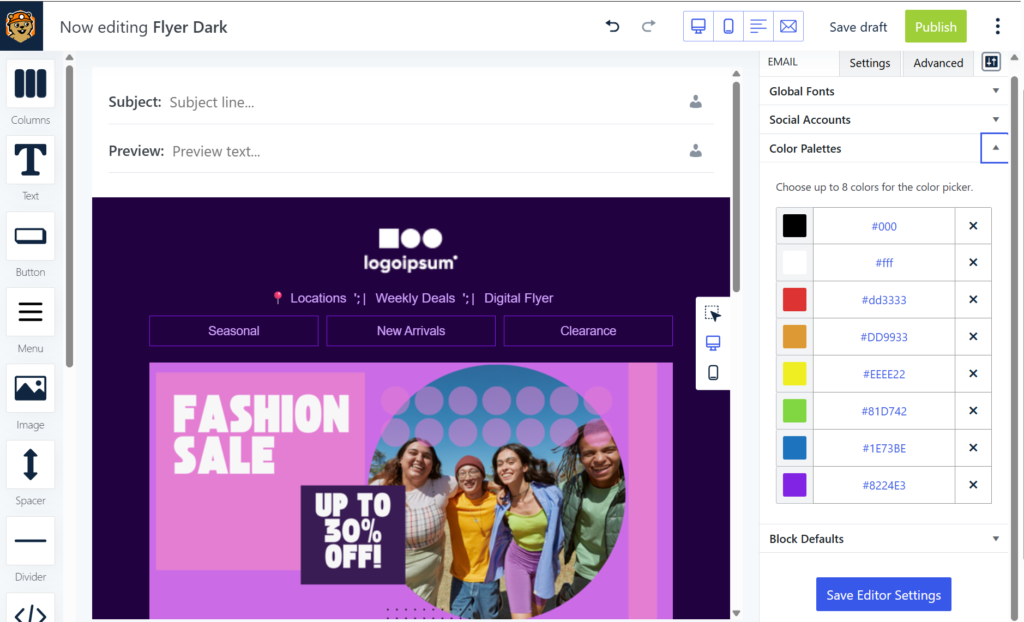
You can select up to 8 colors for the color picker.
Global Social Links
Global Social Links allow you to define your social media profiles once and reuse them across all emails.
When using social media blocks, the editor automatically pulls the configured profile URLs, eliminating the need to manually enter them for every email.
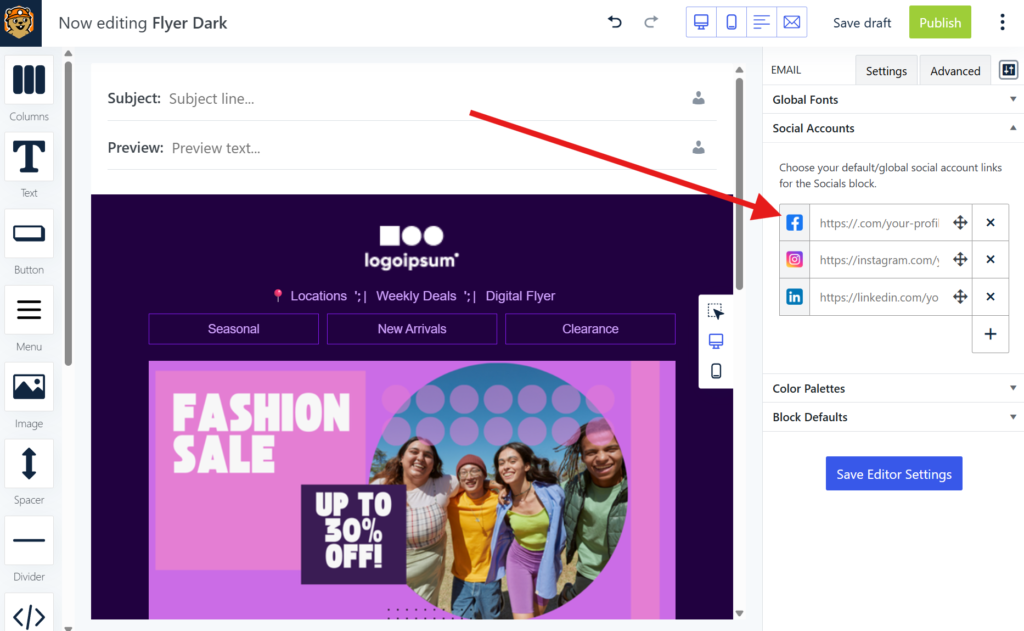
If your social media profile changes in the future, simply update the global setting and any new social blocks will use the updated information.
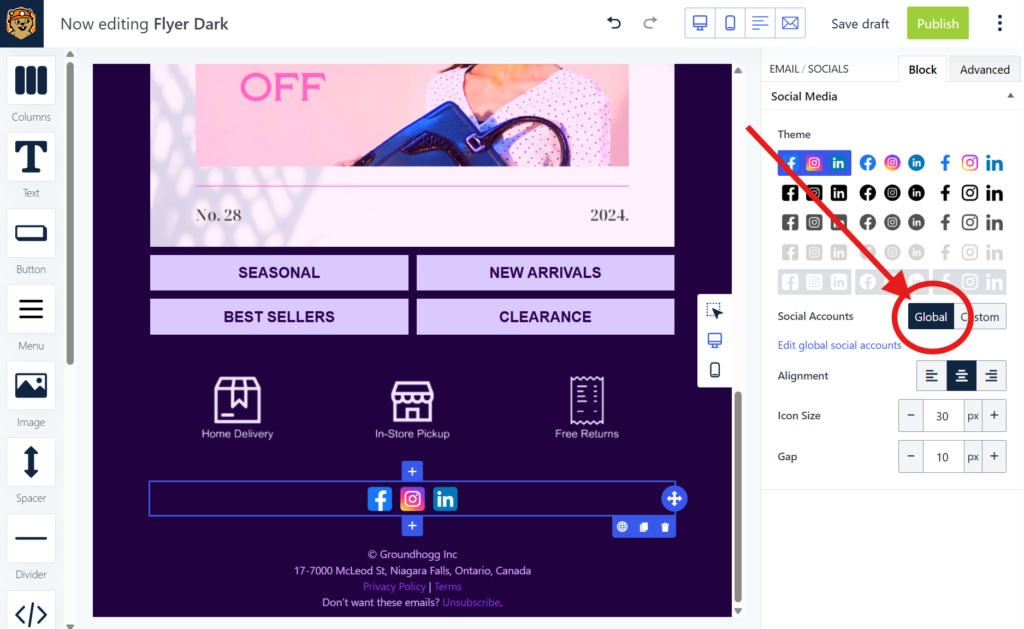
To use the global socials in the socials block, select Global instead of Custom for the social accounts setting.
Was this helpful?
Let us know if this document answered your question. That’s the only way we can improve.