
Sender Profiles
A sender profile is the combination of “From Name” and “From Email Address” that can be selected for sending an email template.
Creating a sender profile
A sender profile can be created by either…
a. creating a WordPress user that has the view_contacts capability.
Any WordPress user with the view_contacts capability, typically Admins, Marketers, Sales Managers, and Sales Representatives, will be available as a sender profile.
By default, the user’s display name and their user email address will act as the from name and from email address respectively.
User Name <user_email@domain.com>
If you want a different from name from the user’s display name or a different email address from their user email, both can be overridden in the Groundhogg section of their user profile.
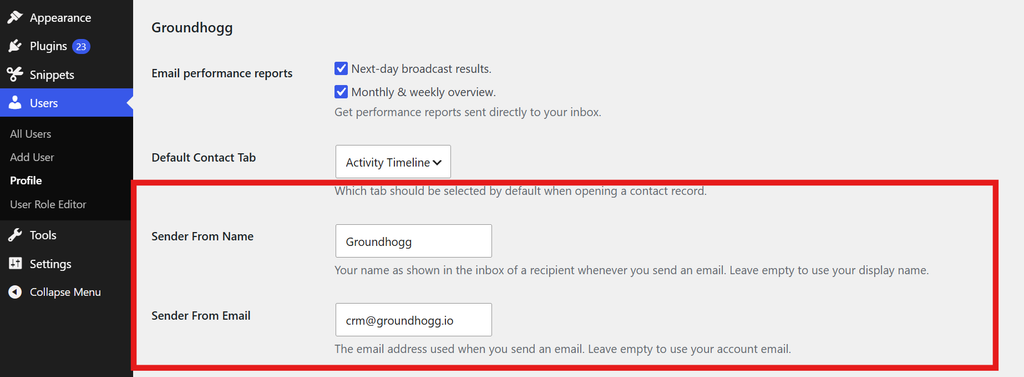
b. creating a custom sender profile in Groundhogg » Settings » Email » Sender Profiles
Creating a new WordPress user from every sender profile you have might not be ideal, especially if you have profiles that aren’t tied to a single user account. For example an info@ or sales@ address that’s shared.
For this case, you can create a custom sender profile in Groundhogg » Settings » Email » Sender Profiles. You can add any number of combinations of From Name and From Email addresses.
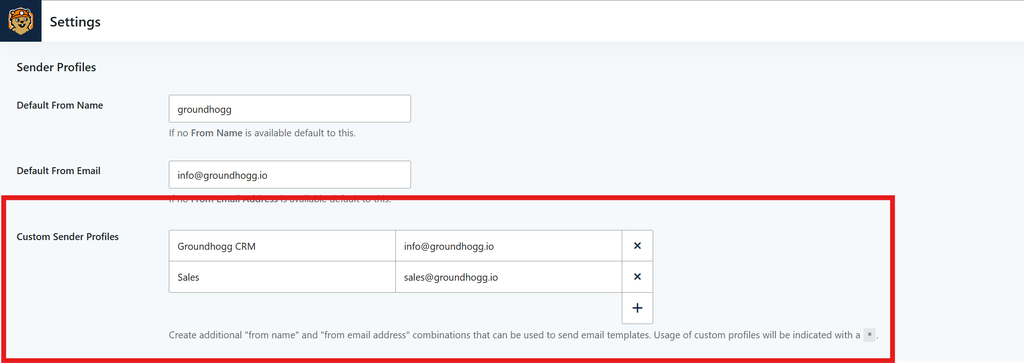
Email addresses do not have to be unique, you can re-use email addresses and names in different combinations as you see fit.
Selecting a Sender Profile
To use one of your sender profiles, open any email template and click on the dropdown for Send this email from… and your sender profiles will be listed.
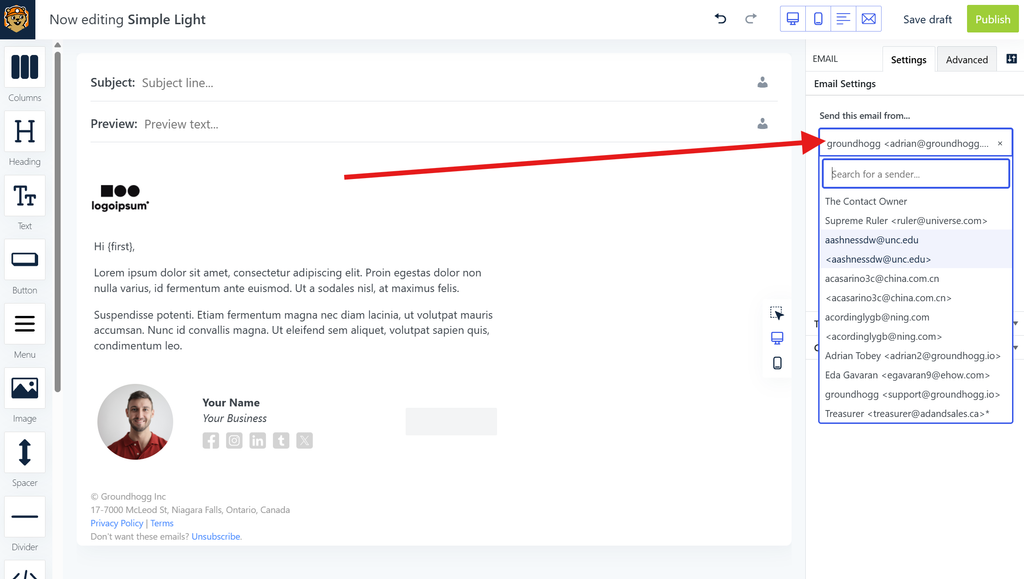
The “Contact Owner” sender profile
Whenever using the Contact Owner sender profile, the email will be sent from the sender profile associated with the user account that is the assigned owner of the recipient contact.