


Campaigns are an organization tool for your marketing assets. Think of them like categories for flows, emails, and broadcasts. Campaigns allow you to group similar assets for easy reference and comparative reporting.
Creating and applying campaigns
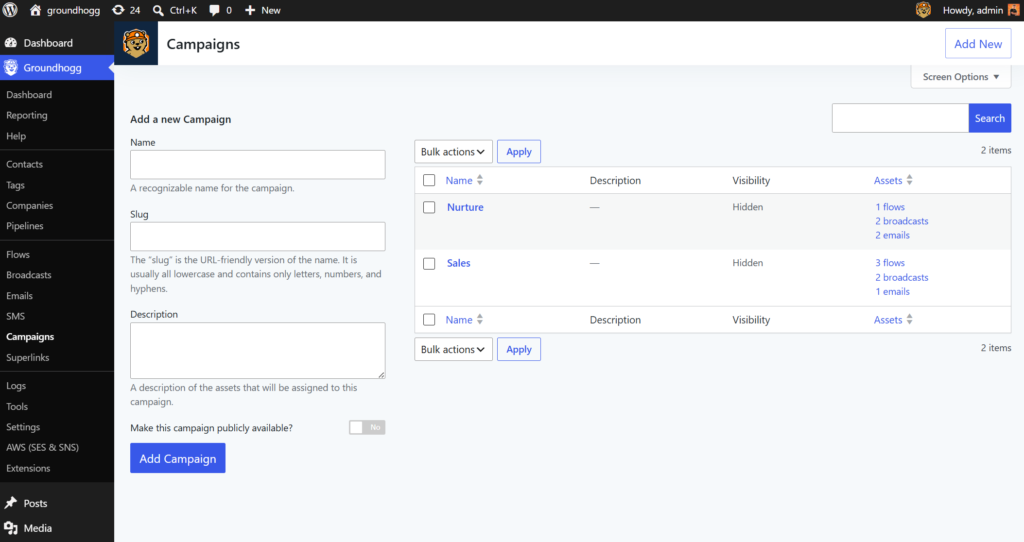
Campaigns can be created from either the campaigns list from the menu Groundhogg » Campaigns or you can create campaigns on the fly wherever a campaign can be applied to an asset.
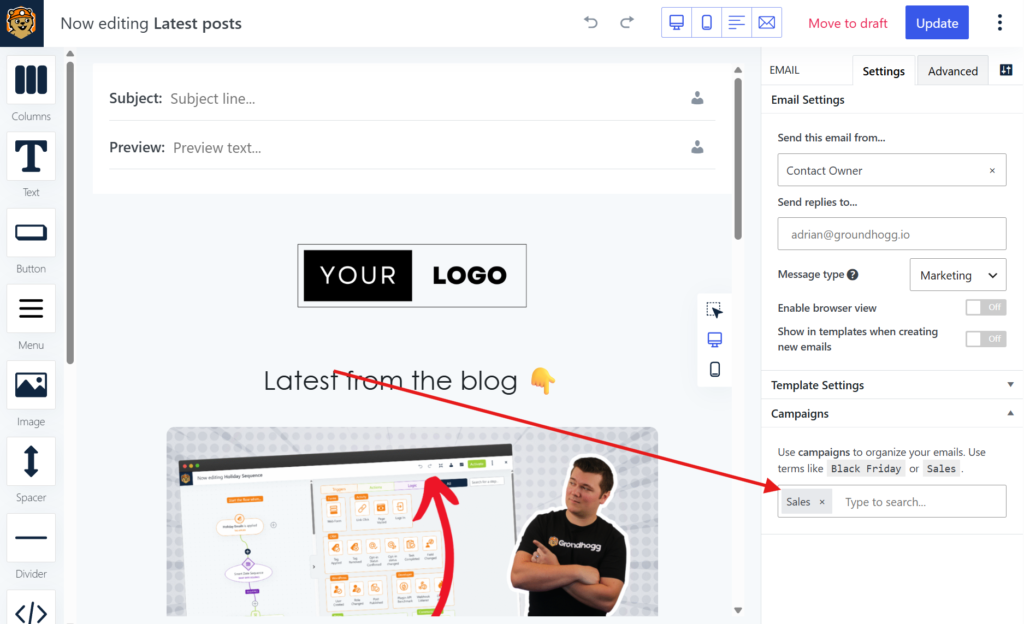
Currently, emails, broadcasts, and flows can be added to a campaign. Below is the campaign selection in the email editor.
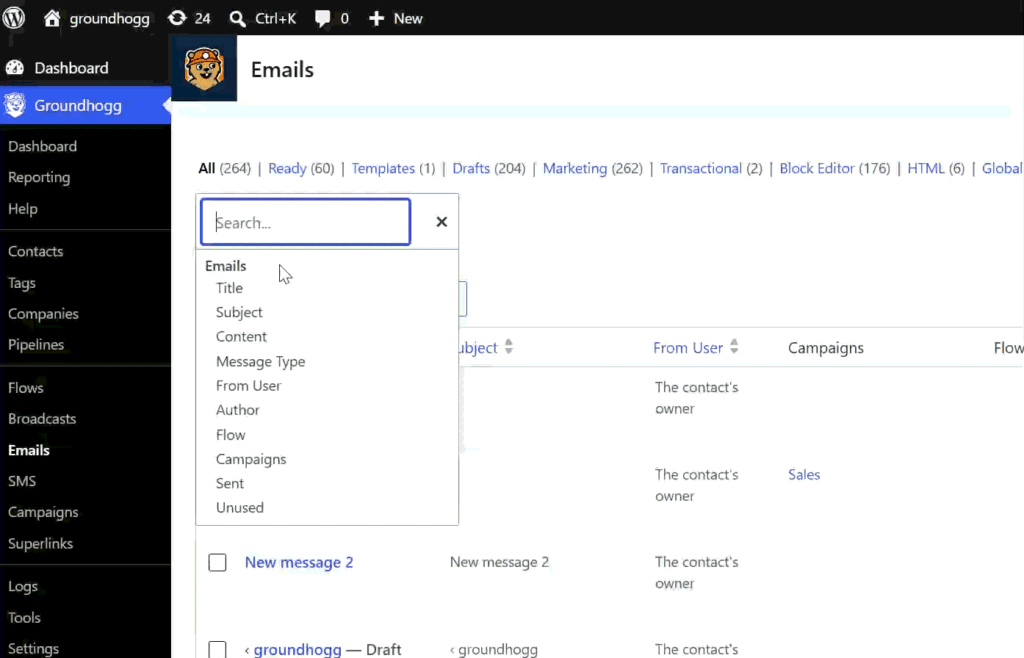
You can also bulk apply and remove campaigns from assets on the asset list using the regular table bulk actions.
Filtering assets by campaign
You can filter and search asset lists by campaign. Apply the filter and search!
Filtering reports by campaign
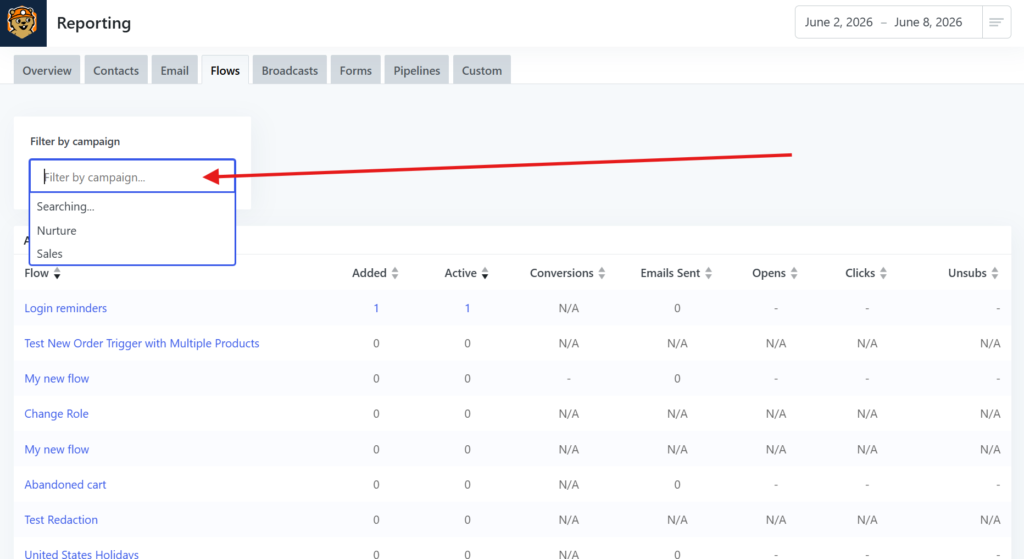
Flows and broadcast report tables can be filtered by campaign as well, allowing you to compare apples to apples.
Making public broadcast archives with campaigns
If you want to make a public archive of your broadcasts, you can make a campaign public which will enable the public archive feature.
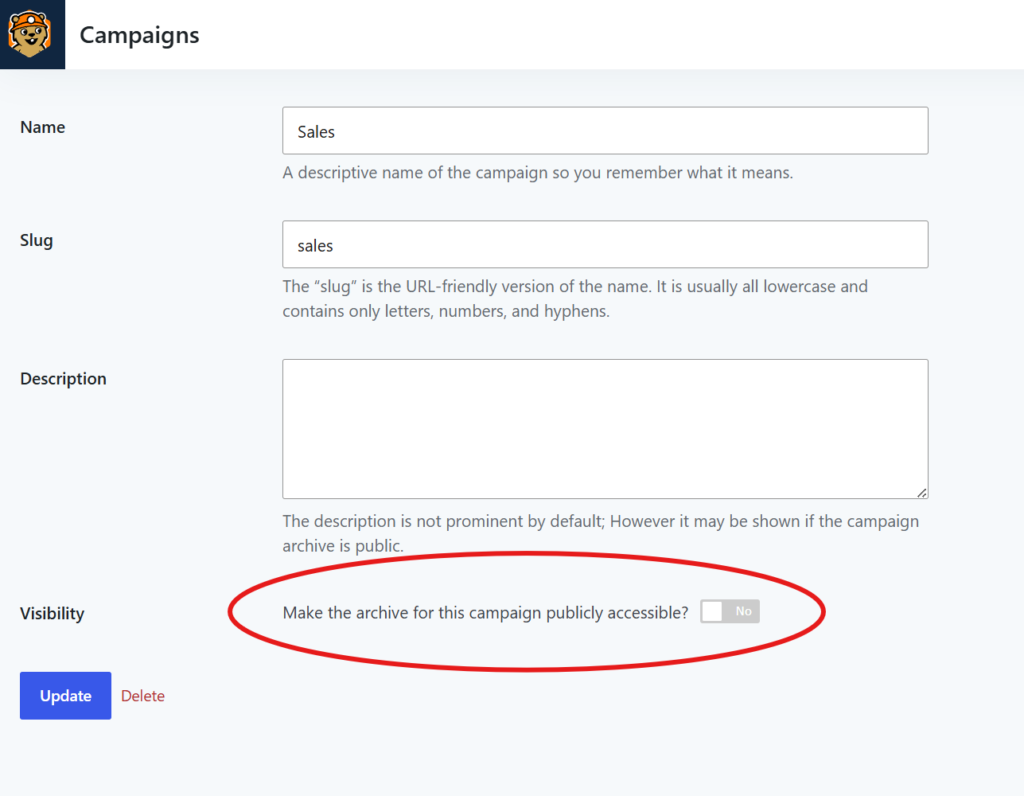
Edit the campaign from the table view and toggle the setting for public visibility.
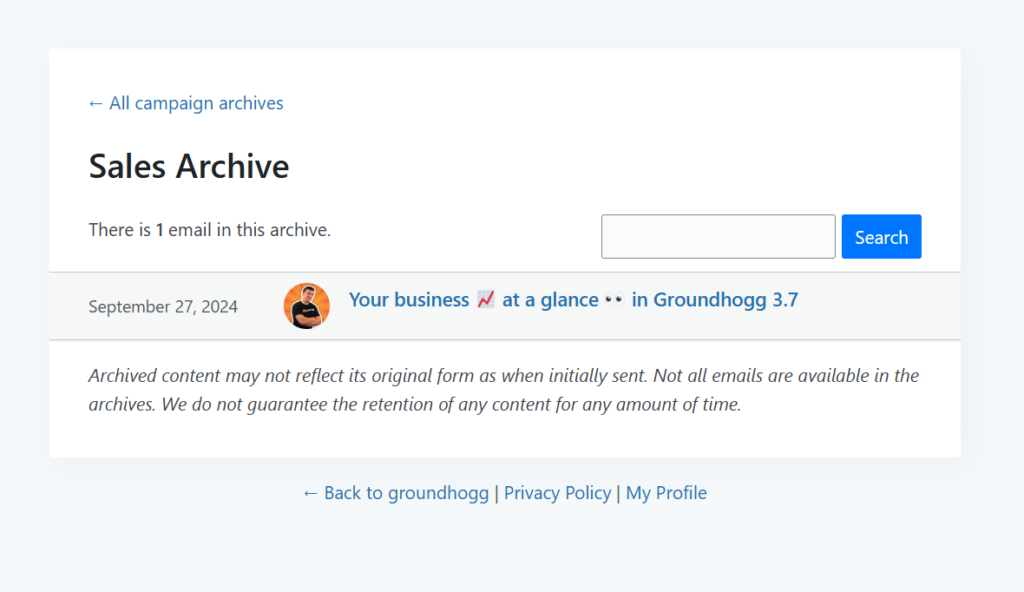
When the campaign becomes public, any broadcasts that were sent attached to that campaign will appear in a searchable paginating archive.
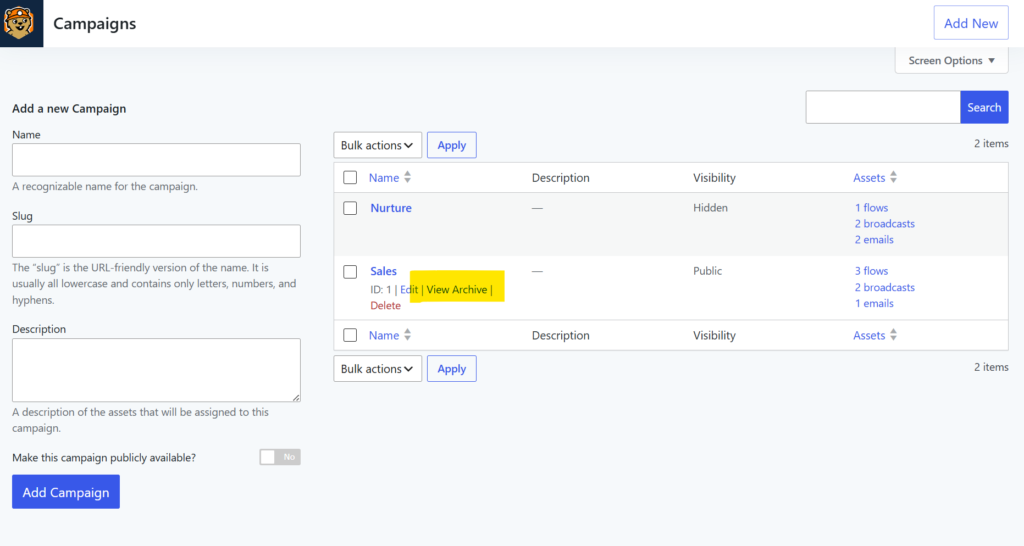
When a campaign is public, you will see a view archive link in the row actions to help you preview the archive.
Was this helpful?
Let us know if this document answered your question. That’s the only way we can improve.