Groundhogg’s Activity Timeline feature is an invaluable tool for gaining a comprehensive view of each contact’s interactions with your brand. Displayed within the contact record, this timeline tracks and visualizes all activities such as page visits, email interactions, purchases, account activity (like logging in or out), SMS replies, and more.
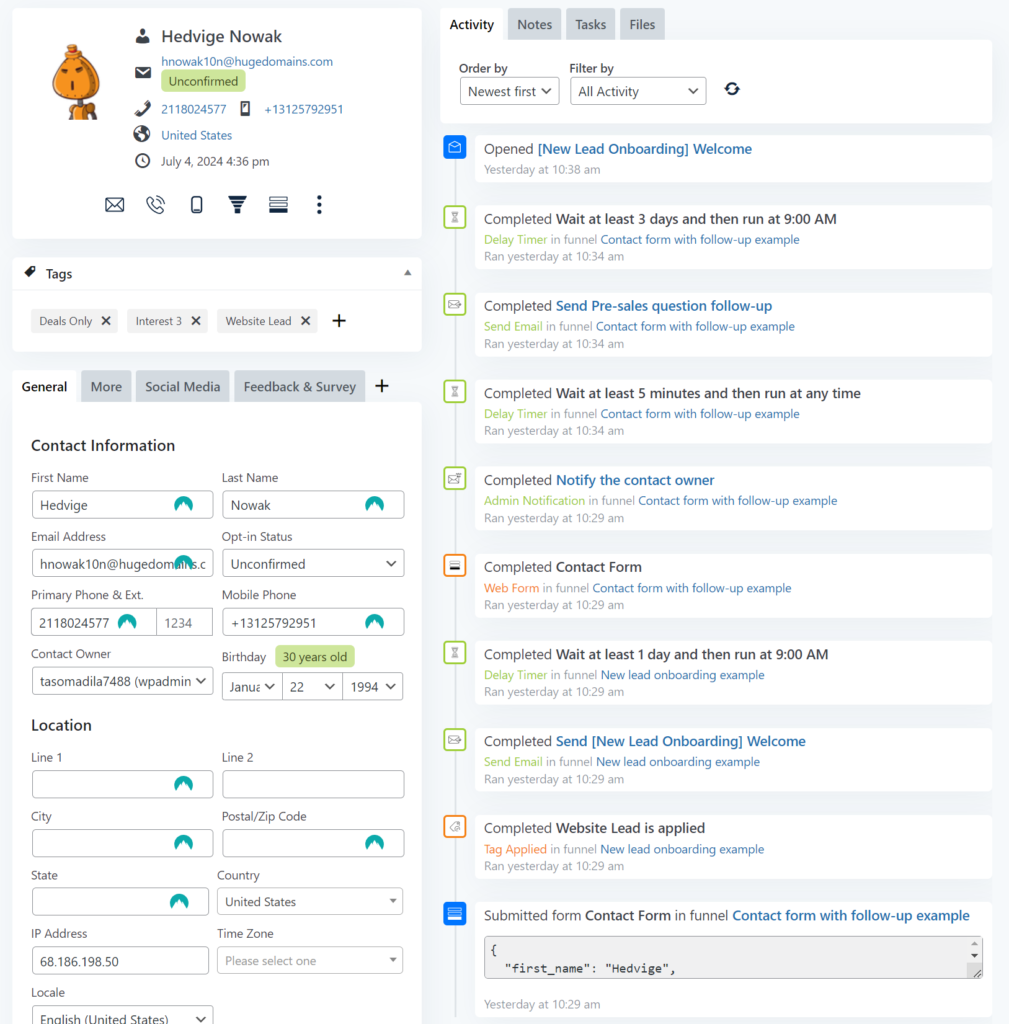
Here’s why the Activity Timeline is essential for your marketing and customer service efforts:
- Complete Contact Insight: Get a detailed, chronological overview of a contact’s engagement with your brand. This insight allows you to understand their interests and behavior patterns, helping you tailor your marketing strategies effectively.
- Enhanced Personalization: Use the specific details from the timeline to personalize your interactions. For example, follow up on an email they’ve opened or a link they’ve clicked with relevant content or offers, increasing the likelihood of conversion.
- Improved Customer Support: Provide your support team with full context on a contact’s recent and past interactions. This enables them to offer more informed and effective assistance, improving the overall customer experience.
- Actionable Data: Leverage the timeline to spot trends, identify high-value activities, and refine your engagement strategies. For instance, noticing frequent logins or page visits might indicate strong interest, which you could follow up on with targeted communications or offers.
Groundhogg’s Activity Timeline not only provides a 360-degree view of your contacts’ activities but also empowers you to make informed decisions that can significantly enhance engagement and conversions.
New in 4.8: Grouped, Filterable Activity
The 4.8 update makes the timeline easier to read for your most active contacts. Flow runs and browsing sessions are now grouped into collapsible sections, and email opens and clicks are nested under the email they belong to — so one heavily-engaged email doesn’t push everything else out of view.
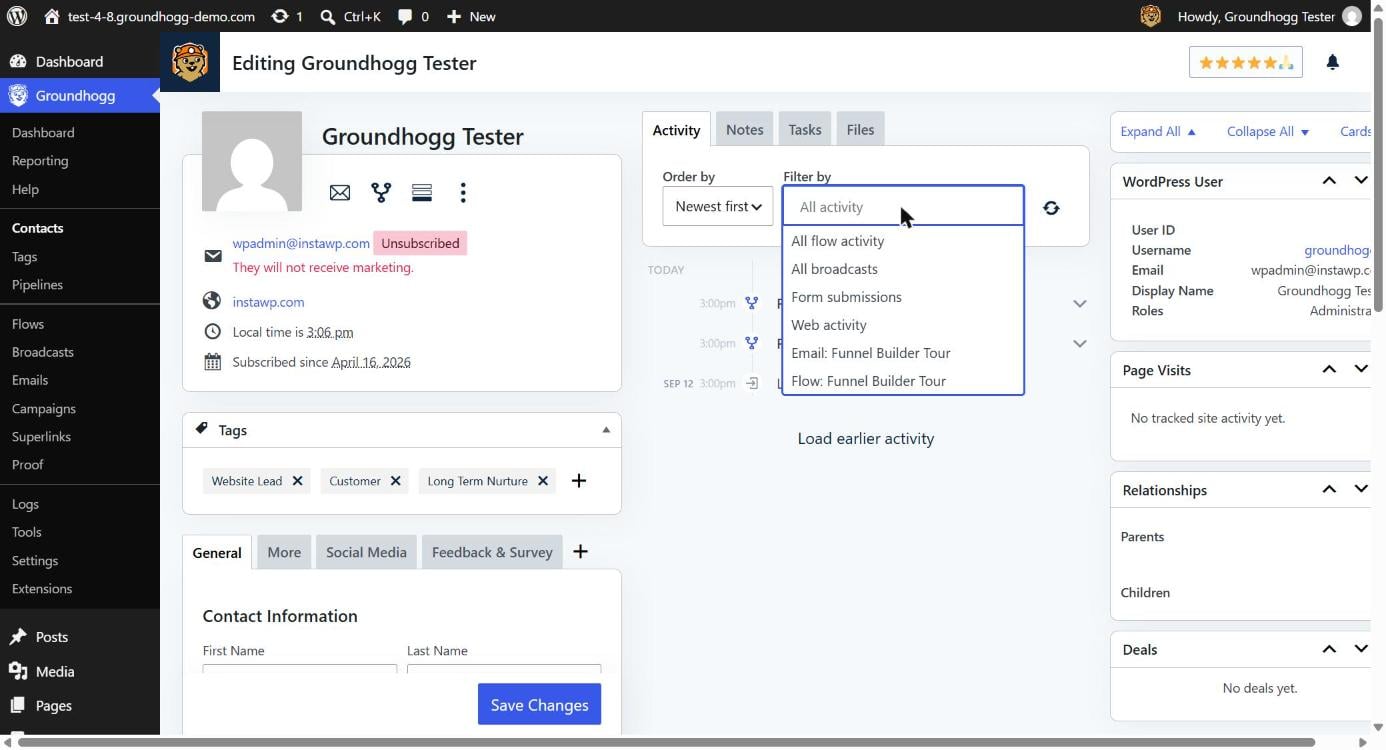
A new filter picker lets you narrow the timeline down to a specific flow, email, or broadcast, or to a whole activity type — all flow activity, all broadcasts, form submissions, or web activity — so you can find exactly what you’re looking for without scrolling through everything else. Failed flow events now show up in the timeline too, right alongside the error that caused them, making it much easier to spot and troubleshoot automation issues from the contact record itself.