
Sales Pipeline
Overview
Sales Pipeline is the board where you keep deals. A pipeline is the process, a stage is a column on that board, and a deal is the opportunity you move through those columns. You can create and move deals from a flow, and you can report on what closed.
Install and activate the Sales Pipeline add-on with the installation guide. Groundhogg has to be active. You also need WordPress 6.9 or newer, PHP 7.4 or newer, and Groundhogg 4.9 or newer. If one of those is missing, Sales Pipeline does not run, and WordPress shows a notice that it is NOT RUNNING.
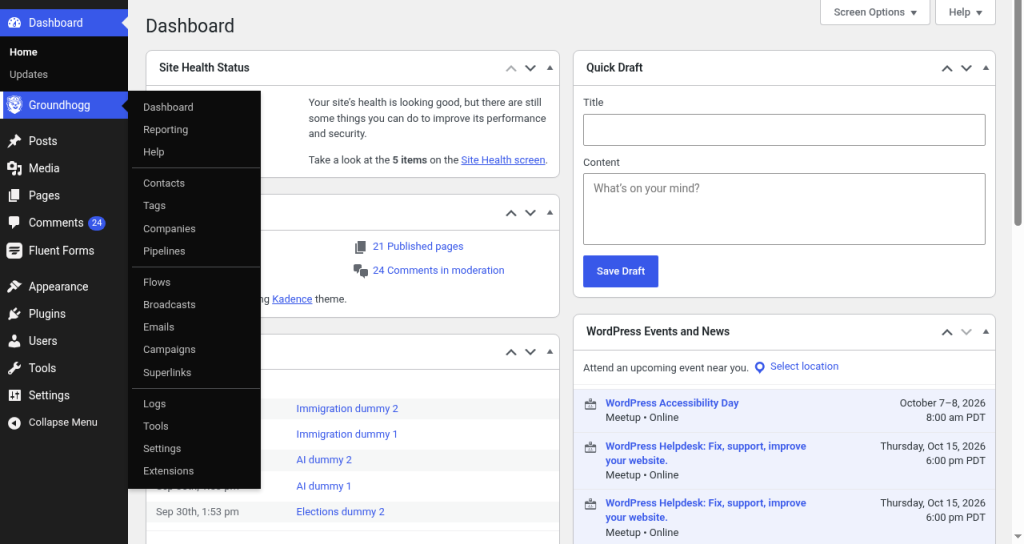
After you activate it, open Groundhogg » Pipelines. You need permission to view pipelines before that menu shows up.
Create a pipeline
- Go to Groundhogg » Pipelines.
- Click New Pipeline. You only see this if you are allowed to add pipelines.
- Enter a Title. The placeholder is My new pipeline…
- Edit the Stages. A new pipeline starts with New Lead, Qualification, Negotiation, and Closing. Change those names, or add the stages you actually use.
- Click Create Pipeline. You land on the board.
[image: New Pipeline form with Title and Stages]
The Pipelines screen is a list, not only a button. You can search with Search Pipelines. The columns are Title, Active Deals, Closed Deals, and Lost Deals. Switch between Active and Archived at the top of the list. On a row you can Manage, Duplicate, Archive, or Delete. An archived pipeline offers Restore instead of Archive.
Duplicating names the copy Copy of plus the original title, then opens that board.
Use the board
Each stage is a column. Under the stage name you see how many deals are in it and what they add up to, for example “2 deals totalling” and the formatted total. A card shows the deal title, the value, the contact, and how long ago it was updated.
[image: pipeline board with stage columns, deal cards, value, contact, and age]
Click the pipeline title to rename it, if you are allowed to edit pipelines.
The icons along the top are Refresh, Sort deals, Filter deals, Quick search, and Add stage.
Sort and search
- Click Sort deals.
- Set Order By to Priority, Deal Value, Recently Updated, Close Date, or Win Probability.
- Choose Ascending or Descending.
Quick search matches the deal title only. The box placeholder is Search…
[image: quick search open on the board]
Pipeline menu
Open the ⋮ at the top right of the board. What you see depends on what you are allowed to do.
- Reporting opens the pipeline report in a new window. You need permission to view reports.
- Setup products is the product list for this pipeline.
- Show closed deals puts won and lost deals back on the board. It switches to Hide closed deals once they are showing.
- Duplicate copies the pipeline.
- Archive archives the pipeline and its deals. Archived deals cannot be edited. Confirm with Archive.
- Delete deletes the pipeline, its stages, and its deals, past and present. Confirm with Delete. Only someone who can delete pipelines gets this item.
[image: pipeline ⋮ menu showing Reporting, Setup products, Show closed deals, Duplicate, Archive, and Delete]
Stages
Add a stage
- On the board, click Add stage.
- Enter the name under New stage title. The placeholder is New stage.
- Click Add Stage. The stage is added at the end.
Reorder or rename a stage
Hover the stage header. Use the left and right arrows, or open ⋮ and choose Move left or Move right. The first stage cannot move left, and the last stage cannot move right.
To rename it, click the stage title, or choose Rename from that same menu. You need permission to edit pipelines.
[image: stage header with move arrows and the ⋮ menu]
Delete a stage
- Open the stage ⋮ menu and choose Delete.
- If that stage still has deals on the board, you cannot delete it. Move or close those deals first. The notice says: “You cannot delete a stage with active deals. Please move or close your deals before deleting.” Click Got it!
- Otherwise, confirm with Delete.
The confirm sentence still says “funnel benchmarks.” That means flow triggers. A trigger that points at this stage stops running after you delete the stage. Deleting the stage itself is only allowed if you can delete pipelines. You may see Delete in the menu without being able to finish it.
Deals
Add a deal
- On a stage, click the plus. The tooltip is Add deal.
- Fill in the deal. The heading is Add a new deal to the {stage} stage.
- Click Create Deal.
The fields are:
- Title. You have to enter one. The placeholder is A new deal… If you leave it empty, you get “Make sure your deal has a title!”
- Contacts. Pick Select an existing contact or Create a new contact. You need at least one contact. If you do not, you get “Add one or more contacts to the deal first.”
- Assigned to. This is the deal owner. A new deal starts assigned to you. Changing the owner also updates the owner on the deal’s primary contact, not on every contact on the deal.
- Projected Close Date.
- Priority: High, Medium, or Low. A new deal starts at Medium.
- Win Probability, from 0 to 100. A new deal starts at 50.
- Product Interest. See Products.
Click Cancel to close without creating the deal. After you create it, the editor opens.
[image: add-deal form with Title, Contacts, Assigned to, Projected Close Date, Priority, Win Probability, and Product Interest]
Edit a deal
Click the card once. You do not have to double-click.
You can change the title, Assigned to, Projected Close Date, Priority, Win Probability, Pipeline, Stage, and Product Interest. Click Save changes. You should see “Deal saved.”
If you switch Pipeline, confirm with Yes. Moving a deal to another pipeline can affect flows the contacts are already in.
If you try to close the editor with unsaved edits, you are asked “You have unsaved changes. Continue?” Choose Discard changes to drop them.
[image: deal editor with pipeline and stage dropdowns]
Move a deal
Drag the card to another stage. It saves as soon as you drop it. You do not have to open the deal and click save.
You can also change Stage inside the editor, then click Save changes.
[image: dragging a deal card from one stage column to another]
Win, lose, and reopen
In the editor, Mark as won and Mark as lost sit by the title.
- Won asks you to confirm, then tells you the deal will be removed from the pipeline view.
- Lost does the same.
Won and lost deals stay off the board until you choose Show closed deals from the pipeline menu.
A closed deal cannot be edited. The editor says “This deal was closed and can no longer be edited.” Open the deal menu and choose Make active to put it back in progress. The confirm sentence still says “funnels.” That means flows. Making a deal active can interrupt a flow those contacts are in.
The same menu has Delete. Confirm with Delete if you want the deal gone.
[image: won and lost controls beside the deal title]
Contacts on the deal
Use Add contacts to select an existing contact or create a new one. On a contact you can View profile, Quick Edit, Copy to new deal, or Remove from deal.
Copy to new deal creates another deal and takes that contact off this one. Call icons are Call and Call mobile when the contact has those numbers.
Email the contacts
- Open the deal.
- Click Email contacts.
The message is addressed to every contact on the deal, and it is sent from you. If you are not the deal owner, the compose window is set up to cc the deal owner.
[image: email compose opened from a deal, with the deal contacts in the To line]
Notes and tasks
The right side of the editor has two tabs, Notes and Tasks. Notes are the notes on this deal. Tasks are the tasks on this deal.
[image: Notes and Tasks tabs on the right of the deal editor]
The Deals list
Go to Groundhogg » Pipelines and open the Deals tab. Search with Search Deals. The views are Active, Won, and Lost.
Columns are Title, Value, Pipeline, and Close Date. The Active view also has Age. Open a row with Edit, or use Delete. With the checkboxes you can bulk Delete, Won, Lost, or Make Active.
Products
You can type a product straight onto a deal, or keep a list for the pipeline so the names and prices stay consistent.
Set up the pipeline list
- On the board, open ⋮ and choose Setup products.
- Add each Product and its Price.
- Click Save products.
[image: Setup products modal with product name and price rows]
Add products to a deal
Under Product Interest, start typing. You get suggestions from the pipeline list and from products already used on deals on this board. A suggestion looks like the name and the price. Picking one fills the price. You can still change the price, and you can type a product that is not on the list.
Each row has a price and a quantity. The deal value is the total of price times quantity.
[image: Product Interest row with a suggestion, price, and quantity]
Custom properties
Custom properties belong to the pipeline, so every deal on that pipeline can use them. You need permission to edit pipelines before you can add or change the fields. Anyone who can edit the deal can fill them in.
- Open a deal.
- If the pipeline has no properties yet, click Add custom properties.
- Name the group under Add property group. The placeholder is New property group name. Click Create Group.
- Click Add field and choose a type: Text, Textarea, Number, URL, Phone Number, Email Address, Date, Time, Date & Time, Checkboxes, Radio Buttons, Dropdown, or HTML.
On a group, ⋮ includes Add Field, Add Group, Edit Fields, Rename, Move up, Move down, and Delete. Edit Fields tells you to double-click a field to edit it. Rename opens Rename property group.
[image: custom property group with the add-field control and the group menu]
Flow triggers
Sales Pipeline adds one trigger. In the flow editor it is in the Pipeline group, and its name is Deal Entered Stage.
It runs when a deal enters a stage, when a deal is marked won or lost, or when a contact is added to an open deal. The description on the step is “Runs whenever a deal enters a stage, optionally from a specific stage.”
- Add Deal Entered Stage to the flow.
- Under Run when a deal enters the following stage or is closed… choose the pipeline, then the stage.
- At the bottom of the stage list you can also choose Won, Lost, or Closed (Won/Lost). Closed means either won or lost.
- Under Only if it was moved from… leave Any stage, or pick the stage it has to come from. That list is stages only. It does not include won or lost.
When the deal moves, is won, or is lost, every contact on the deal can enter the flow. When you only add a contact to the deal, just that contact enters, and only if you left Any stage on the “moved from” control.
[image: Deal Entered Stage settings with pipeline, stage, Won, Lost, Closed (Won/Lost), and Only if it was moved from]
Flow actions
Two actions are in the same Pipeline group: Create Deal and Move Deal.
Create Deal
This creates a deal for the contact who is going through the flow, in the pipeline and stage you pick.
- Name for this deal… Replacement codes are allowed. The placeholder says Leave empty for contact’s name.
- Which pipeline and stage to add the deal to… The empty labels are Select a pipeline… and Select a stage…
- Assign this deal to… Choose The contact owner, Me, or another user. The note under it says assigning a deal owner also changes the contact’s owner. The contact owner leaves the contact’s owner as it is and assigns the deal to that person.
- This deal should close… Choose Within a time period and a number of Days, Weeks, or Months. Or choose By a specific date. That field’s placeholder is Date, custom field, or replacement…
- The chance of winning this deal? A number from 0 to 100. It starts at 50.
- Select a priority… High, Medium, or Low.
- What products should be added to the deal? Each row is Product, Price, and Quantity. Replacement codes work in all three. The deal value is the total.
- Notes to add to the deal… This is a visual editor. Replacement codes work in the note.
[image: Create Deal action with name, pipeline, stage, owner, close timing, chance, priority, products, and notes]
Move Deal
- Add Move Deal.
- Under Which stage should the deal be moved to? choose the pipeline, then the stage.
- At the bottom of the stage list, choose Won or Lost if you want the deal closed instead of moved.
If Create Deal already ran earlier in this same flow, this step updates that deal. Otherwise it updates every deal in the selected pipeline that is tied to the current contact, including deals that are already closed.
[image: Move Deal action with pipeline and a stage list that includes Won and Lost]
Deals on a contact, and the dashboard
Every contact has a Deals card. The Groundhogg dashboard has a Deals widget for the deals assigned to you. They look the same.
Each card shows the title, the value, the contact, and when it is closing. You will see Closing in and a time, or past close, or Won / Lost and how long ago. A bar shows how far the deal is through its stages.
The pills along the top count what is in the list:
- in progress
- past close, for open deals that are already past the projected close date
- closing soon, for open deals closing within 30 days that are not past due yet
- won and lost, on the contact card, where those deals are included
The amount on the right is the total value of the deals you are looking at. Click a pill to limit the list. Click a deal to open it. If there is nothing to show, you see “No deals yet.”
The dashboard widget only loads your open deals, up to 20, soonest close date first. So the won and lost pills do not appear there.
[image: contact Deals card with pills, a total, a deal card, and the stage progress bar]
[image: Groundhogg dashboard Deals widget for the current user’s open deals]
If you use Companies, a company can also show a Related Deals card. That card is the same list.
Reporting
Open Groundhogg » Reporting and choose the Pipelines tab. Or, on a board, open ⋮ and choose Reporting. That opens this pipeline’s report. You need permission to view reports.
The date range on the Reporting screen is what the closed-deal numbers use. Forecast Range is a separate dropdown for open deals you expect to close. It defaults to This Month. The other choices are This Week, This Quarter, This Year, Next Week, Next Month, Next Quarter, and Next Year.
[image: Pipelines report with the reporting date range and the Forecast Range dropdown]
The numbers
On the overview, the cards are:
- Revenue, the value of deals won in the reporting range
- Deals Won
- Win Rate, deals won divided by deals that are still closed in that range
- Avg. Deal Size, the average value of deals won in the range
- Avg. Days to Close, from the day the deal was created to the day it closed, for deals closed in the range
- Sales Velocity ($/day), won deals times average deal size times win rate, divided by the average days to close
- New Deals, deals created in the range
- Deals Lost
Each card compares with the previous period. The comparison reads “.vs prev” and the length of that period.
When you open one pipeline, or one sales rep, the first card is labeled Rep Revenue instead of Revenue. It is still the value of deals won. A pipeline report has a Manage Pipeline button back to the board.
Charts and tables
- Revenue is a chart with Won and Lost. On a rep’s report the chart heading is Rep Revenue.
- Leaderboard is by rep. Columns are Rep, Won $, Win %, Avg $, and Wtd $.
- Performance on the overview, and Performance by Pipeline on a rep’s report, is by pipeline. Columns are Pipeline, Won $, Win %, Avg $, TTC, Wtd $, and Val $. TTC is time to close. Wtd $ is the value weighted by win probability. Val $ is the unweighted value.
- Forecast Risk groups open deals by win probability, but only deals whose projected close date falls in the Forecast Range. Columns are Bucket, Deals, Val $, and Wtd $. A deal at 100% is in 90-100%. Other deals fall into 10-point buckets such as 0-10% or 80-90%.
- By Stage is on a single pipeline’s report. Columns are Stage, Wtd $, and Val $.
[image: Forecast Risk buckets and the By Stage table on a pipeline report]
Filters
There are two places to filter, and they are not the same list.
Filter contacts
In the contact filters, open the Pipeline group. You can combine these. Deal Value and Close Probability use Equals, Not equals, Less than, Less than or equal to, Greater than, Greater than or equal to, Is any of, and Is none of.
- Deal Value. A number, then a pipeline and a stage. Leave them on Any pipeline… and Any stage… to ignore that.
- Close Probability. A number from 0 to 100. No pipeline or stage.
- Deal Owner. Is one of or Is not one of.
- Projected Close Date. A pipeline, a stage, and a date comparison, including future dates.
- Date Closed. Won or Lost, a pipeline, and a date comparison. No stage. It starts on Won.
- Date Created. A pipeline and a date comparison. No stage.
- Has Deal. Any status, Active, Won, or Lost. You can limit it to pipelines (Any pipeline…) and to stages (Any stage…). Then set Reached the stage within (days), Created within (days), and Closed within (days). Leave a day field on Any time to skip it. Closed within (days) is hidden for Active deals. “Reached” counts the stage the deal is in now, and stages it passed through earlier.
[image: Has Deal contact filter with status, pipelines, stages, and the day fields]
Filter the board and the Deals list
On the board, click Filter deals. On the Deals tab, use the table filters. These are deal filters, not the contact filters above.
You can filter by Deal value, Close probability, Priority (High, Medium, Low), Projected close date, Date Created, Date closed, Last activity, Deal Owner, and Contact Query. Contact Query lets you include or exclude contacts with the usual contact filters. An empty owner shows as Any owner.
[image: board filter builder open from Filter deals]
Replacement codes
In the email editor or the flow editor, the deal codes are in the Deals group. They use the contact’s most recently active open deal. If the contact has no open deal, they use the most recently active deal of any status.
| Name | Code | Description |
|---|---|---|
| Deal Title | {deal_title} | The title of the contact’s most recently active deal. |
| Deal Value | {deal_value} | The formatted total of that deal. |
| Deal Products | {deal_products} | One line per product: quantity, name, and the unit price. |
| Deal Custom Field | {deal_custom_field.internal_name} | The value of a custom property. internal_name is the field’s internal name, or its id. |
A product line looks like 2× Name at $10.00/unit, using your currency settings. If the contact has no deal, the code does not print a value.
[image: replacement picker open to the Deals group]
Settings
- Go to Groundhogg » Settings.
- Open Pipeline.
- Under Currency, choose the currency. The description says “Products sold will be charged in the above curency.” That spelling is what the screen shows.
- Under Separators, leave the box unchecked for 1,234.56. Check Use a comma when formatting decimal amounts and use a period to separate thousands if you want 1.234,56.
- Under Currency Position, choose where the symbol goes. The description is “How you would like your price to appear to your customers.” Left puts the symbol in front. Right puts it after the amount. Left with space puts the symbol in front with a space. The last option also reads Left with space, but its example puts the symbol after the amount with a space. Use the example next to the label, not the repeated words, if those two look the same.
[image: Pipeline settings tab with Currency, Separators, and Currency Position]
Roles
Sales Pipeline does not add new roles. It adds capabilities to the Groundhogg roles you already have. A sales rep only sees their own deals in the deal list. If you are on a team, deal lists are limited to that team, and you can only open someone else’s deal when that owner is on your team.
| Capability | Administrator | Marketer | Sales Manager | Sales Rep |
|---|---|---|---|---|
| view_pipelines | ✅ | ✅ | ✅ | ✅ |
| edit_pipelines | ✅ | ✅ | ❌ | ❌ |
| add_pipelines | ✅ | ✅ | ❌ | ❌ |
| delete_pipelines | ✅ | ❌ | ❌ | ❌ |
| add_deals | ✅ | ✅ | ✅ | ✅ |
| view_deals | ✅ | ✅ | ✅ | ✅ |
| view_others_deals | ✅ | ✅ | ✅ | ❌ |
| edit_deals | ✅ | ✅ | ✅ | ✅ |
| edit_others_deals | ✅ | ✅ | ✅ | ❌ |
| delete_deals | ✅ | ✅ | ✅ | ✅ |
| delete_others_deals | ✅ | ✅ | ✅ | ❌ |
Reporting uses the separate view-reports permission. It is not one of the pipeline capabilities above.
Code snippets
Add a Pipelines menu to the WordPress admin bar
This snippet adds a Pipelines item to the WordPress admin bar, with a link to each pipeline. It is not part of the plugin. Add it with WPCode, or another snippet plugin. It does not change plugin files.
It only shows for someone who can manage options. A sales rep does not see it unless they have that capability. It lists up to 50 pipelines.
<?php
/**
 * Groundhogg Sales Pipelines → WP Admin Bar
 *
 * Adds a "Pipelines" menu to the admin toolbar with direct links
 * to each Groundhogg Sales Pipeline.
 *
 * Safe to use as a WPCode snippet. Does not modify plugin files.
 */

add_action( 'admin_bar_menu', 'gh_snippet_add_pipelines_to_admin_bar', 9999 );

function gh_snippet_add_pipelines_to_admin_bar( $wp_admin_bar ) {

    if ( ! is_admin_bar_showing() ) {
        return;
    }

    if ( ! current_user_can( 'manage_options' ) ) {
        return;
    }

    if ( ! function_exists( '\Groundhogg\get_db' ) ) {
        return;
    }

    $db = \Groundhogg\get_db( 'pipelines' );

    if ( ! $db ) {
        return;
    }

    $wp_admin_bar->add_node( [
        'id'    => 'gh-pipelines-root',
        'title' => 'Pipelines',
        'href'  => admin_url( 'admin.php?page=gh_pipelines' ),
    ] );

    $pipelines = $db->query( [ 'limit' => 50 ] );

    if ( empty( $pipelines ) ) {
        return;
    }

    foreach ( $pipelines as $pipeline ) {

        if ( empty( $pipeline->ID ) ) {
            continue;
        }

        $wp_admin_bar->add_node( [
            'id'     => 'gh-pipeline-' . $pipeline->ID,
            'parent' => 'gh-pipelines-root',
            'title'  => esc_html( $pipeline->title ),
            'href'   => admin_url(
                'admin.php?page=gh_pipeline&action=edit&pipeline=' . intval( $pipeline->ID )
            ),
        ] );
    }
}
FAQs / Troubleshooting
Why does WordPress say Sales Pipeline is NOT RUNNING?
Groundhogg is inactive, or the site is below WordPress 6.9, PHP 7.4, or Groundhogg 4.9. The notice names which requirement failed. Update that, then reload.
Why can’t I delete a stage?
If the stage still has deals on the board, move or close them first. You also need permission to delete pipelines. Seeing Delete in the stage menu is not enough on its own.
Why won’t the new deal save?
Enter a Title, and add at least one contact. The messages are “Make sure your deal has a title!” and “Add one or more contacts to the deal first.”
Why can’t I edit a won or lost deal?
Closed deals are locked. The editor says “This deal was closed and can no longer be edited.” Choose Make active from the deal menu if you need to change it. Turn on Show closed deals if you cannot see the card.
Why do amounts look like 1.234,56?
Go to Groundhogg » Settings » Pipeline and uncheck Separators. Checked formats amounts as 1.234,56. Unchecked formats them as 1,234.56.