
Documentation » Administration
Mobile App
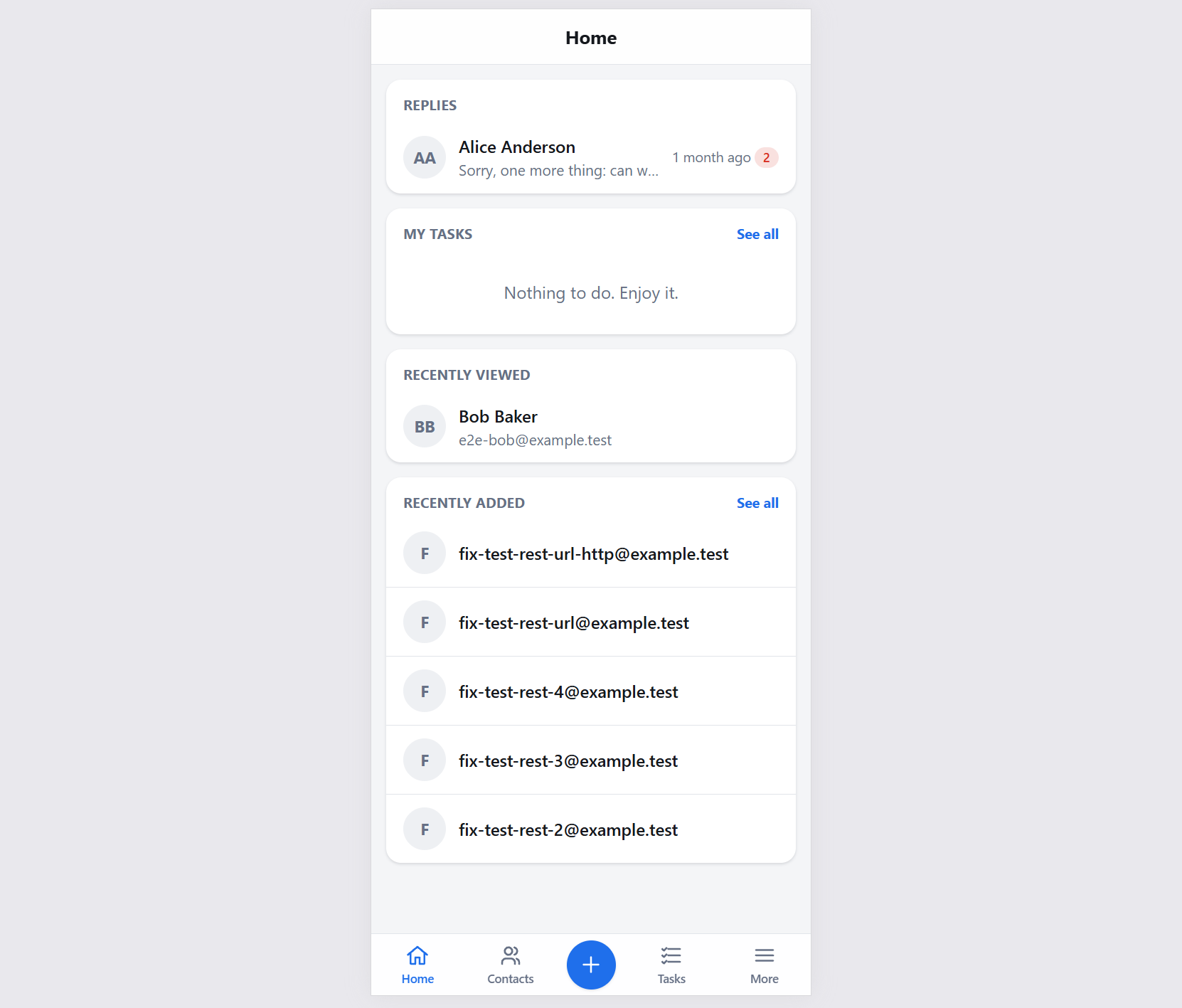
Groundhogg includes a mobile app you can install on your phone, so you can work with your CRM away from your desk. Look up contacts, call, text or email them, work through your tasks, add notes, fill out forms for a contact and reply to messages, all from a screen made for phones.
The mobile app is a web app that runs from your own WordPress site. There’s nothing to download from an app store, and your data never leaves your site.
Installing the App
- In your WordPress admin, go to Groundhogg > Tools and open the Mobile app tab. You can also use the mobile app link on the Groundhogg dashboard.
- Scan the QR code with your phone’s camera to open the app.
- Sign in with your WordPress account if you’re asked to.
- Add it to your home screen so it opens like any other app. On an iPhone, tap the Share button in Safari and choose Add to Home Screen. On Android, open the browser menu and choose Install app or Add to Home screen.

What You Can Do
- Contacts: search for a contact and open their record, then call, text or email them with a tap.
- Tasks: see the tasks assigned to you and work through them.
- Notes: add a note to a contact right after a call or meeting.
- Forms: fill out one of your forms on behalf of a contact, for example during a phone call or at an event.
- Messages: read and reply to replies from your contacts. Receiving replies needs Incoming Messages turned on, which requires an active Groundhogg license.
Permissions
The app only shows what the person using it is allowed to do. It uses the same roles and capabilities as the rest of Groundhogg, so a sales rep who can only see their own contacts in the admin will only see their own contacts in the app. That makes it safe to roll out to your whole team.
Add-ons
Add-ons can add their own screens to the mobile app. If you have an add-on that supports it installed, its screens appear in the app automatically.
Tip: prefer to use the regular admin on your phone? As of Groundhogg 4.10, admin pages also work better on small screens: modals use the full width of the screen and forms that sit beside a table, like tags and campaigns, stack underneath it.