
Documentation » Administration
Interface Themes
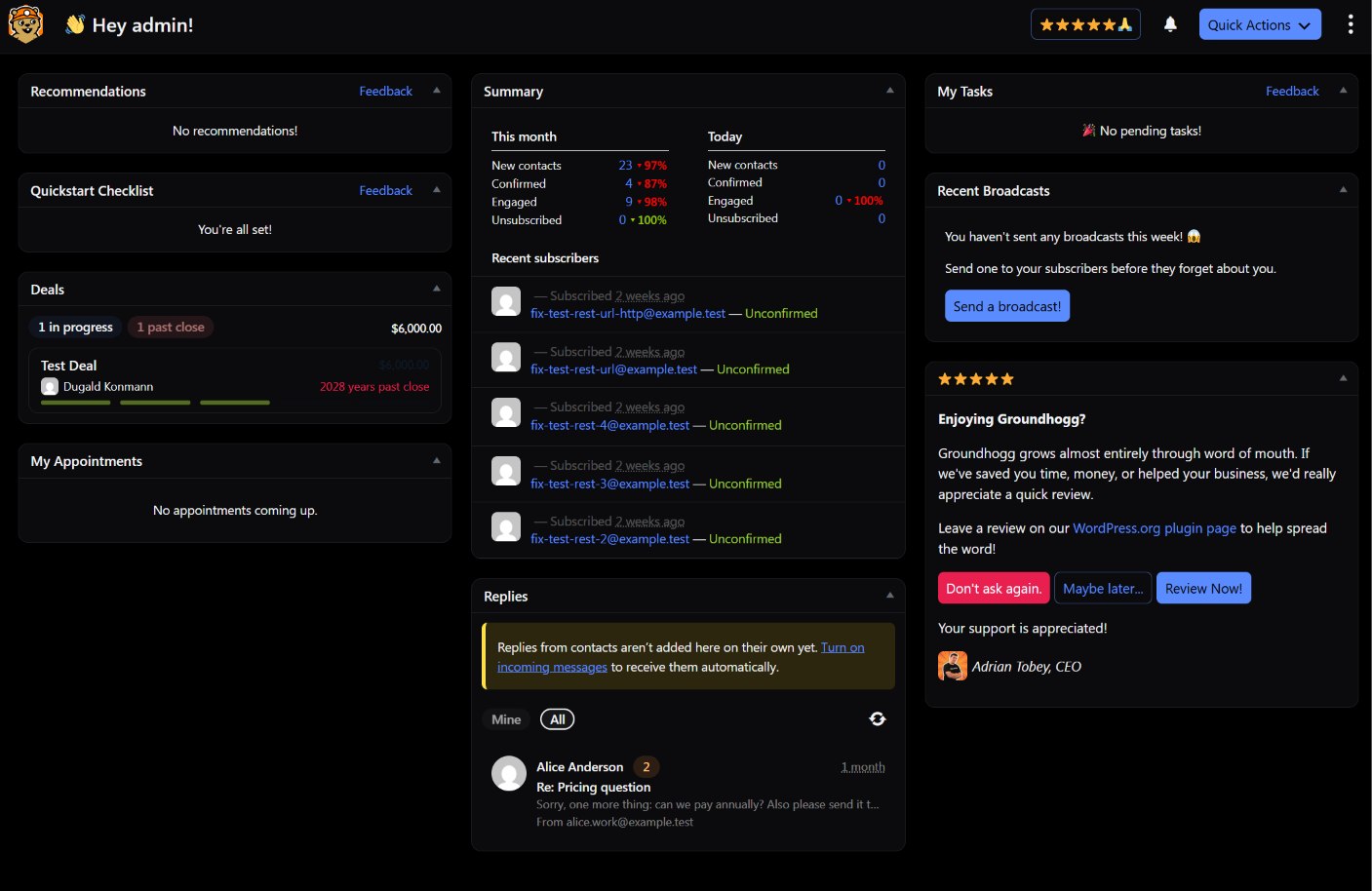
Interface themes change the colors of the Groundhogg admin. Choose one of four themes, or keep the default look. Your theme is saved to your own user account, so everyone on your team can pick the one they like without affecting anyone else.
A theme only changes colors. It doesn’t change how anything works, where anything is, or what your contacts see.
Available Themes
| Theme | Style |
|---|---|
| Default | The standard Groundhogg look. |
| Light | A light theme. |
| Paper | A light theme. |
| Slate | A dark theme. |
| Midnight | A dark theme. |
Choosing a Theme
You can pick a theme in any of three places:
- Your user profile: go to Users > Profile in WordPress and click one of the theme swatches.
- The guided setup: the Look step lets you pick a theme while you’re setting up Groundhogg.
- The command palette: on WordPress 7.0 and later, press Ctrl + K (or Cmd + K on a Mac), start typing the theme’s name and select it.

What Changes
Every part of the Groundhogg admin is styled for each theme, including tables, forms, tabs, modals, notices, tooltips and pickers, the flow editor, the text editors and the email editor.
- Emails stay white. In the email editor, the email itself keeps its own colors, so you always see it the way your contacts will, even in a dark theme.
- Destructive actions stand out. Delete, trash and spam row actions in tables show in a danger color, so they’re harder to click by accident.
The Command Palette
On WordPress 7.0 and later, Groundhogg adds its settings, the tabs of its admin pages and the interface themes to the WordPress command palette. Press Ctrl + K (or Cmd + K on a Mac) from anywhere in the admin, type what you’re looking for, like “sender profiles” or “Midnight”, and jump straight to it.

Note: interface themes only apply to Groundhogg’s admin. Your public pages, like the preferences center and campaign archives, follow each visitor’s own light or dark setting instead.