
Documentation » Administration
Contact Personal Information Access
Overview
Not everyone on your team needs to see who your contacts are. Starting in Groundhogg 4.11, you can choose, user by user, who can see the personal information of your contacts, like their name, email address, phone numbers, and address.
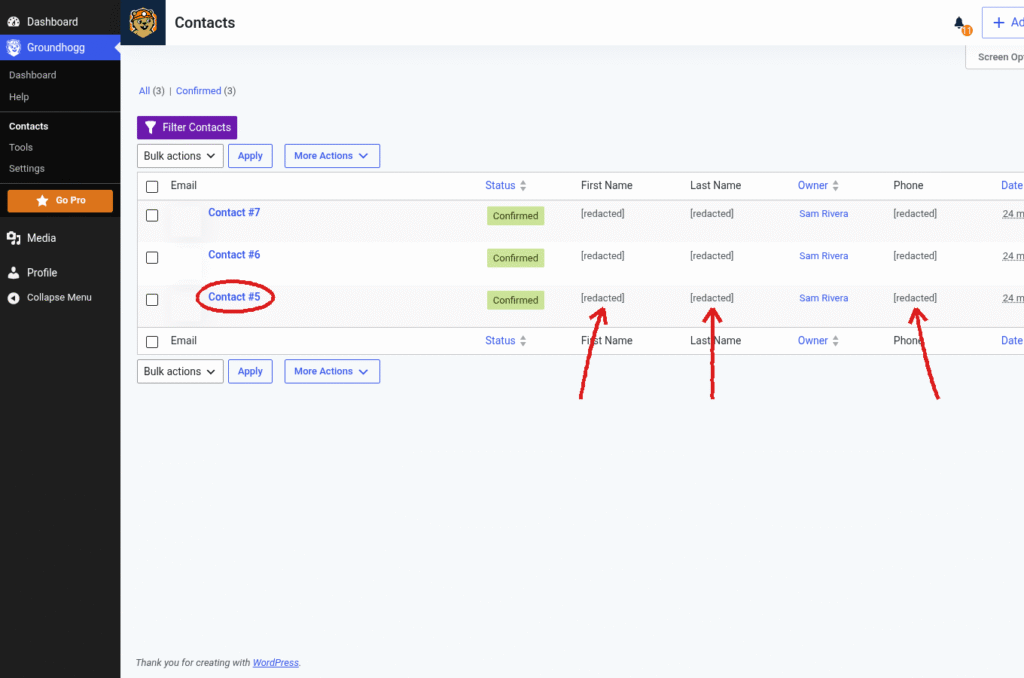
When it’s turned off for a user, those details are replaced with [redacted] wherever that user would see them. They can still work with contacts by their ID, tags, activity, and segments, so a sales rep or an outside agency can keep the work moving without ever seeing who the contacts are.
Who Can See Personal Information
Access is controlled by the view_contact_pii capability. By default, every Groundhogg role has it, so nothing changes for your team until you turn it off for someone.
- New sites: the Administrator, Marketer, Sales Manager, and Sales Representative roles all have it.
- Sites updated to 4.11: the update gives it to every role that can view contacts, so everyone keeps seeing what they saw before.
You can change it for a single user from their profile, as shown below, or for a whole role with a plugin like User Role Editor. See User Roles & Capabilities for the full list of capabilities.
What Counts as Personal Information
| Type | What’s hidden |
|---|---|
| Contact fields | First name, last name, and email address |
| Contact details | Primary phone and extension, mobile phone, company phone, alternate emails, alternate phones, street address (lines 1 and 2), city, postal/zip code, birthday and IP address |
| Custom fields | Any custom field marked Contains personal information (PII)? see below |
| Other meta | Any meta key that isn’t a custom field or one of the safe fields below, since nothing says it isn’t personal |
These stay visible because they don’t identify a person on their own: company name, job title, country, region, time zone, locale, lead source, source page, and the GDPR, marketing, and terms consent fields. Custom fields you haven’t marked as personal stay visible too.
Turn Off Personal Information for a User
You need to be able to edit users and see personal information yourself to change this for someone else.
- Go to Users » All Users and click the user you want to change.
- Scroll down to the Access & Team card.
- Uncheck Can see the personal information of contacts. next to Personal information.
- Click Update User.
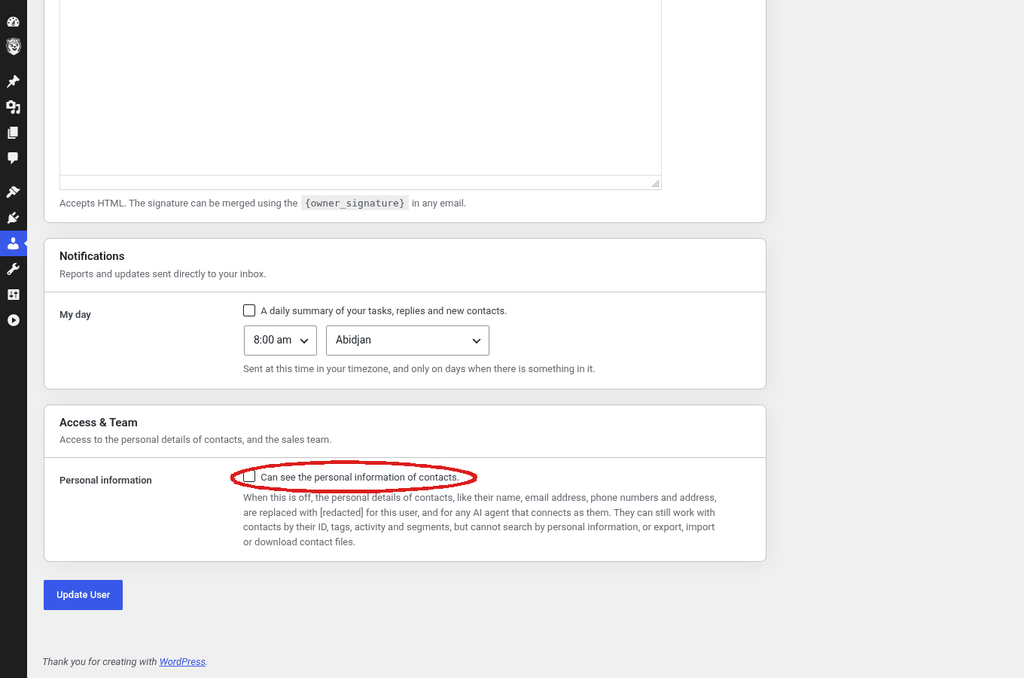
To give access back, check the box again and click Update User.
Note: the setting is only saved on the user when it’s different from their role. If you later change the role, everyone with that role follows the change, except users you’ve set apart this way.
What a Restricted User Sees
For a user who can’t see personal information:
- Contacts are shown as Contact #ID, for example, Contact #5, with a blank profile picture.
- Names, email addresses, phone numbers, addresses, and other personal details are not shown
[redacted]. - The personal fields in the contact record can’t be edited, and the Create User Account option is hidden.
- The quick search on the contacts list is hidden, and the list can’t be sorted by personal columns.
- Search filters on personal information, like email, first name, last name, phone, address, city, zip code, birthday, age, anniversary, and user meta, can’t be used.
- They can’t export, import, or download contact files, even if their role normally allows it.
- In the email log, replies and messages, form submissions and page visits, the addresses, content and IP addresses are hidden.
- In notes and tasks, the contact’s own details are replaced where Groundhogg finds them in the text.
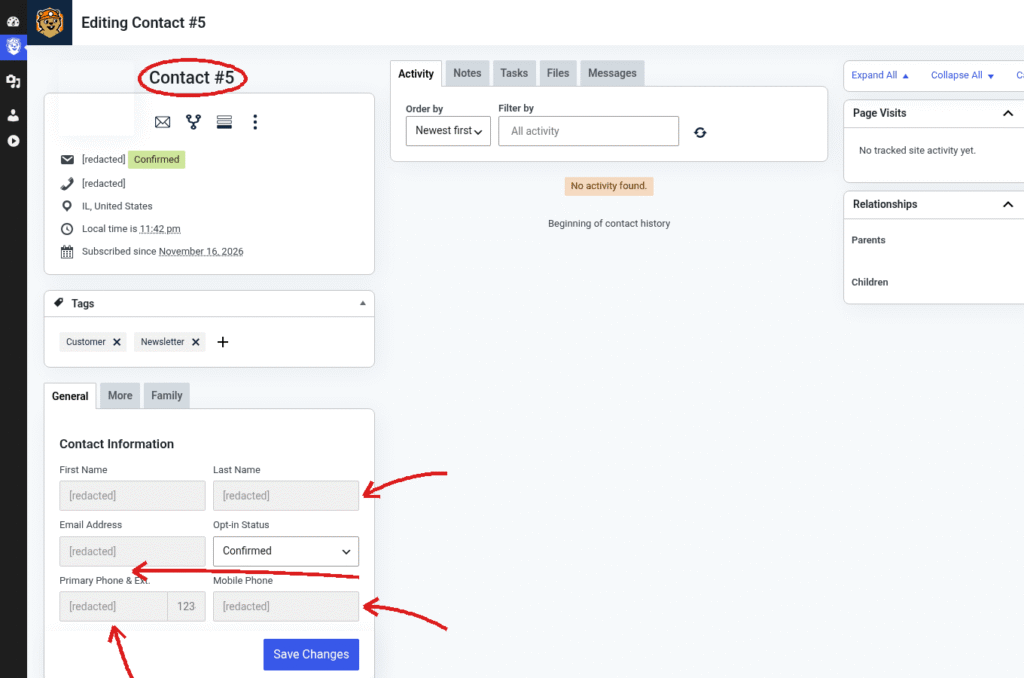
They can still filter and segment contacts by tags, activity, dates, opt-in status, and custom fields that aren’t personal, add tags, and work through their tasks.
❗ Notes and tasks are cleaned up as well as Groundhogg can. It finds what’s on the contact’s own record, as written. It can’t find a nickname or someone else’s details written in the text.
The same restriction applies when this user connects through the REST API, or when an AI agent connects as them, so the personal information of contacts is hidden there too.
Mark a Custom Field as Personal Information
Built-in fields like phone numbers and addresses are already covered. If you’ve created your own custom fields that hold personal details, like a spouse’s name or a second address, mark them so they’re hidden too.
- Open any contact record and select the tab that has the field.
- Double-click the field and click Edit field.
- Turn on Contains personal information (PII).
- Click Update Field. When you add a new field, you can turn it on before you click Create Field.
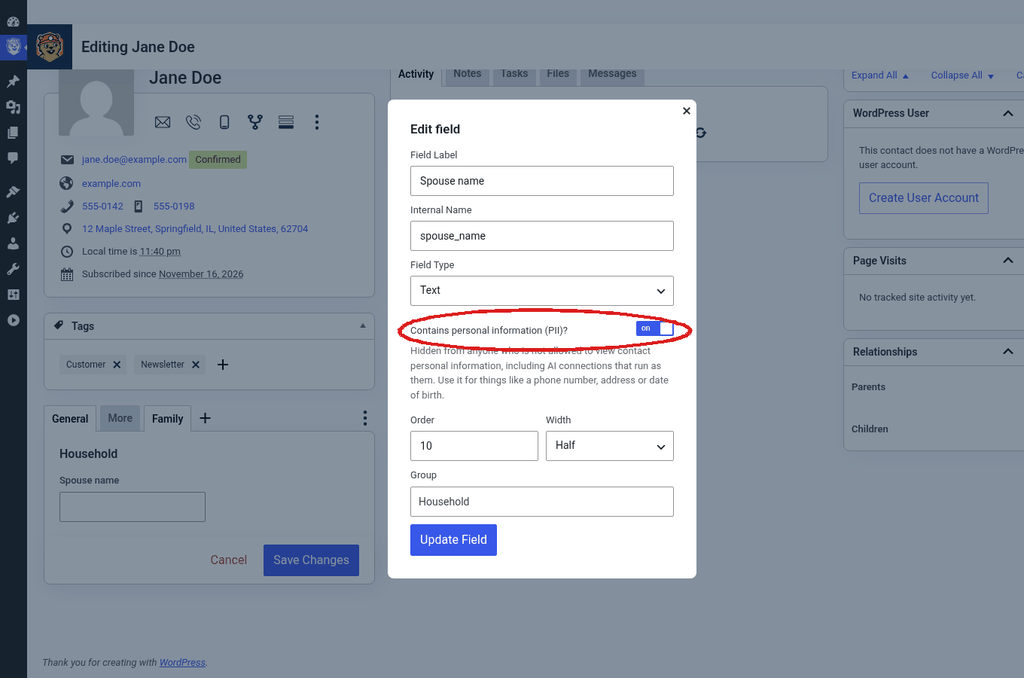
See Custom Fields for more about creating and editing fields.
FAQs / Troubleshooting
Q: Someone sees [redacted] right after we updated to 4.11. Did we lose data?
A: No. Nothing is removed; the details are only hidden from the screen. Reload the page. If it’s still hidden, check that their profile has Can see the personal information of contacts. checked.
Q: A user who should see everything sees [redacted].
A: The update only gives access to roles that can view contacts. If the user was given access to contacts on their own, rather than through their role, or their role was added by a plugin after the update, open their profile, check Can see the personal information of contacts. and click Update User.
Q: I don’t see the Personal information checkbox.
A: The Access & Team card only appears for people who can edit users, and the checkbox can only be changed by someone who can see personal information themselves. On multisite, it can’t be changed for a super admin.
Q: The user’s profile says Denied: view_contact_pii under Additional Capabilities.
A: That’s WordPress showing the setting you just changed. It means personal information is turned off for that user.
Q: The Export and Import tools disappeared for a user.
A: Exporting, importing, and downloading contact files would reveal personal information, so they’re turned off along with it.