
Replies & Messages
Messages shows your email conversation with a contact on their record, like a text message thread: what you send is on the right and what they send back is on the left. It’s on the Messages tab of every contact, and the replies you haven’t read yet from all of your contacts are collected in a Replies widget on your dashboard.
Two kinds of email end up in Messages:
- Email you compose in Groundhogg, from a contact record or the Messages tab. Replies to it come back to Groundhogg by themselves.
- Email you send from your own mailbox (Gmail, Outlook, etc.), when you send a copy of it to your Messages inbox address, and replies to it that you forward there.
Broadcasts and flow emails aren’t stored as messages, but you can show the ones that have been sent to a contact in their conversation with the Automated filter.
Requirements
- Groundhogg 4.9 or later.
- An active Groundhogg license that’s activated on your site, in Groundhogg » Settings » Licenses. It’s checked when you turn Messages on, and email isn’t delivered to your site while the license is inactive. Without a license the button to turn Messages on isn’t shown.
- A live site that’s reachable over HTTPS. When you turn Messages on, and each time an email arrives, the Messages service sends a request to your site’s REST API (
/wp-json/gh/v4/messages/inbound). A local development site, a site on a.localdomain or an IP address, or a site behind password protection or a firewall that blocks the request can’t receive messages. If a security plugin blocks the WordPress REST API, it blocks Messages too. - An email service that can send from the address you compose with. Emails you compose are sent by the outgoing email service you’ve set up in Settings » Email. A service that only sends from verified addresses, like Postmark, will only send as those, so pick a sender it accepts.
- Permission to view contacts. You see the messages of the contacts you can see. Contact owners see their own contacts and administrators see everyone’s.
Turn on incoming messages
- Go to Groundhogg » Settings and open the Email tab.
- In the Incoming Messages card at the top, click Turn on incoming messages.
- Groundhogg checks your license, gives your site an inbox address, and confirms that the Messages service can reach your site. It can take up to 10 seconds.
When it’s on, the card shows your inbox address and when the last message arrived.
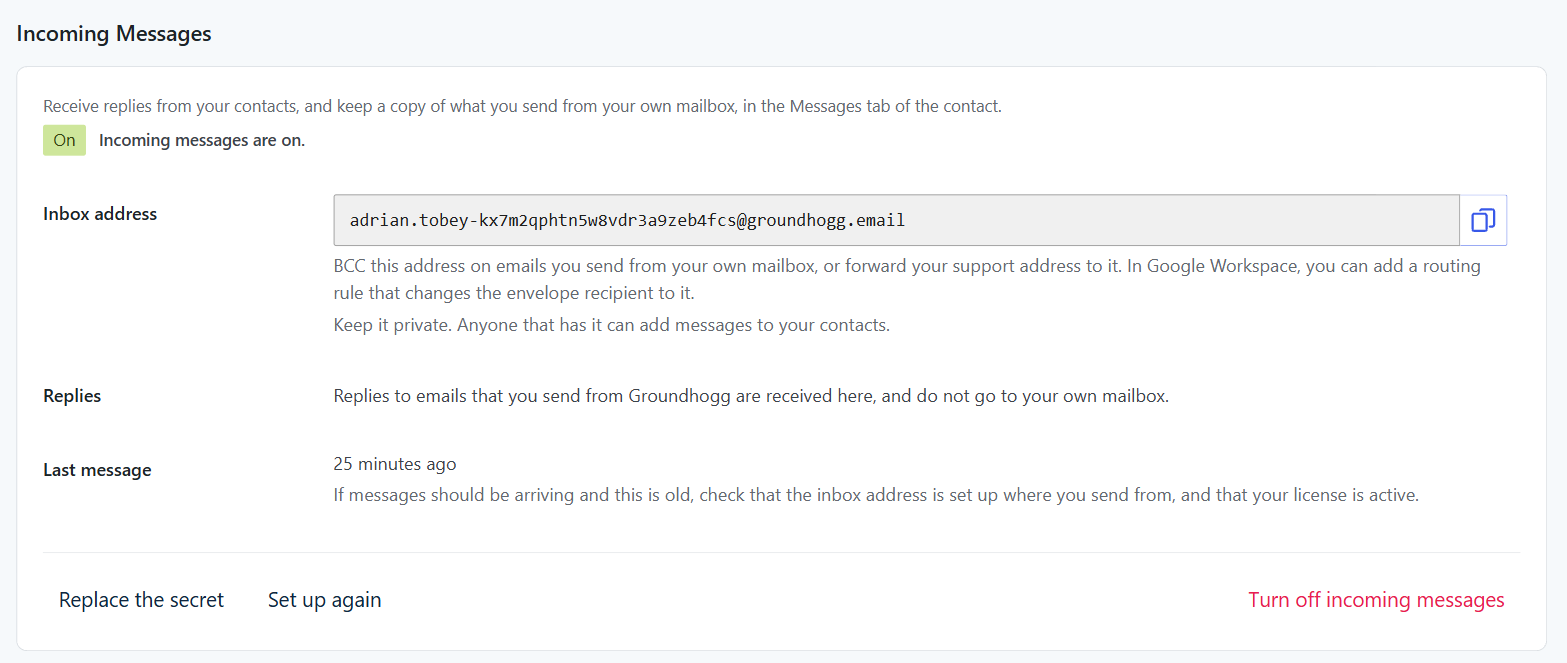
The card has three actions:
- Replace the secret makes a new key that Groundhogg uses to check that a message really came from the Messages service. Your inbox address doesn’t change. If you define the secret yourself with the
GH_INBOUND_SECRETconstant inwp-config.php, that’s the only secret Groundhogg uses. - Set up again connects your site to the Messages service again, for example after you’ve moved it. Your addresses don’t change.
- Turn off incoming messages disables your inbox. Email sent to it is rejected.
If Messages can’t be turned on, the reason is shown in the card. See Troubleshooting below.
Your inbox address
Your inbox address is in the Incoming Messages card, in Groundhogg » Settings » Email. It has your name in front of a long random string, like adrian.tobey-kx7m2qphtn5w8vdr3a9zeb4fcs@groundhogg.email, and there’s a button to copy it.
The name is only there so that the address is recognizable in your mail program. It comes from whoever is looking at the settings, so a colleague sees their own name. Everything up to the last - is ignored, which means the address works with any name in front of it, or none at all. Only the random part identifies your inbox.
Keep this address private. Anyone who has it can put messages onto your contact records. Never put it in the To, Cc, or Reply-To of an email a contact can see.
Email you send from Groundhogg
Once Messages is on, there’s nothing more to set up for email you compose in Groundhogg. Click the envelope icon on a contact record and choose Compose, or use Write a message… at the bottom of the Messages tab. What you send is saved in the conversation, and the email has a private reply address that’s unique to it, so a reply comes to Groundhogg instead of your mailbox.
A reply is matched by that address and not by who it’s from, so it lands on the right contact even if they reply from a different email address.
The From field lists your sender profiles: yours, the site default, the owner of the contact, and any custom profiles. It starts as your own.
Only email you compose in Groundhogg works this way. Replies to broadcasts and flow emails go to the reply-to address of the email, wherever that is. To log them, forward them to your inbox address like any other mail from your mailbox (see below).
Using the Messages tab
Open a contact and click the Messages tab.
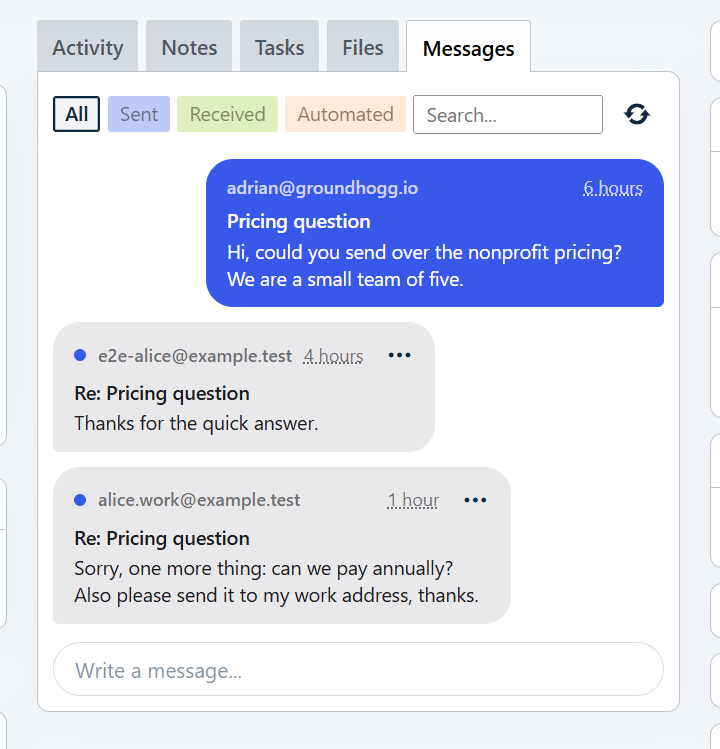
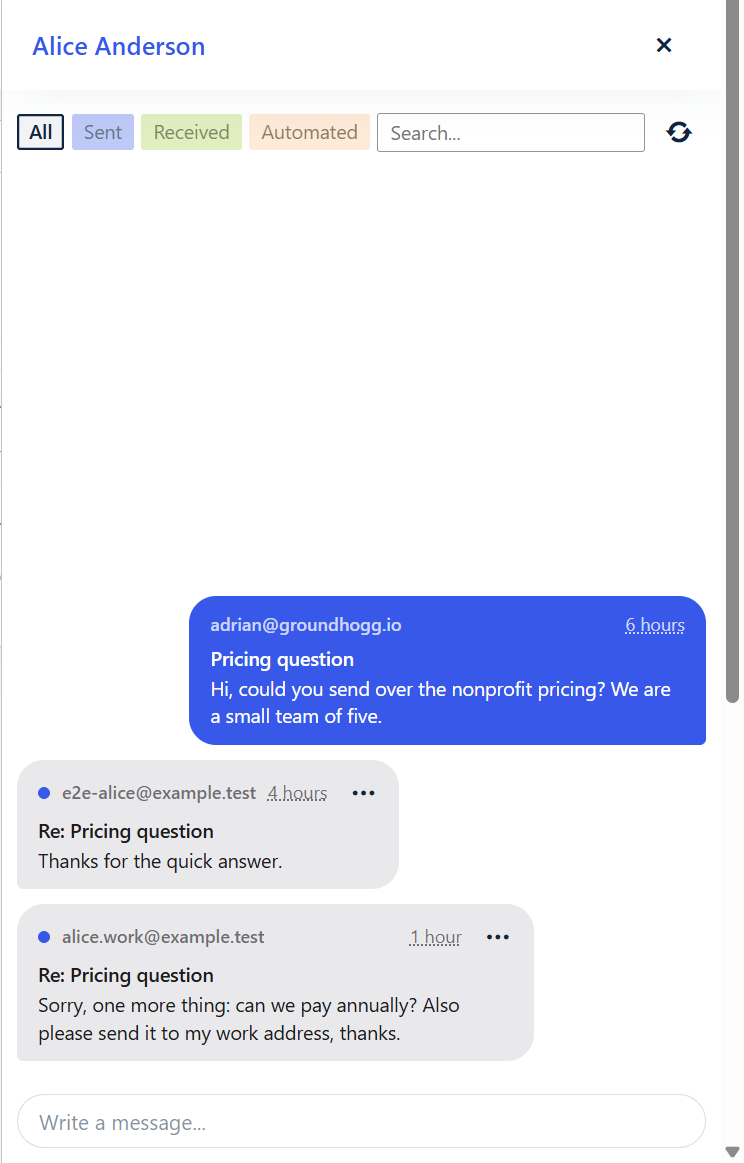
- The newest message is at the bottom. What you sent is blue and on the right, and what they sent is grey and on the left. A blue dot marks a message you’ve received and haven’t read.
- The All, Sent, and Received pills filter the conversation. The Automated pill adds the broadcast and flow emails that have been sent to the contact. Click a pill again to turn it off.
- Search looks through the subject and text of the messages. It doesn’t include automated emails. The refresh icon reloads the conversation.
- Write a message… at the bottom opens the composer, addressed to the contact.
- Click a message to open it and read the whole email. Opening a received message marks it as read.
Reply to a message
Click the ⋯ on a message you received and choose Reply.
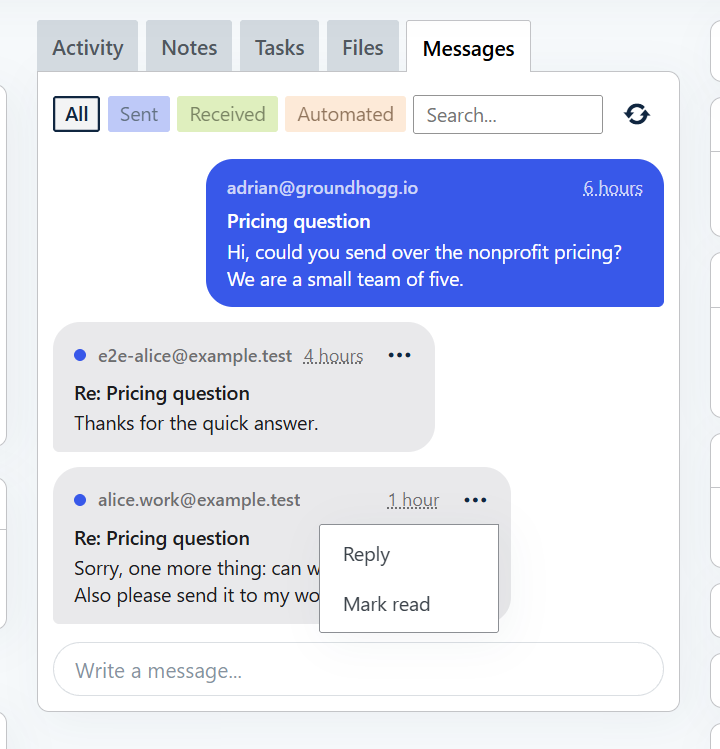
The composer opens with the To address and the subject already filled in. The To address is the address the message came from, which isn’t always the address on the contact. Write your reply and click Send.
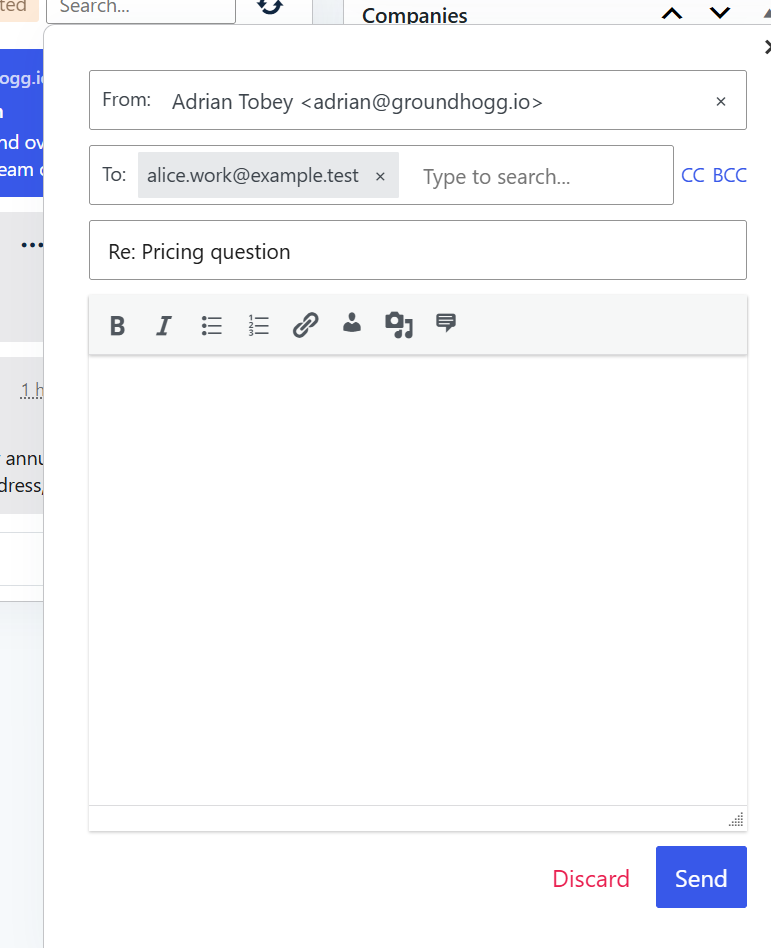
The reply is sent with the headers that email programs use to group a conversation, so it stays in the same thread in the contact’s mailbox, and it’s added to the conversation in Messages.
Mark a message read or unread
A message is marked as read when you open it. To come back to one later, click the ⋯ on it and choose Mark unread. The same menu has Mark read for a message you don’t need to open.
Read replies from the dashboard
The Replies widget on the Groundhogg dashboard lists the contacts that have replied, and that you haven’t read yet, so you don’t have to open each record to find them.
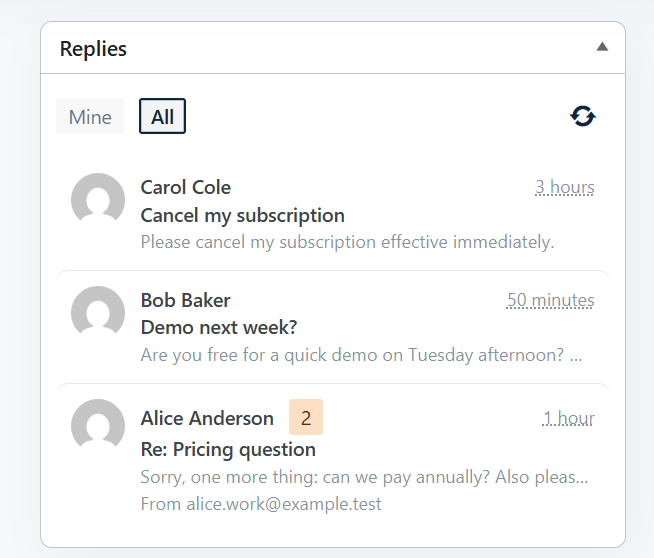
- Each contact is listed once, with the newest first. It shows how many replies are unread (when there’s more than one), the subject and the start of the latest one, and the address it came from when that isn’t the contact’s own.
- Mine shows the contacts you own. All shows everything you have access to: administrators see all contacts, and everyone else sees the contacts they own. Your choice is remembered in your browser.
- Click a contact to open the conversation in a panel that slides in, so you can read and answer without leaving the dashboard. Click the name of the contact at the top of the panel to open their record on the Messages tab.
- A contact leaves the list once you’ve opened their unread replies, or you can mark them as read from the ⋯ menu.
The widget can be hidden like the others, from ⋮ » Preferences on the dashboard.
Reply from your phone
As of Groundhogg 4.10, you can also read and answer replies from the Groundhogg mobile app. Like everywhere else, you only see the messages of contacts you have access to.
What Messages saves
- The text of each email. Attachments aren’t included, and a message body is cut off at about 1 MB.
- Automatic replies aren’t saved: out of office replies, delivery failure notices, and mail marked as bulk or from a list.
- An email that’s delivered more than once is saved once.
- When you delete a contact, their messages are deleted with them.
- The subject and body of emails you send are saved with sensitive values redacted, the same as elsewhere in Groundhogg. Emails you receive are saved as they were sent, and shown in a frame where scripts don’t run.
Email you send from your own mailbox
Email you send from your own inbox (Gmail, Outlook, etc.) is different. When a contact replies to it, the reply goes to your mailbox, not to Groundhogg. To log those conversations on the contact’s record, send a copy to your Messages inbox address.
1. Log emails you send
When you email a contact from Gmail, Outlook, or any other email client, add your inbox address to the BCC field. Groundhogg saves the email to the timeline of each contact in the To or Cc fields.
Always use BCC, not To or Cc, so the contact never sees the address.
Send from an address Groundhogg knows is yours: the email address of a user on your site who can view contacts, your default From address, or the address of one of your sender profiles. Groundhogg treats email from any other address as a message that was received, and only saves it if it’s from a contact.
Tip: Gmail and Outlook can’t BCC an address automatically on their own. In Outlook desktop, a rule applied to messages you send can add it for you. For Gmail, use a browser extension, or see the Google Workspace section below.
2. Log replies from contacts
Replies come back to your own mailbox, so set up a rule there that forwards them to your inbox address. Auto-forwarding keeps the original sender, so Groundhogg can match the reply to the right contact.
Gmail
- Go to Settings » See all settings » Forwarding and POP/IMAP and click Add a forwarding address. Enter your inbox address.
- Gmail sends a confirmation code to that address. Groundhogg only saves email from contacts, and this email comes from Google, so before you add the address, add
forwarding-noreply@google.comas a contact (Contacts » Add New). The confirmation then appears in the Messages tab of that contact. Open it there, then enter the code in Gmail or click the confirmation link. You can delete the contact afterward. - Create a filter for the mail you want logged (for example
to:you@yourbusiness.com) and choose Forward it to your inbox address.
Outlook / Microsoft 365
Create a rule with the action Forward to (or Redirect to) your inbox address. If nothing arrives, your administrator may have blocked automatic forwarding to external addresses, which Microsoft 365 does by default. Ask them to allow forwarding to groundhogg.email.
One conversation at a time
You can also click Forward on a single reply and send it to your inbox address. A manually forwarded email comes from you, not the contact, so Groundhogg treats it as an email you sent, and it can only be matched to a contact that is in its To or Cc. Use a forwarding rule whenever you can.
Google Workspace: log mail for your whole team
If your business uses Google Workspace, an administrator can set this up once for the whole team with a Gmail routing rule. It replaces BCC and forwarding filters for the users it covers. Google delivers an extra copy of each message to your inbox address on its servers, so:
- the original email is untouched and the contact never sees the address,
- nobody has to remember to BCC, and
- there’s no forwarding address to verify.
You need to be a Google Workspace super admin.
- In the Google Admin console, go to Apps » Google Workspace » Gmail » Routing.
- Select the organizational unit to apply the rule to: the top level for everyone, or a sub-unit for just your sales or support team. Next to Routing, click Configure (or Add another rule).
- Name the rule
Groundhogg Messages. - Under Email messages to affect, check:
- Inbound to log replies from contacts.
- Outbound to log emails your team sends. Leave this unchecked if you only want replies.
- Leave Internal – sending and Internal – receiving unchecked so emails between colleagues aren’t logged.
- (Recommended) Under Envelope filter, limit the rule to the mailboxes that talk to contacts. Use Only affect specific envelope recipients for inbound (e.g.
sales@yourbusiness.com) and Only affect specific envelope senders for outbound. Create two rules if you want to filter both directions. - Under For the above types of messages, do the following, check Also deliver to, click Add, and switch the dropdown from Basic to Advanced. Then:
- Check Change envelope recipient, choose Replace recipient, and enter your inbox address.
- Check Do not deliver spam to this recipient.
- Check Suppress bounces from this recipient.
- Save the rule. Changes can take up to an hour to take effect.
Test it: from a personal email address that’s a contact in Groundhogg, reply to an email one of your team sent. The reply should appear on that contact in Messages.
Things to keep in mind
- Outbound logging copies everything the covered users send, including email to people who aren’t contacts. Groundhogg ignores mail it can’t match to a contact, but it still passes through Messages. Limit the rule to the people or mailboxes that should be logged.
- Volume limits. Messages accepts up to 1,000 emails per hour per site. Logging every mailbox on a busy domain can go over that, and extra mail is not logged. Scope your rules to keep volume down.
If your inbox address changes
If you turn Messages off and on again, you get a new inbox address. Set up again and Replace the secret keep the address you have. When you do get a new one, update everything that points to the old one: your BCC habits or auto-BCC rules, Gmail and Outlook forwarding filters, and Google Workspace routing rules. Workspace rules suppress bounces, so if you forget, mail simply stops arriving without any error.
Replies to email you already sent from Groundhogg still arrive. They use a separate reply address that doesn’t change.
Staging sites and moving your site
An inbox belongs to one site. A copy of your site, like a staging site, shows a Different site notice in the settings and doesn’t receive messages, so email never ends up in the wrong place. If you change the address of your site, Messages tells you the address has changed and shows an Update the address button. Click it to send the new address to the Messages service.
Troubleshooting
- There’s no button to turn Messages on: you need an active license. Activate it on the Licenses tab.
- Messages won’t turn on: the reason is shown in the card. It’s most often that the Messages service can’t reach your site, because it’s a local development site, it’s behind password protection, or a firewall, security plugin, or CDN rule is blocking the request. The site has to answer requests from the internet, so open your site in a private browser window to check. If it says it took too long, try again in a moment.
- Nothing arrives: check that the inbox address in your rule matches the one in Groundhogg exactly, and that your Groundhogg license is active. Emails aren’t delivered while the license is inactive. The card in the settings shows when the last message arrived.
- An email arrived but isn’t on a contact: the sender (for replies) or recipients (for emails you sent) must already be contacts in Groundhogg. Emails you send must also be from an address that’s yours, see 1. Log emails you send.
- A reply to a broadcast or flow email isn’t in Messages: only replies to email you compose in Groundhogg are received automatically. Forward the others to your inbox address.
- Attachments are missing: Messages logs the text of each email. Attachments aren’t included.
- Multisite subsite can’t turn Messages on: update to Groundhogg 4.10 or later. Before 4.10, a subsite couldn’t set up Messages when the license was activated on the main site of the network. When the White Label add-on is network active and turned on, subsites use the licenses of the main site, so activate and manage the license there.