
How to Show Your Logo in the Inbox with BIMI
BIMI (Brand Indicators for Message Identification) shows your logo next to your emails in your contacts’ inboxes, instead of a plain initial. It works in Gmail, Apple Mail, Yahoo and a few other providers. Microsoft Outlook doesn’t support it yet.
BIMI isn’t a Groundhogg setting. It’s set up in your domain’s DNS and with a certificate authority, and then it works for every email sent from your domain, including the ones Groundhogg sends. This guide walks through each step.
What you’ll need #
- A domain you send email from, like
yourbusiness.com. BIMI doesn’t work with free addresses like Gmail or Outlook.com. - Access to your domain’s DNS settings, for example in Cloudflare, GoDaddy or Namecheap.
- An SMTP service that authenticates your domain, like MailHawk, Amazon SES or Postmark. See What is SMTP?
- Your logo as a vector file (SVG, AI or EPS).
- Budget for a mark certificate. These cost well over a thousand dollars a year.
Step 1: Lock down your domain with DMARC #
Mailbox providers only show your logo if your domain is protected from spoofing. That means:
- SPF and DKIM are set up for every service that sends email as your domain.
- Your DMARC policy is set to
p=quarantineorp=reject, and it applies to all of your mail.
A DMARC policy of p=none won’t work, and neither will a partial rollout like pct=50. Follow Secure Your Sending Domain to get your DMARC policy to enforcement safely.
Step 2: Choose a certificate #
Gmail and Apple Mail only show your logo if it’s backed by a mark certificate, which proves the logo belongs to you. There are two kinds:
| Verified Mark Certificate (VMC) | Common Mark Certificate (CMC) | |
|---|---|---|
| What you need | A registered trademark for your logo | Proof you’ve used the logo publicly for at least 12 months |
| Gmail | Logo and a blue verified checkmark | Logo only |
| Apple Mail | Supported | Not supported yet |
| Yahoo | Supported | Supported |
Choose a VMC if your logo is a registered trademark. The trademark has to be registered, not just applied for, and it has to be from an office the certificate authorities accept. These include the US (USPTO), Canada (CIPO), the EU (EUIPO), the UK, Australia, Japan and several others. The logo you submit has to match the registered design.
Choose a CMC if your logo isn’t trademarked. You’ll need to show it’s been in public use for a year, for example on your website.
Mark certificates are sold by certificate authorities such as DigiCert, Sectigo, GlobalSign and SSL.com. Each certificate is valid for about a year.
Step 3: Prepare your logo file #
BIMI uses a strict version of SVG called SVG Tiny PS. A regular SVG exported from a design tool will almost always be rejected. Your file needs to:
- be square, with your logo centered,
- have a solid background (no transparency),
- include
version="1.2"andbaseProfile="tiny-ps"on the<svg>tag, and noxoryattributes there, - include a
<title>with your company name, - contain no scripts, images, links, animation or extra metadata,
- be 32 KB or smaller.
The top of a valid file looks like this:
<svg xmlns="http://www.w3.org/2000/svg" version="1.2" baseProfile="tiny-ps" viewBox="0 0 400 400">
<title>Your Business Inc.</title>
Most email providers crop your logo into a circle, so leave some space around the edges.
If your certificate authority’s upload form rejects the file, check these common causes:
- “Isn’t valid SVG image.” The file contains an element or attribute SVG Tiny PS doesn’t allow, often metadata or a namespace added by the program that saved it. Remove anything that isn’t a shape, the title or a group.
- “Unsupported newlines.” The file was saved with Windows line endings. Re-save it with Unix (LF) line endings, for example in VS Code using the CRLF/LF switch in the bottom bar.
Some certificate authorities offer a logo checker or will convert your logo for you, so ask before you spend hours on it.
Step 4: Order the certificate and complete validation #
When you place your order, you’ll choose who hosts the logo and certificate files. Let the certificate authority host them if you can. You won’t need to upload anything to your own site, and the files are kept up to date when you renew.
Expect the certificate authority to:
- Verify you control your domain. The easiest way is to add a TXT record they give you to your DNS.
- Verify your organization’s name, address and phone number.
- Verify your identity with a copy of your government ID and a short video call.
- Ask you to approve the order by email.
- Check your trademark (VMC) or proof of logo use (CMC).
If you get an unexpected call or email asking for ID, check it’s genuine before you share anything. Look up the certificate authority’s phone number on their website and call them back.
Issuing usually takes one to two weeks if your paperwork is in order.
Step 5: Publish your BIMI record #
Once your certificate is issued, add a TXT record to your DNS:
| Type | Name | Content |
|---|---|---|
| TXT | default._bimi | v=BIMI1; l=https://...logo.svg; a=https://...certificate.pem |
Replace the two links with the logo (l=) and certificate (a=) URLs your certificate authority gives you. In some DNS providers you’ll need to enter the full name, default._bimi.yourbusiness.com.
When will my logo appear? #
Usually within a few days, but it can take up to a week or two as providers cache your records. It will only appear on emails received after it’s set up, not on older ones already in the inbox.
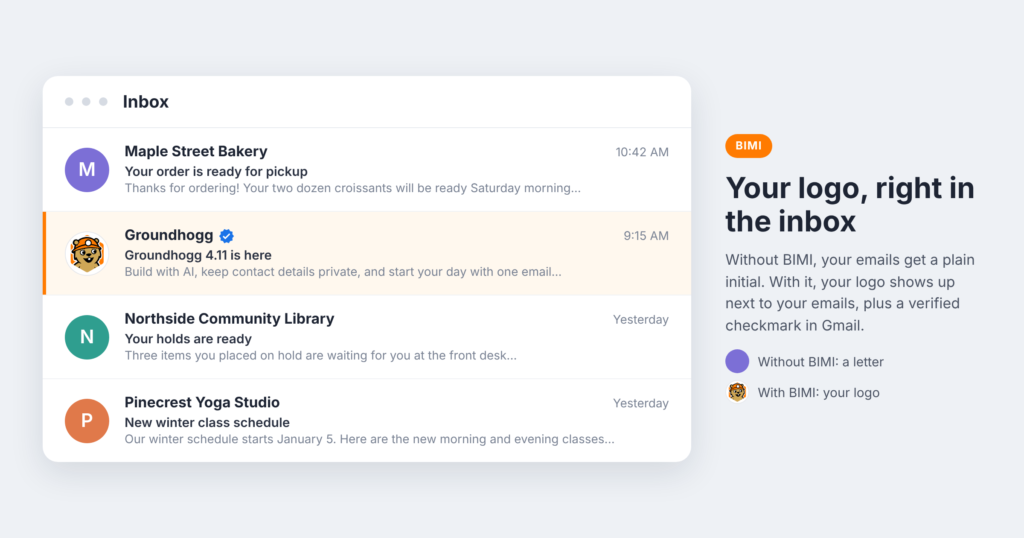
To test it, send an email from your domain to a personal Gmail address.
Troubleshooting #
If your logo doesn’t appear after a week, check that:
- your DMARC policy is
p=quarantineorp=rejectand applies to 100% of mail, - the email you’re testing passed DMARC (in Gmail, open the email and click Show original),
- your BIMI record is published at
default._bimiand the URLs open in a browser, - you’re testing in a provider that supports BIMI. Outlook won’t show it.
Still stuck? Contact support and we’ll help you sort it out.