Documentation » Administration
Admin Toolbar Widget
When you log in to your website you’ll find the Groundhogg icon at the top right of your screen. It opens the Groundhogg Admin Toolbar Widget.

Clicking the icon shows the last five contacts added, along with these options:
- Search for contacts
- Create a contact
- Send a broadcast
- Hide the Admin Toolbar Widget (Groundhogg › Settings › Misc)
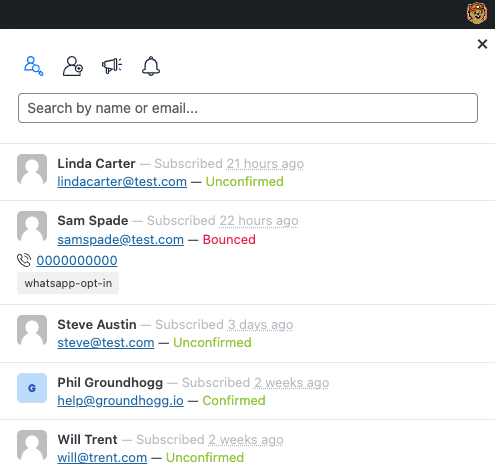
For each recent contact, the widget shows their profile picture, name, when they subscribed, email, opt-in status, phone number, cell number and tags.
Search for contacts #
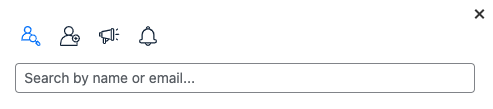
Click the first icon and enter the name or email you want to search for. Entering a partial name or email shows a list of possible matches below.
Create a contact #
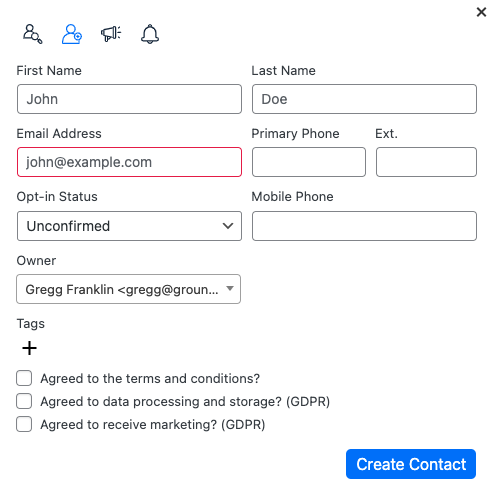
Click the second icon, fill out the form with the new contact’s information, then click Create Contact.
Send a broadcast #
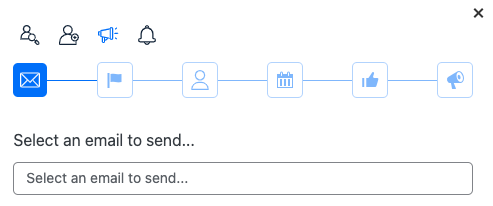
Click the third icon and select the email you want to send. This opens the broadcast scheduler, which works the same way as scheduling from the Broadcasts page. See Email Broadcasts for each step.