


When you have the Advanced Email Preferences add-on installed you’ll be able to add custom fields to the email preferences screen (unsubscribe page) as well as offer opt-in or opt-out topic tags.
Add Topic Tags to the Unsubscribe page
This feature allows contacts to manage which tags are applied to their contact record as if they were topics they were subscribed to. That way, instead of unsubscribing, a contact could simply remove the tag for the topic they no longer want to recieve email about.
Go to Groundhogg >> Tags and edit the tag you want to allow contacts to opt-in or out of.
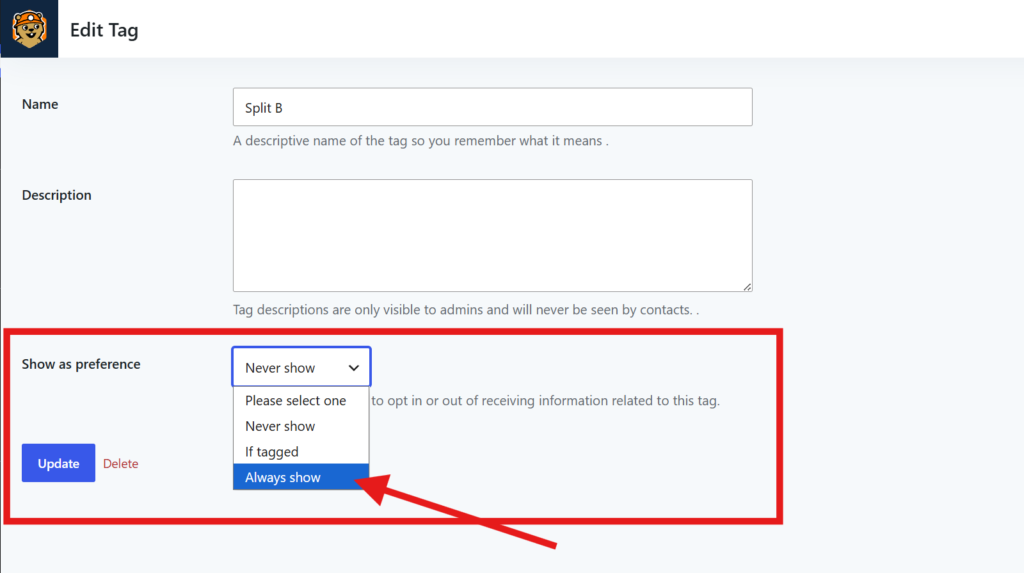
Change the Show as Preference setting to…
- If tagged
If you want to only allow contacts that have the tag to opt-out, but not let contacts opt-back in. - Always show
If you want contacts to be able to opt-in or opt-out at any time.
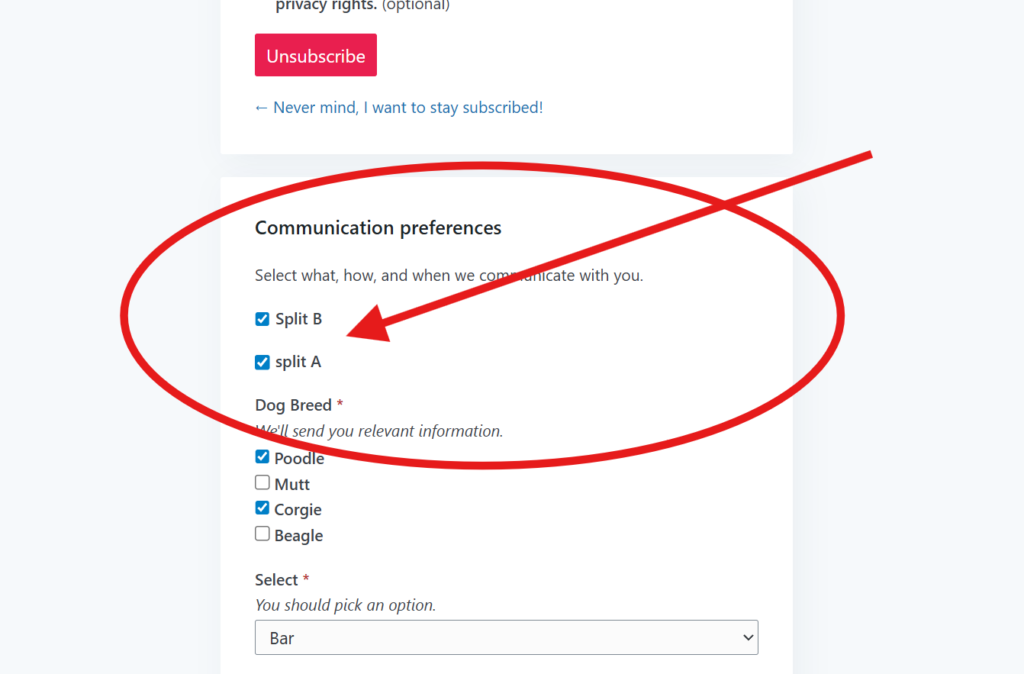
Those tags will now appear as selectable topics on the unsubscribe page.
Custom Fields in the Preferences center
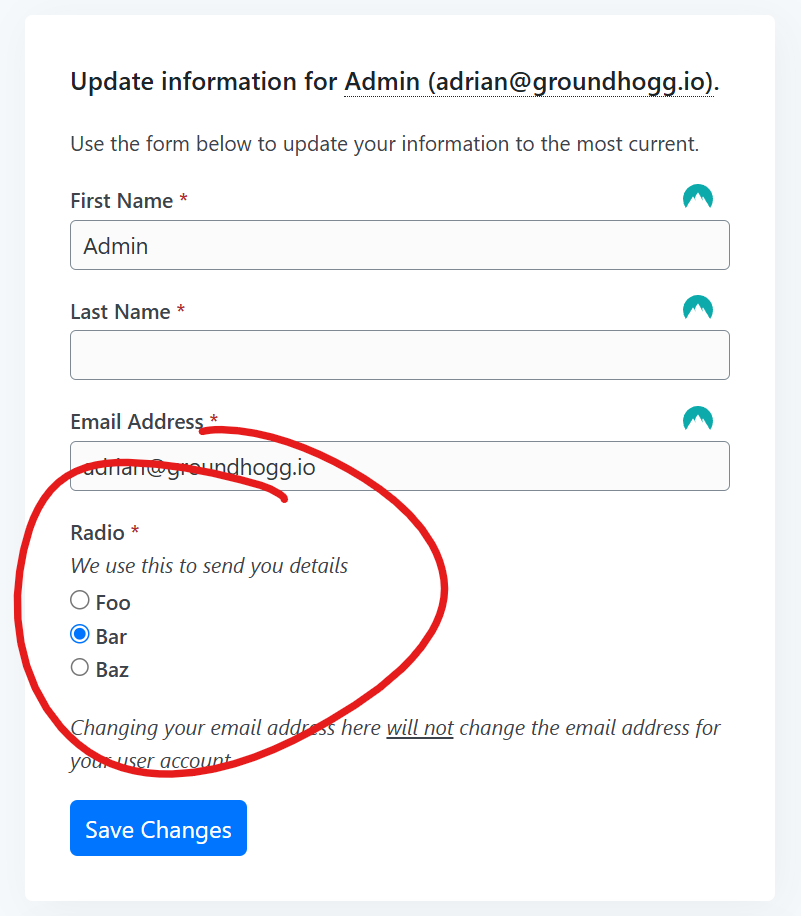
Go to Groundhogg >> Settings >> Email and scroll to the Preferences Center section to select custom fields that can go on both the main preferences center page as well as the unsubscribe page.
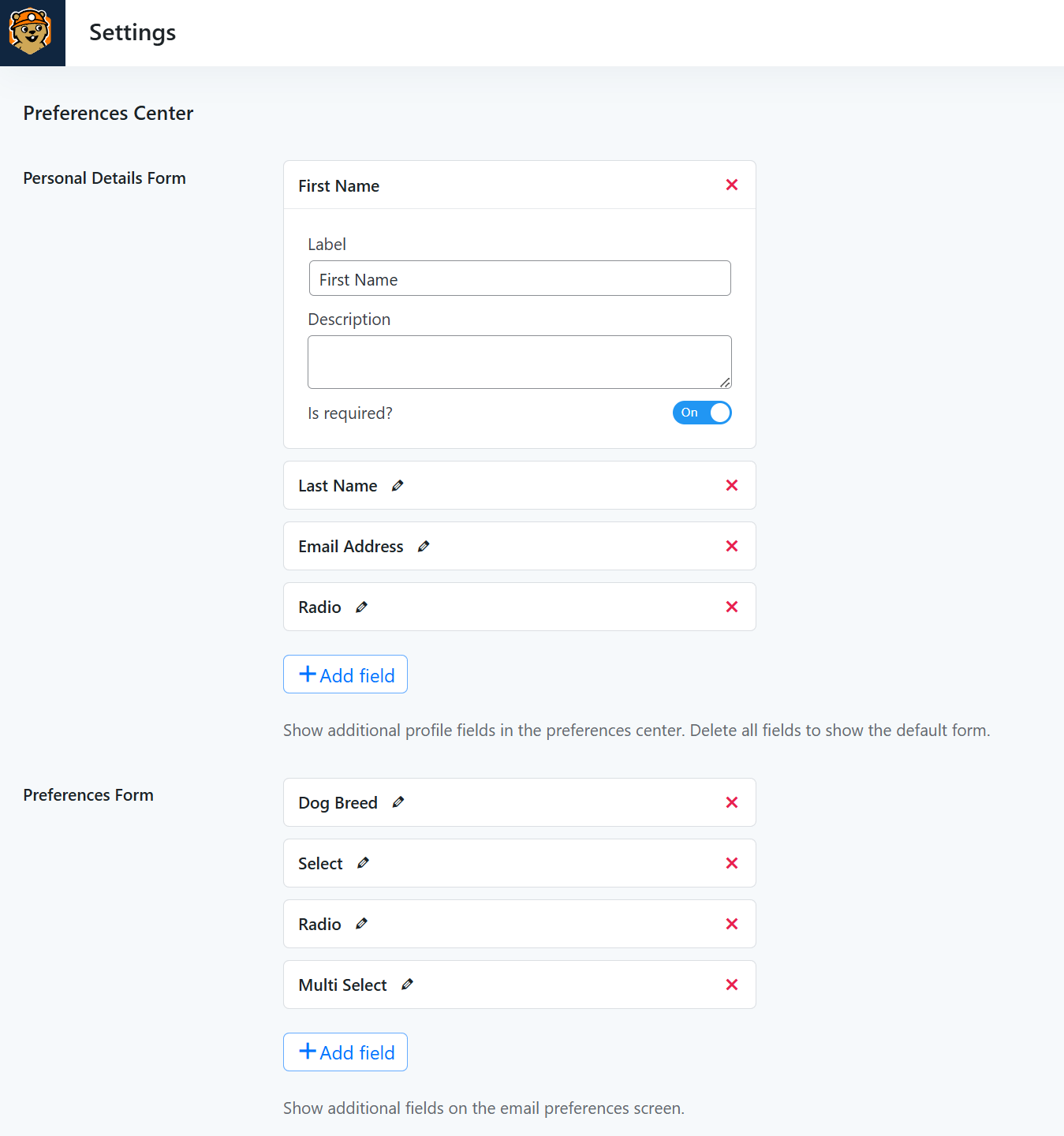
This is handy for giving users an alternative to simply unsubscribing. Instead, they can change their preferences to recieve only the email that interests them.
Was this helpful?
Let us know if this document answered your question. That’s the only way we can improve.