
Documentation » Getting Started
Connect an AI Agent to Groundhogg
You can connect an AI agent like ChatGPT, Claude or Gemini to Groundhogg and ask it to work in your CRM in plain language. It can build and edit flows, write and schedule emails, find and update contacts, and pull reports, using the same permissions as the WordPress user it’s connected as.
This guide covers getting connected and using an agent safely. If you’re a developer looking for the full list of abilities or want to set things up by hand, see Working with the Abilities API (MCP).
What You’ll Need
- Groundhogg 4.10 or later.
- WordPress 6.9 or later.
- A WordPress user who can manage options (usually an administrator) to run the setup.
- An AI client that supports MCP connectors, such as ChatGPT, Claude, Codex, Cursor, Gemini CLI or VS Code.
Connecting Your Agent
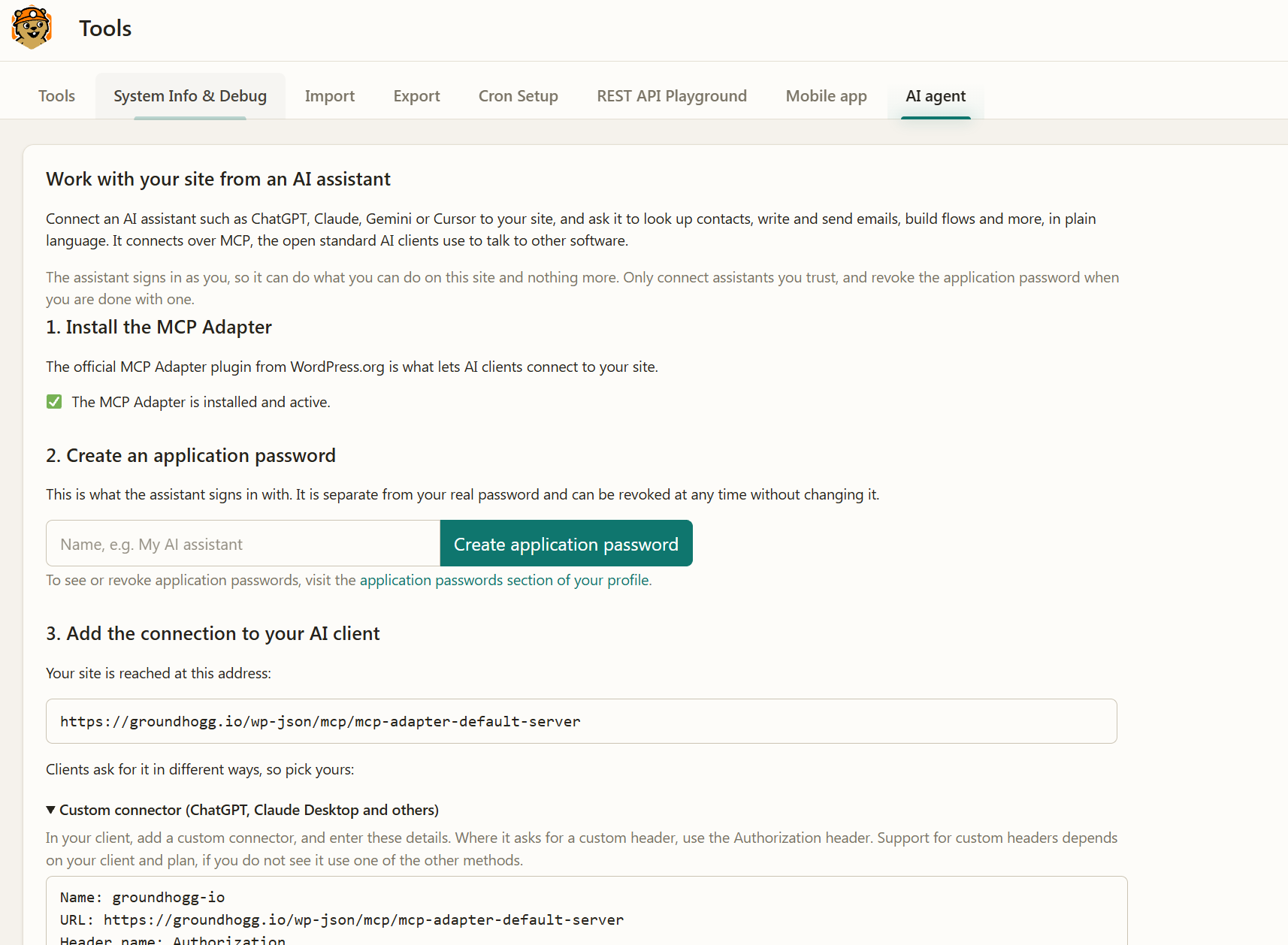
- Go to Groundhogg > Tools and open the AI agent tab. You’ll also find it recommended on the Groundhogg dashboard and in the last step of the guided setup.
- Let it install the MCP Adapter plugin and create an application password for your user.
- Choose your AI client and follow the setup steps shown for it. If yours isn’t listed, use the custom connector steps.
- Test it by asking something simple, like “List my Groundhogg flows.”
Things to Try
Describe what you want the way you’d ask a teammate. A few examples:
- “Build a welcome flow for new subscribers: send a welcome email, wait 2 days, then send our getting started guide.”
- “Look at my onboarding flow and add a 2 day delay before the second email. Simulate it for a test contact before publishing.”
- “Write a newsletter about our holiday hours and schedule it for Monday at 9 AM to everyone tagged Customers.”
- “Find contacts who opened an email last month but haven’t visited the pricing page.”
- “How did last week’s broadcast do? Compare its open and click rates to the one before.”
Not sure what it can do? Ask “What can you do in my Groundhogg CRM?” and it will list everything available on your site, including abilities added by your add-ons.
Want to see it in action first? Watch Claude build a flow, edit a live one and fix reports.
Using an Agent Safely
An agent works with real data and can take real actions, so it’s worth knowing where the guardrails are.
- It has your permissions, nothing more. Every action goes through the same permission checks as the rest of Groundhogg. To limit what an agent can do, connect it as a WordPress user with a more limited role, such as a marketer or sales rep, instead of an administrator.
- Changes to live flows are staged. When an agent edits an active flow, nothing changes for your contacts until the changes are published, and they can be discarded instead. New flows are always created inactive.
- Simulate before you go live. Ask the agent to simulate a flow for a test contact. A simulation shows which path the contact would take with no side effects. A live simulation is different: it really runs the steps and really sends emails, so only use it with a test contact.
- One-off emails skip consent checks. Broadcasts and saved emails only go to contacts who can be marketed to. A one-off composed email is meant for one-to-one messages and doesn’t check marketing consent, so don’t ask an agent to use it for bulk sending.
- Review before it sends. For emails and broadcasts, ask the agent to save a draft first so you can preview it in Groundhogg before anything is scheduled.
Disconnecting an Agent
An agent connects with an application password, which works like a password for your WordPress account. To disconnect an agent, go to Users > Profile, find its application password under Application Passwords and click Revoke. Revoke it right away if you think it may have been shared or exposed.
Using Claude? We have free skills that teach Claude the right way to build Groundhogg block emails and design flows. Download them from the Abilities API doc.