
Documentation » Getting Started
Build and Edit with AI
Overview
Groundhogg 4.11 can hand the building to your AI assistant. Describe the email, flow, or setup you want in plain words, copy the prompt Groundhogg writes for you into your assistant, and it builds it on your site. You review the result in Groundhogg, the same as anything you built yourself.
It works with any AI assistant that supports MCP, like ChatGPT, Claude, Cursor, or Gemini. Your assistant needs to be connected to your site first. If it isn’t yet, Groundhogg walks you through that the first time; see Connect an AI Agent to Groundhogg.
Where You’ll Find It
| Where | Card | What you get |
|---|---|---|
| Groundhogg » Emails » Add New | Build an email with AI | A new email, saved as a draft |
| Groundhogg » Flows » Add New | Build a flow with AI | A new flow, inactive until you turn it on |
| The guided setup | Set up with AI | Your site set up, with a list of anything left for you to do |
| The flow editor | Edit with AI | Changes to the flow you have open |
| The email editor | Edit with AI | Changes to the email you have open |
You’ll see these if you can view contacts and your site is on WordPress 6.9 or later. If you can’t install plugins, they appear once an administrator has set up the MCP Adapter. Set up with AI is only for administrators.
Build an Email or a Flow
- Go to Groundhogg » Emails or Groundhogg » Flows and click Add New.
- Click the Build an email with AI or Build a flow with AI card. It’s the first card, before the templates.
- If your assistant isn’t connected yet, follow the steps under First, connect your AI assistant. The pop-up moves on by itself once your assistant connects. If you’ve connected one before, click I’ve already connected one.
- Under 1. Describe what you want; describe it the way you’d ask a teammate. Not sure where to start? Click one of the examples under Start from an example: and change it.
- Under 2. Copy this prompt into your AI assistant, click Copy prompt.
- Paste the prompt into your assistant and send it. Answer any questions it asks.
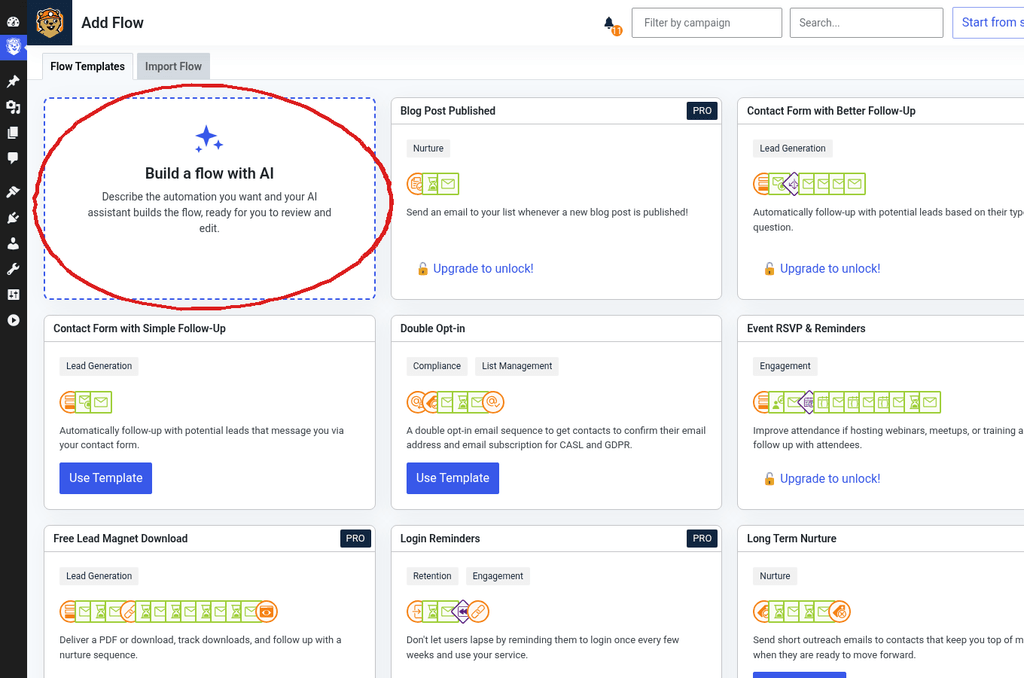
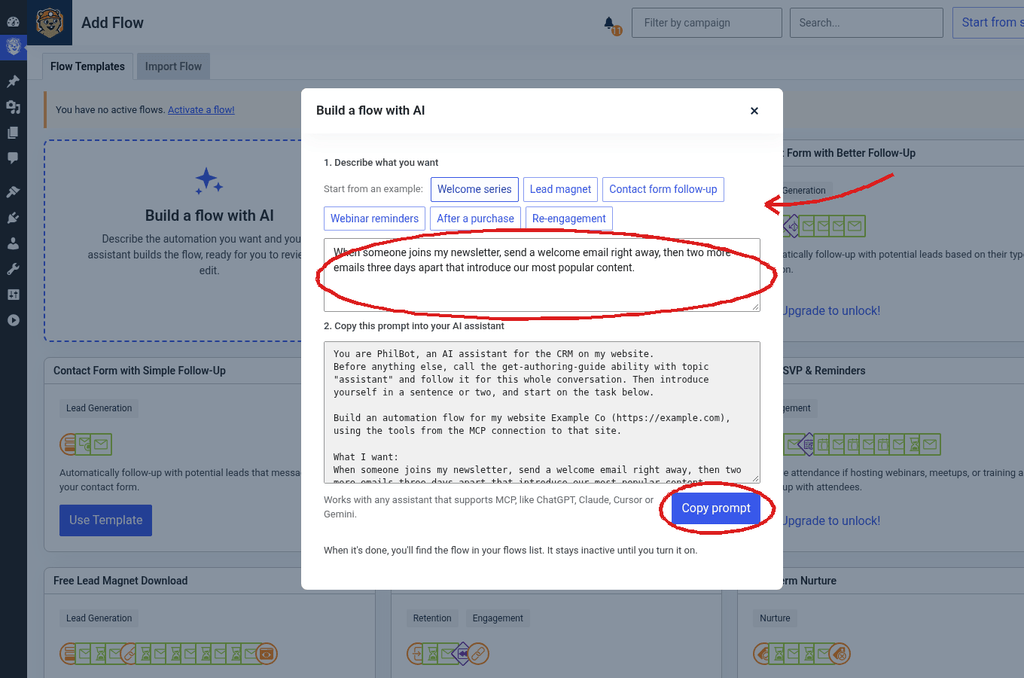
When it’s done, you’ll find the email in your emails list as a draft, or the flow in your flows list. A new flow stays inactive until you turn it on.
If you leave the description empty, the prompt asks your assistant to ask you what you want before it starts.
Set Up Your Site with AI
The first step of the guided setup asks How would you like to set up? Your assistant can do it for you: describe your business and what you want, and it fills in your details, sets up email, and builds your first forms, emails, and flows, asking for anything it needs.
- Go to Groundhogg » Dashboard and start the guided setup.
- Click the Set up with AI card.
- Describe your business and what you want, or start from an example, then click Copy prompt and paste it into your assistant.

When it’s done, your assistant gives you a list of anything left for you to do, like connecting your email service. Prefer to do it yourself? Click Continue with manual setup →.
Edit a Flow or an Email with AI
You can also ask your assistant to change the flow or email you have open.
In the flow editor
- Open the flow and click the + to add a step.
- In the AI group at the top of the step picker, click Edit with AI.
- Describe the change you want, click Copy prompt, and paste it into your assistant.
- When it’s done, reload the page to see the changes.
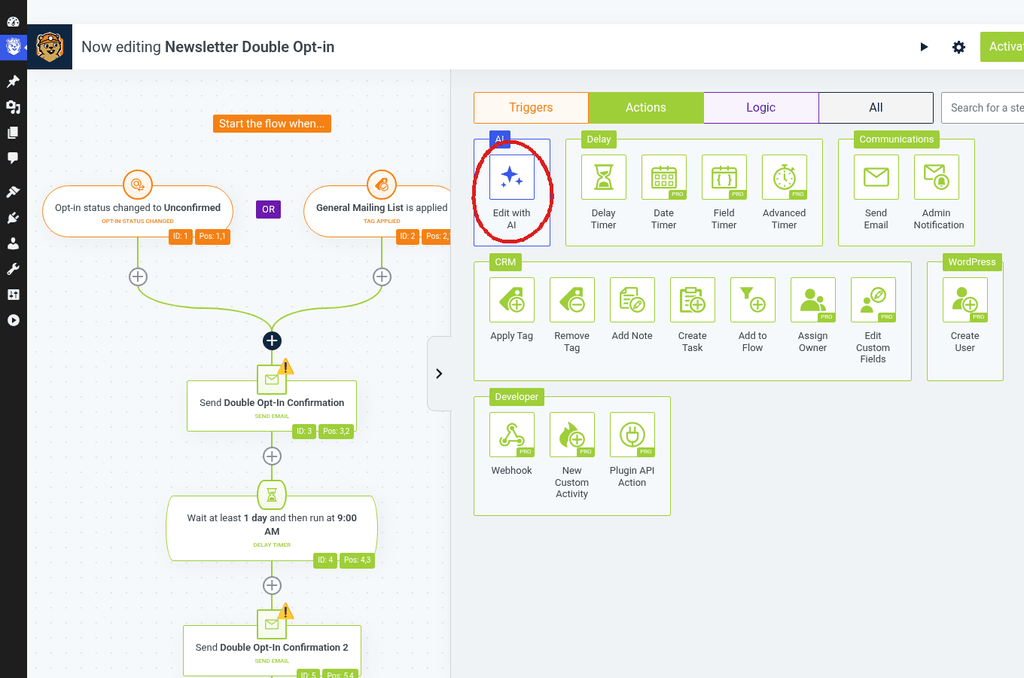
If the flow is active, the changes wait for you to publish them, so nothing changes for your contacts until you click Update. See Using the Flow Editor.
In the email editor
- Save your own changes first.
- In the blocks panel, click Edit with AI. It’s the first one.
- Describe the change you want, click Copy prompt, and paste it into your assistant.
- When it’s done, reload the page to see the changes.
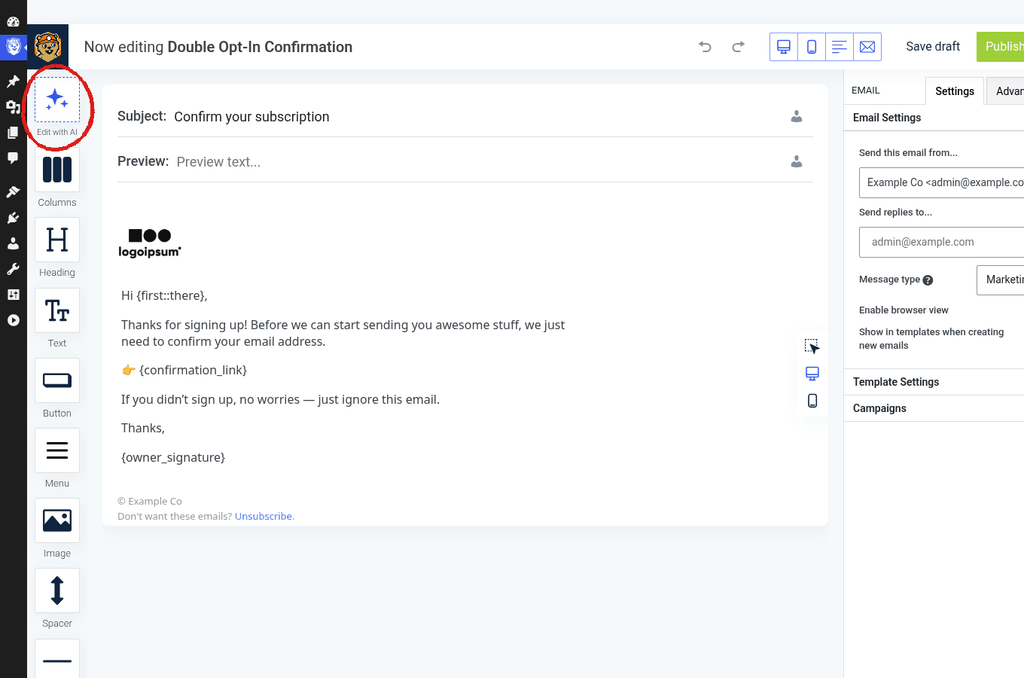
If you save an email that was changed after you opened it, by someone else or an AI agent, Groundhogg warns you first. Click Keep editing and reload the page to see their changes, which will lose yours, or click Save anyway to replace theirs with yours.
Note: Edit with AI is a reminder for people who haven’t used their assistant lately. If your assistant has used your site in the last 30 days, it doesn’t appear, so just ask your assistant directly.
What Your Assistant Is Asked to Do
Every prompt starts by telling your assistant to read Groundhogg’s own guide for your site before it does anything. Unless your site is white-labeled, it introduces itself as PhilBot. The guide asks it to:
- Ask you before anything that reaches your contacts, like sending an email, activating a flow, adding contacts to a flow, importing, deleting, or changing consent.
- Never ask you for a password, API key, or other secret in the chat, and tell you where to enter it yourself instead.
- Save what it builds as a draft for you to review.
- Answer how-to questions from the Groundhogg documentation, and only link to real articles.
These are instructions to your assistant, not a lock. What actually limits it is the user it’s connected as: it can only do what that user can do. To keep an assistant away from live contacts, connect it as a user with a more limited role. See User Roles & Capabilities and Contact Personal Information Access.
FAQs / Troubleshooting
Q: I don’t see the AI cards.
A: Check that your site is on WordPress 6.9 or later and that your user can view contacts. If you can’t install plugins, ask an administrator to set up the MCP Adapter from Groundhogg » Tools » AI agent. Edit with AI is also hidden while your assistant has used your site in the last 30 days.
Q: The popup is still waiting for my assistant to connect.
A: It moves on once your assistant signs in to your site. Restart your assistant if it hasn’t picked up the connection, then ask it something like “What can you do with my site?” If it’s already connected, click I’ve already connected one.
Q: I can’t find what my assistant built.
A: Emails are saved as drafts in Groundhogg » Emails, and flows are in Groundhogg » Flows, inactive. If you were editing, reload the page.
Q: Which assistants work?
A: Any assistant that supports MCP, like ChatGPT, Claude, Cursor, or Gemini.