


Overview
The Field Changed Trigger in Groundhogg allows you to initiate actions in a flow when a contact’s custom field value is modified. This trigger is part of the Advanced Features addon and enables automation based on specific changes to custom fields, such as updates to a contact’s preferences, status, or other custom data points.
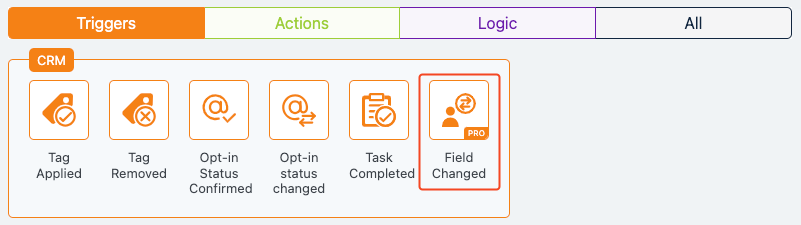
Extension Required!
The Field Changed Trigger is available with the Advanced Features addon. It can be purchased separately or as part of the Agency, Pro or Plus Plans.
When to Use
Use this step when you want to:
How It Works
When a custom field value for a contact is updated, the Field Changed Trigger evaluates the change against predefined conditions. You can specify which field to monitor and set conditions such as “is equal to,” “contains,” or “is empty.” If the condition is met, the trigger activates the flow, allowing subsequent actions like sending emails, applying tags, or updating other fields to occur.
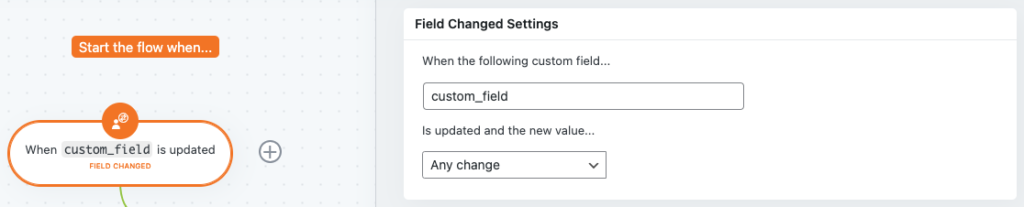
Setup Instructions
- Add the Trigger: Drag and drop the “Field Changed” Trigger into your flow from the Groundhogg flow builder.
- Configure Settings:
- Which Field: Select the custom field you want to monitor (e.g., “Subscription Plan”).
- When Value Is: Choose a condition (e.g., Is equal, Is not equal to, is greater than, is less than, Is greater than or equal to, Is less than or equal to, Contains, Does not contain, Is empty, Is not empty) and enter the value to check against (e.g., “Premium”).
- Save: Click “Save” to apply the settings.
Example Use Case
A fitness coaching business uses Groundhogg to manage client interactions. They have a custom field called “Fitness Goal” for each contact. When a client updates their goal from “Weight Loss” to “Muscle Gain” through a form, the Field Changed Trigger detects this change and initiates a flow. The flow sends a personalized email with a muscle-building workout plan and applies a “Muscle Gain” tag to the contact, ensuring they receive relevant content moving forward.
FAQs / Troubleshooting
Q: Why isn’t the trigger firing?
A: Ensure the Advanced Features addon is installed and activated. Verify that the field and condition settings are correct and that the field value is being updated as expected.
Q: Can I track multiple fields with one trigger?
A: No, each Field Changed Trigger monitors a single field. Use multiple triggers in the flow to monitor different fields.
Q: Where can I purchase the Advanced Features addon?
A: Visit Groundhogg Pricing to purchase the addon or a plan that includes it.
Was this helpful?
Let us know if this document answered your question. That’s the only way we can improve.