
Twilio & WhatsApp
The Twilio & WhatsApp integration sends your Groundhogg SMS through your own Twilio account. It also adds two things the other SMS services don’t: sending and receiving WhatsApp messages, and limited two-way messaging, so contacts can text you and you can build simple flows around their replies.
Requires the SMS add-on. This integration only connects Groundhogg to Twilio. Your templates, flow steps and SMS settings come from the Text Messaging (SMS) add-on, so install both.
Setting Up Twilio
- Create a Twilio account if you don’t have one, and get a phone number to send from.
- In the Twilio console, copy your Account SID and Auth Token.
- In WordPress, go to Groundhogg > Settings > SMS and open the Twilio settings. Paste in your Account SID, Auth Token and Twilio Phone Number.
- On the same SMS tab, choose Twilio as the transactional and/or marketing SMS service.
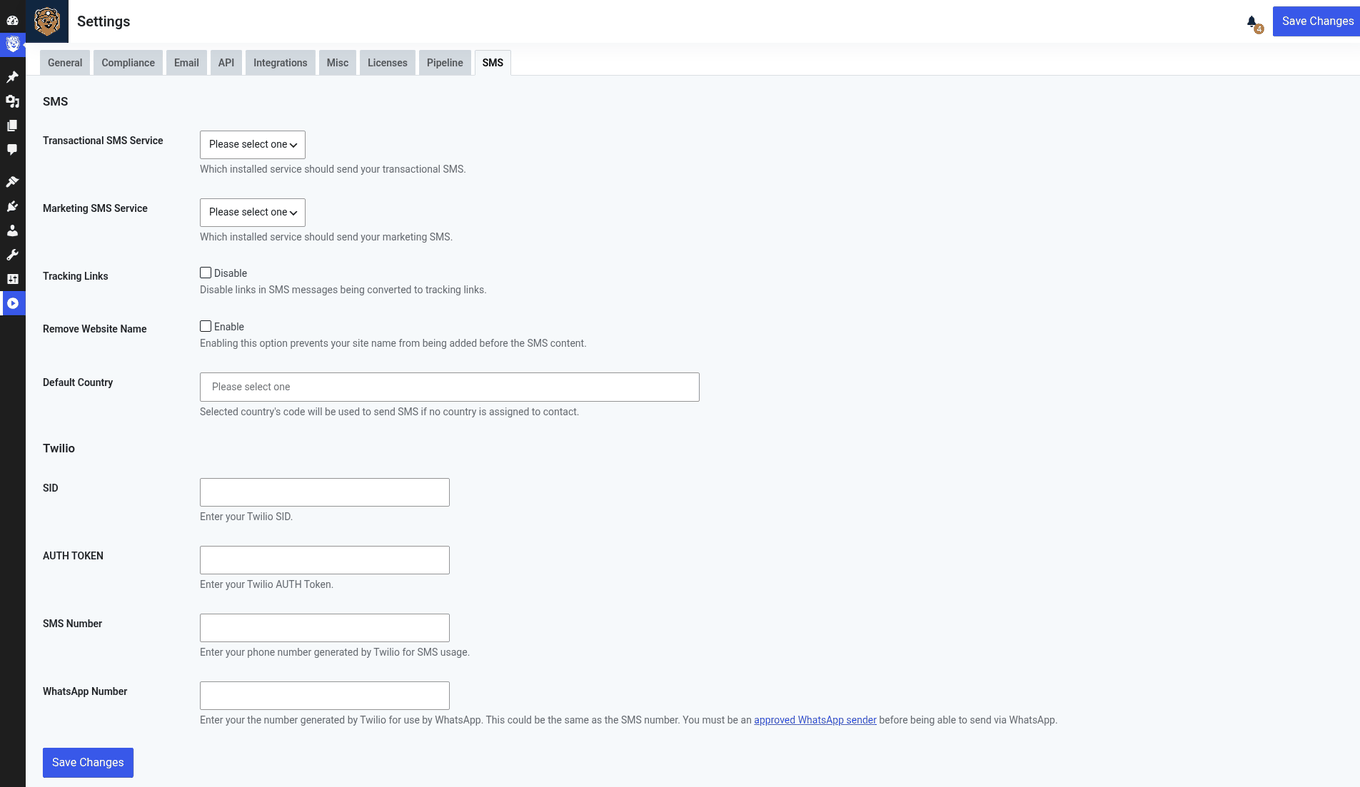
That’s all you need to start sending SMS through Twilio. The sections below cover receiving replies and WhatsApp, which are optional.
Receiving SMS Replies
To have Groundhogg receive texts sent to your Twilio number, point the number’s webhook at your site.
- In the Twilio settings in Groundhogg, copy the SMS Webhook URL.
- In the Twilio console, open the phone number you entered in Groundhogg.
- Scroll to the messaging section, paste the URL into A message comes in, and save.
When someone texts your number, Groundhogg does one of two things:
- The number belongs to a contact: the message and its channel (SMS or WhatsApp) are saved to the contact’s activity. The number must be in the contact’s Mobile Phone field in E.164 format, like
+15555555555. - The number isn’t a contact: Groundhogg checks whether the message matches the keywords of an active Twilio opt-in flow (below). If nothing matches, the message is ignored.
The Twilio Reply Trigger
The Twilio Reply trigger runs a flow when someone texts your Twilio number with specific keywords. It works two ways.
As an opt-in flow
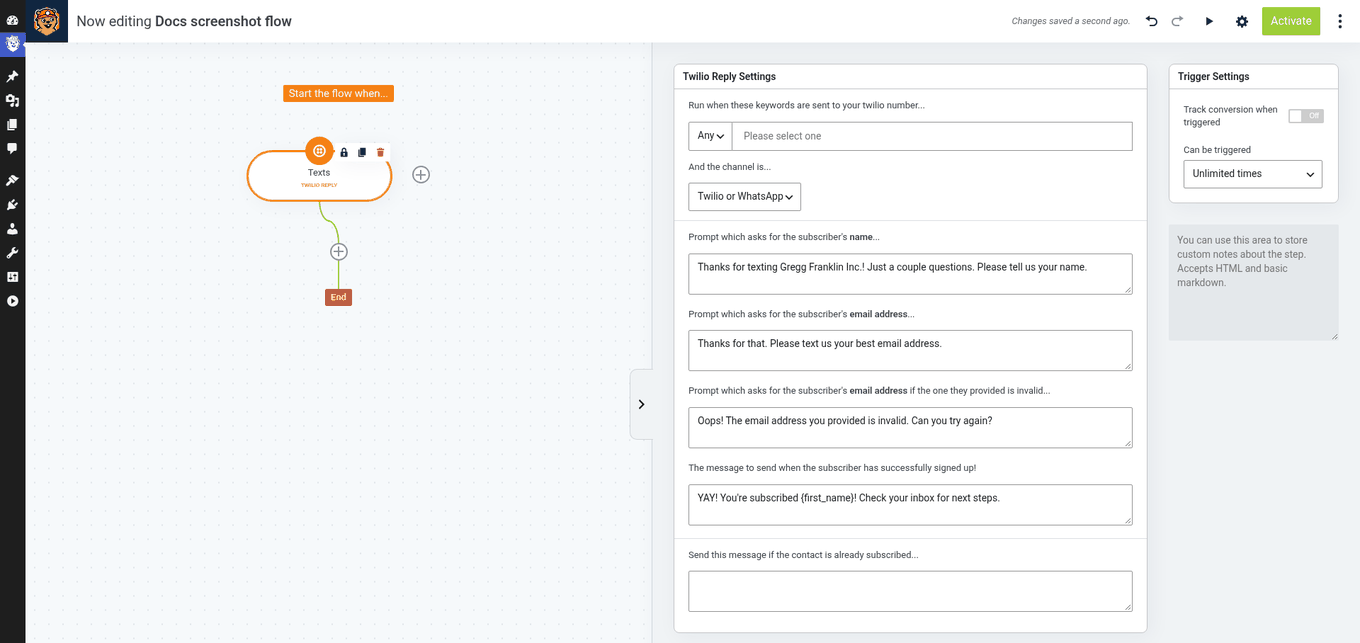
When Twilio Reply is the first step of a flow, people who aren’t contacts yet can text a keyword to sign up. Think of it as a form over text: Groundhogg replies with prompts asking for their name and email, and creates the contact once it has enough information. The steps after the trigger only run once the contact exists.
- Keywords: the words that start the flow, and whether the message must contain any or all of them.
- Channel: SMS or WhatsApp, only SMS, or only WhatsApp.
- Prompts: the replies Groundhogg sends asking for their name, their email, a valid email if the one they sent wasn’t, the message confirming they’ve signed up, and the message for people who are already subscribed. Each has a default you can edit.
Later in a flow
You can also use Twilio Reply further down a flow, for example to wait for a contact to text back “YES” before continuing. Used this way, it only fires for numbers that already belong to a contact.
Twilio gives you access to the WhatsApp Business API, so you can message contacts on WhatsApp from Groundhogg.
Getting approved
Every business has to go through WhatsApp’s approval process before it can use the API, and it isn’t quick. You’ll need:
- A Twilio account
- A Meta Business Manager account
- A public Facebook Page connected to that Business Manager account
- A business that’s officially registered in your country
Start the process in the Twilio console under Senders > WhatsApp Senders. See Twilio’s WhatsApp guide for the details.
Connecting WhatsApp to Groundhogg
- Enter your approved WhatsApp number in the WhatsApp field of the Twilio settings in Groundhogg. This turns on sending.
- A webhook URL appears under the field. Copy it.
- In the Twilio console, edit your WhatsApp sender, paste the URL into Webhook for Incoming Messages, and save. This turns on receiving replies and the WhatsApp opt-in flow.
WhatsApp limits
- Rate limits: new WhatsApp accounts can message a limited number of unique recipients per day (1,000 to start). The limit rises over time as long as your account stays in good standing. See Twilio’s rate limiting guide.
- Templates for new conversations: to start a conversation, you must send a message template approved by WhatsApp. Manage your approved templates in the Twilio console.
- The 24-hour window: once a contact replies, or if they message you first, you can send them anything for 24 hours. After that, your next message has to be an approved template again.
Collecting WhatsApp IDs and consent
Before you can message a contact on WhatsApp, you need their WhatsApp ID and their consent. Consent is required by WhatsApp. You can set both on the contact record, map them in form integrations and webhooks, or collect them with a Groundhogg form:
[text required="true" label="WhatsApp ID" placeholder="15555555555" name="whatsapp_id"]
[checkbox label="I agree to receive messages via WhatsApp" name="whatsapp_optin_status" value="1" required="true"]
The WhatsApp ID is stored in the contact meta field whatsapp_id.
Sending WhatsApp messages
- Send WhatsApp Template (flow action): sends an approved WhatsApp template by its template ID. You can pass values into the template’s variables, including replacement codes, and send a test.
- Send WhatsApp Reply (flow action): sends one of your SMS templates over WhatsApp. Use it inside the 24-hour window, for example right after a Twilio Reply trigger.
- One-off messages: click the WhatsApp icon in a contact’s details card to write a message, starting from an SMS template if you like. The icon only appears when the contact has a WhatsApp ID and has opted in (you may need to refresh after setting these).
Both actions are skipped for contacts who don’t have a WhatsApp ID, haven’t given consent, or have withdrawn it.
Tip: copy your approved WhatsApp templates into Groundhogg as SMS templates, replacing Twilio’s {{1}} variables with replacement codes like {first}. Both channels use SMS templates, so this keeps your SMS and WhatsApp messages consistent.
Opting out
Contacts can stop WhatsApp messages by replying STOP or UNSUBSCRIBE. Groundhogg removes their WhatsApp consent and won’t send them any more WhatsApp messages. This only affects WhatsApp: their email opt-in status doesn’t change, and other services using your Twilio account aren’t affected. If they later text a keyword from an active Twilio opt-in flow, their WhatsApp consent is turned back on.