
Text Messaging (SMS)
The Text Messaging (SMS) add-on lets you send text messages from Groundhogg alongside your email. Write reusable SMS templates, send them from your flows, and get SMS alerts when something important happens.
You’ll need a sending service too. The SMS add-on handles templates, flow steps and settings, but the messages themselves are sent by a service integration. Install at least one: Twilio & WhatsApp, seven (formerly SMS77) or the Amazon integration (SES & SNS).
SMS Templates
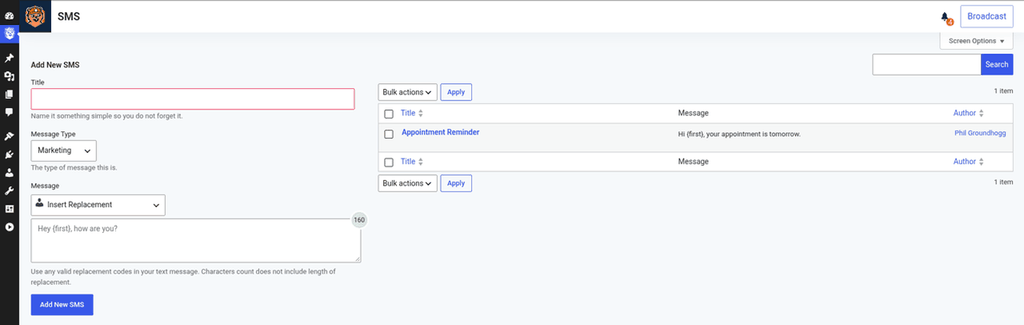
Once the add-on is active, a new SMS section appears in the Groundhogg menu. This is where you create and manage your SMS templates. Templates support replacement codes, so you can personalize each message with the contact’s name and other details, for example Hi {first}, your appointment is tomorrow.
Each template is either Marketing or Transactional, just like emails. Marketing messages only go to contacts who can be marketed to, and each type can be sent through a different service (see Settings below).
Sending SMS in Flows
The add-on adds two actions to the flow editor.
Send SMS
Sends an SMS template to the contact in the flow.
- Search for an SMS template: start typing to find an existing template, or pick one from the list.
- Create new SMS: opens a popup where you enter the title, the message and whether it’s marketing or transactional.
- Edit: once a template is selected, click the pencil icon to edit it.
The message goes to the contact’s Mobile Phone field.
SMS Admin Notification
Sends a text to you or your team instead of the contact, for example when a lead books a call or a deal is won.
- Who should receive this notification: the phone number to text, including the
+and the country code (for example+15555555555). - What do you want to send: the message. Replacement codes work here too, so you can include the contact’s details.
Settings
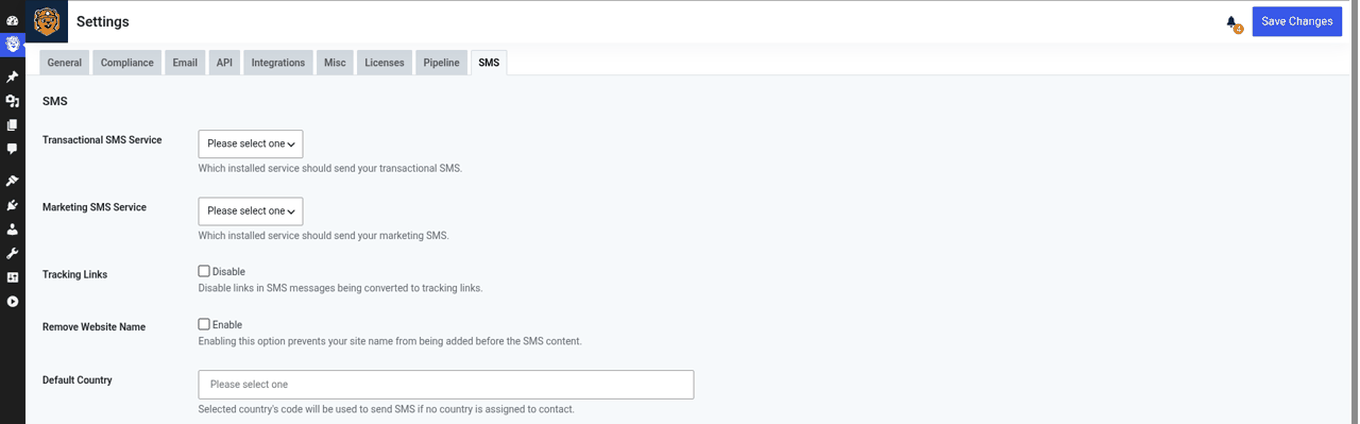
The SMS settings are in Groundhogg > Settings on the SMS tab. Each service integration you install adds its own settings here as well.
- Transactional SMS Service: which installed service sends your transactional messages.
- Marketing SMS Service: which installed service sends your marketing messages.
- Tracking Links: links in your messages are rewritten so clicks can be tracked. Check the box to turn this off.
- Remove Website Name: by default, Groundhogg adds your site’s name to the start of each message so recipients know who it’s from. Check the box to leave it out.
- Default Country: Groundhogg uses each contact’s country to format their phone number. Contacts without a country use this one, which is the United States unless you change it.
Troubleshooting
- Nothing sends: check that a service integration is installed and selected for both the transactional and marketing service in the SMS settings.
- A contact didn’t get a message: make sure their number is in the Mobile Phone field and that their country is set, or that the default country matches. Marketing messages also skip contacts who can’t be marketed to.