
Documentation » Search & Segmentation
Pruning your email list
Over time, every email list accumulates contacts who no longer open, click, or engage with your emails. Continuing to send to these contacts can hurt deliverability, reduce engagement metrics, and increase sending costs.
This tutorial will show you how to identify and remove inactive contacts from your Groundhogg database.
Why Prune Your List?
Removing unengaged contacts helps you:
- Improve open and click rates
- Maintain a healthy sender reputation
- Reduce the likelihood of spam complaints
- Lower email sending costs
- Focus your marketing efforts on active subscribers
A smaller, engaged list almost always performs better than a larger list filled with inactive contacts.
Step 1: Create A Search For Unengaged Contacts
Navigate to Groundhogg » Contacts and use the Search Filters to identify contacts who have not engaged with your emails.
A common search might include contacts who:
- Have not opened an email in the last 6 to 12 months
- Have not clicked a link in the last 6 to 12 months
- Are subscribed and mailable
- Are not customers or other high-value contacts you wish to retain
You can use the Was Inactive filter to holistically identify unengaged contacts.
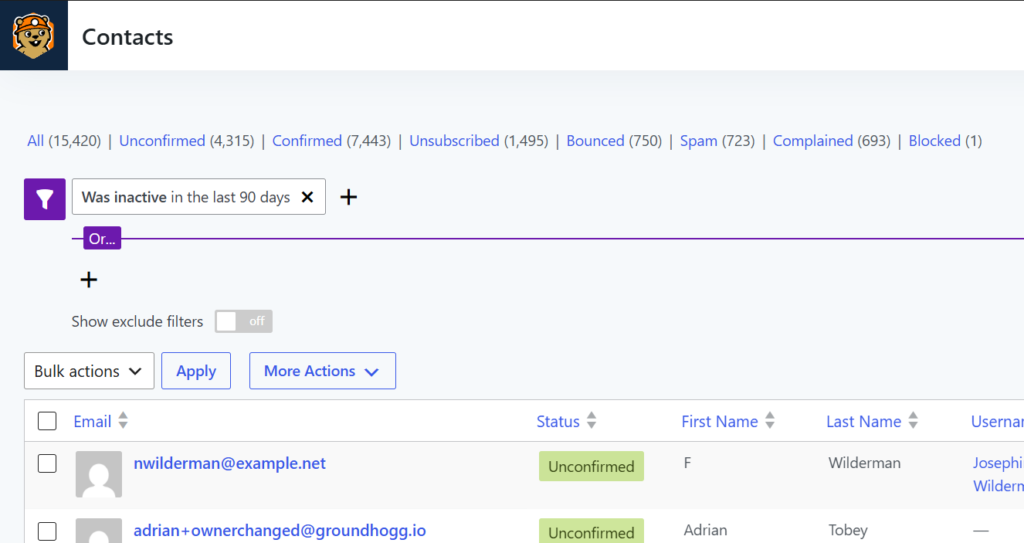
The exact criteria will depend on your business and sending frequency.
Step 2: Save The Search
Once you’ve identified the right group of contacts, save the search for future use.
Saved searches make it easy to review inactive contacts regularly without rebuilding the filters each time.
Step 3: Run A Re-Engagement Campaign
Before deleting contacts, consider giving them one final opportunity to remain subscribed.
Create a flow that sends a re-engagement email asking subscribers whether they still wish to hear from you.
Common approaches include:
- Offering valuable content
- Sharing a special promotion
- Asking subscribers to confirm their interest
- Letting subscribers update their preferences
Contacts who open, click, or otherwise engage can be removed from the inactive segment automatically.
Step 4: Review The Results
After your re-engagement campaign has finished, review the remaining contacts.
Anyone who still has not engaged after multiple attempts is unlikely to become active again.
At this stage, you can confidently remove them from your mailing list.
Step 5: Bulk Delete Or Unsubscribe Contacts
From the Contacts screen, select the inactive contacts and choose the appropriate bulk action.
Depending on your goals, you can:
Unsubscribe Contacts
Unsubscribing prevents future emails from being sent while preserving historical data and activity records.
Select Edit Contacts from the more actions dropdown.
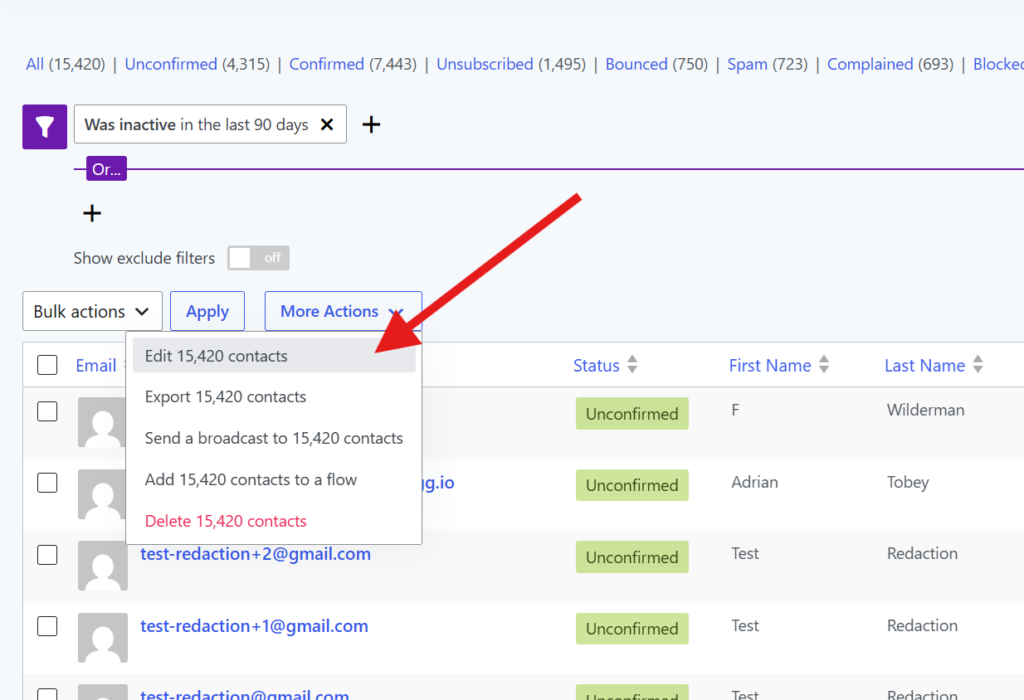
Change the opt-in status to unsubscribed and update!
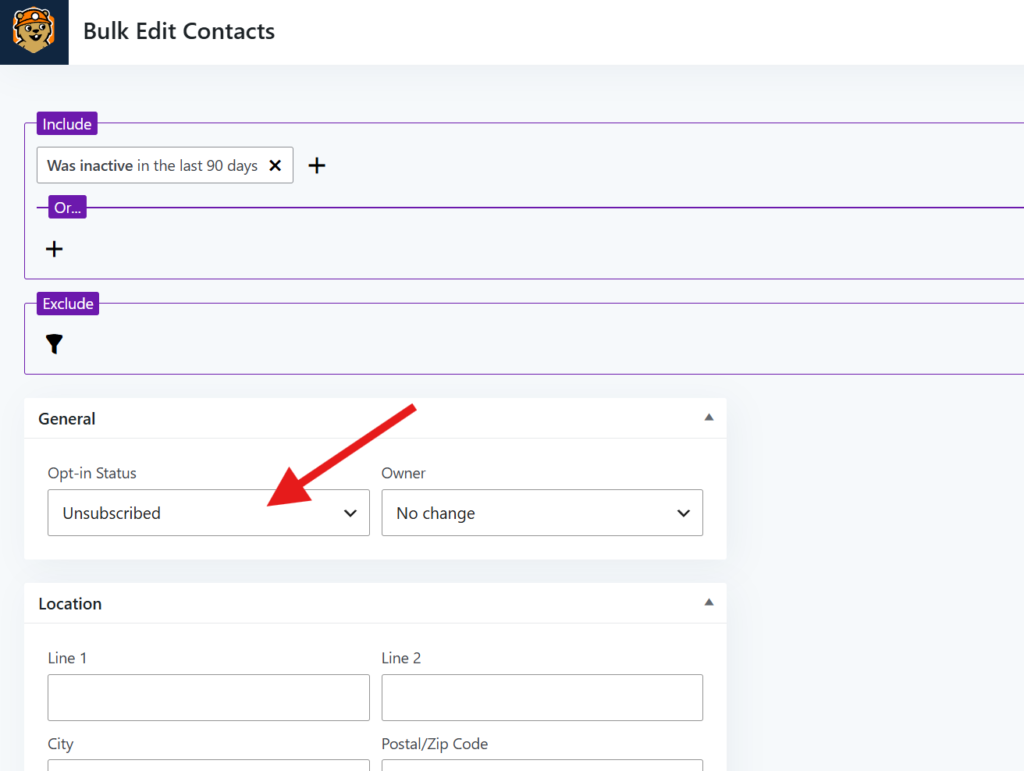
This is often the safest option if you may want to reference the contact later.
Delete Contacts
Deleting permanently removes the contact and associated data from Groundhogg.
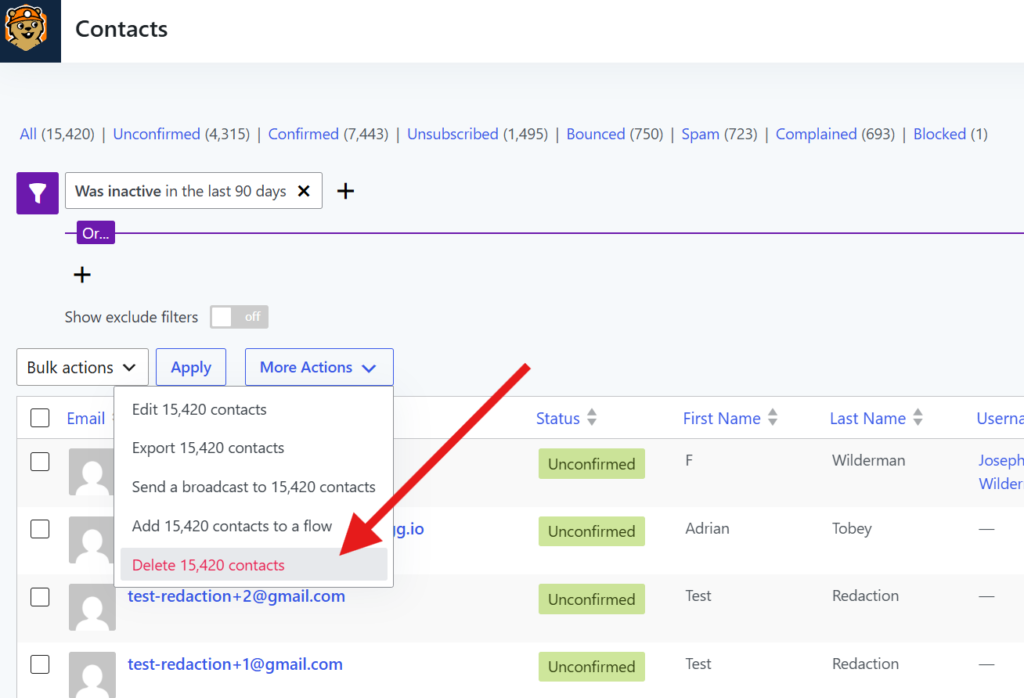
Only use this option if you no longer need the contact record.