
Documentation » Lead Generation
Lead Scoring
The Lead Scoring add-on helps you find the contacts who are most ready to buy. You set up rules that add or subtract points based on who a contact is and what they do, and levels that tag contacts automatically once they reach a score. Then you can send offers, upsells or a sales follow-up to the right people at the right time.
Once the add-on is active, you’ll find a new Lead Score menu under Groundhogg, with Rules and Levels.
Rules
A rule gives contacts points (or takes them away) when they match its criteria.
Adding a rule
- Go to Groundhogg > Lead Score > Rules and click Add Rule.
- Give the rule a name and click Create Rule.
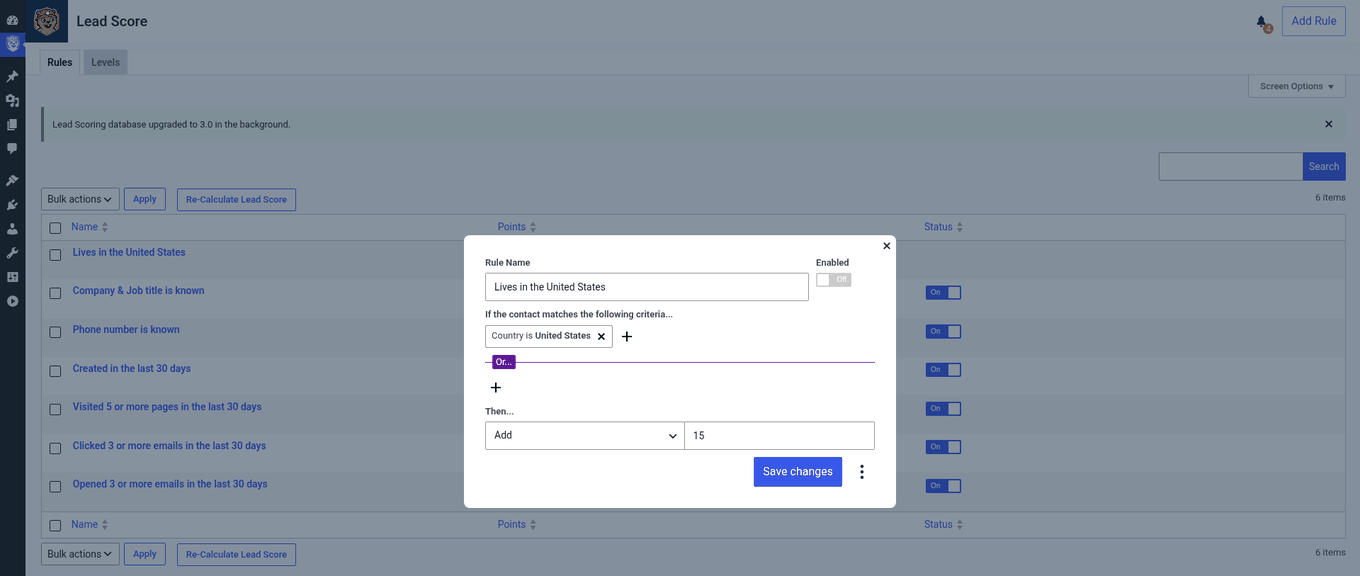
- Set the criteria a contact has to match, and how many points to add or subtract.
- Turn Enabled on when you want the rule to start running, then click Save Changes.
- Close the rule with the x in the top right to go back to the list.
For example, to give everyone in the United States an extra 15 points, set the criteria to country equals United States and add 15 points.
Editing, pausing and deleting rules
- Edit: in the rules list, click Edit under the rule. Make your changes, save, and close it.
- Pause: to stop a rule without losing it, switch its status off in the rules list. Switch it back on whenever you want it to run again.
- Delete: click Delete under the rule and confirm. Deleted rules can’t be recovered.
Recalculating scores
If you’ve made big changes to your rules and want every contact’s score to reflect them, click Re-calculate Lead Score on the rules page.
Levels
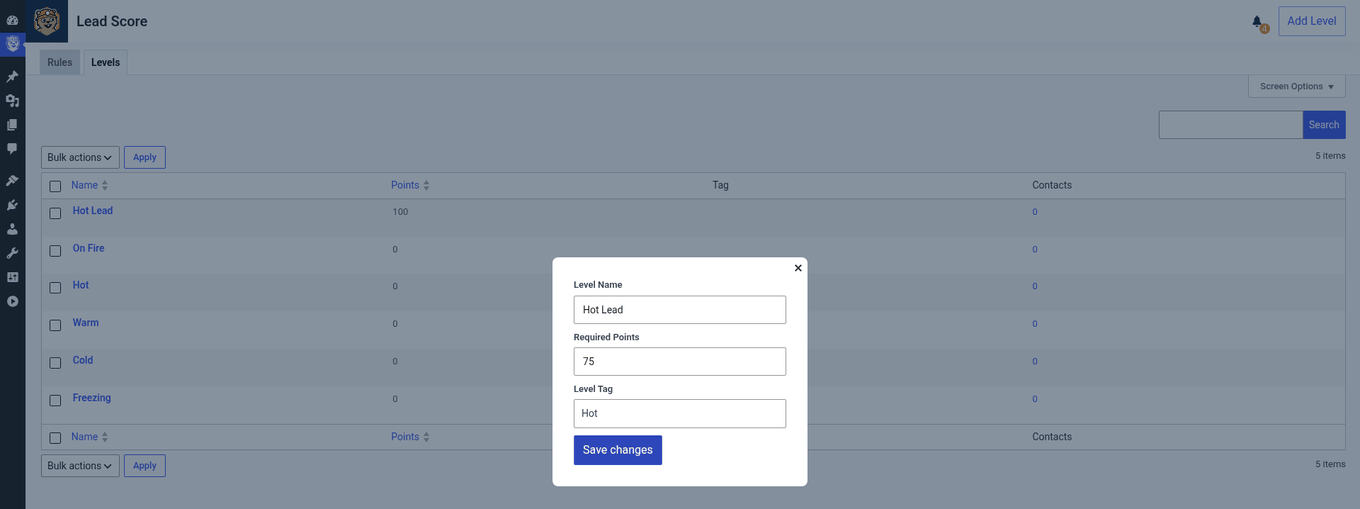
A level applies a tag to contacts once their score reaches a certain number. Use that tag to start a flow, build a segment, or alert your sales team, for example a “Hot Lead” tag at 75 points.
- Go to Groundhogg > Lead Score > Levels and click Add Level.
- Give the level a name and click Create Level.
- Set the number of points a contact needs (a whole number from 0 to 100) and choose the tag to apply.
- Click Save Changes, then close the level with the x.
Levels are edited, and deleted, the same way as rules.
Seeing a Contact’s Score
Open any contact to see their current lead score on their contact record.