Written with AI assistance.
Brad Vincent, who makes FooGallery, posted on X about a 1-star review his free plugin got for promoting his other free plugins and the PRO version. He asked a question every free plugin developer has asked at some point:
I also hate annoying admin notices, but how else can I promote and grow my business? What are other plugin builders doing besides admin notices these days?
Brad Vincent on X
It’s a fair question, and it doesn’t have an easy answer. A free plugin has to pay for itself somehow, and if nobody ever hears about the paid version, the free one eventually goes away. But people install your plugin to get something done, and every banner standing between them and that job costs you some goodwill.
So instead of answering with an opinion, I went through the Groundhogg source code and listed every single place the free plugin promotes Pro, sells an add-on or service, asks for a review, or points to one of our other products. This post walks through what we found, with screenshots.
It’s written for two groups of people:
- Groundhogg users, so you know exactly what we show you, when, and how to switch it off.
- Other plugin developers, who might find a few ideas worth borrowing.
What you won’t see: promo notices on every screen
Let’s start with the thing Brad’s reviewer was upset about. The free Groundhogg plugin shows no promotional admin notices across the WordPress admin. Not on the Dashboard, not on the Plugins screen, not on your Posts list.
The only notice Groundhogg shows site-wide is the prompt to finish the guided setup after you install it, and it goes away once you finish or dismiss it. Everything else that appears site-wide is functional: a required database update, a PHP version that’s too old, or another plugin overriding wp_mail.
We didn’t always work this way. Older versions had a site-wide notice that read “Is Groundhogg working for you? Show your appreciation by leaving a ⭐⭐⭐⭐⭐ review!” We retired it, and moved the ask somewhere more appropriate (more on that below).
We go a step further on our own screens. The Groundhogg dashboard, flow editor and email editor remove all admin notices, including other plugins’, so you can build without banners stacking up above your work.
1. Promote the feature where it would be used
The most visible promotion in the free plugin is in the flow editor. Premium steps sit in the step picker right next to the free ones, with a small PRO badge on the icon.
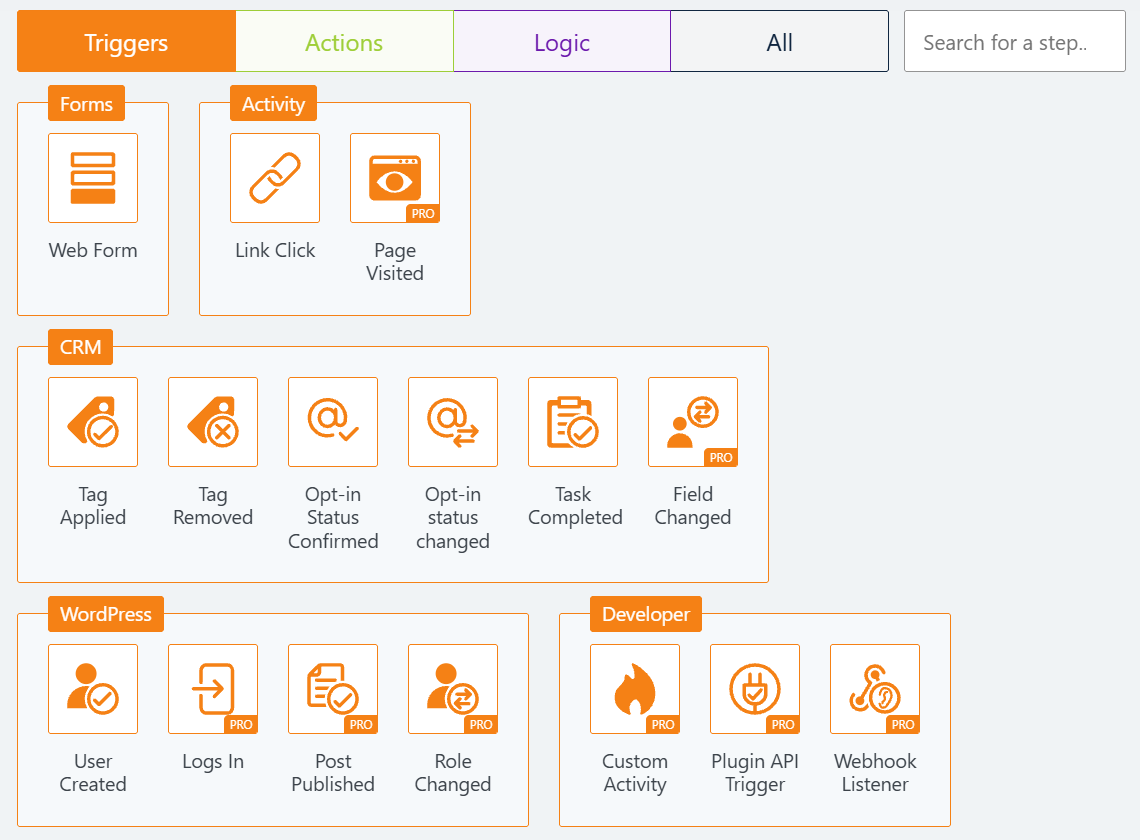
You can’t drag a PRO step into a flow. If you click one, a window explains what Pro adds, with a button to see the plans. If you never click a PRO step, you never see that window. There’s no timer, no popup on load, and no countdown.
The flow template library works the same way. Templates that use a paid step carry a PRO label, and their button reads “Upgrade to unlock” instead of “Use Template”.
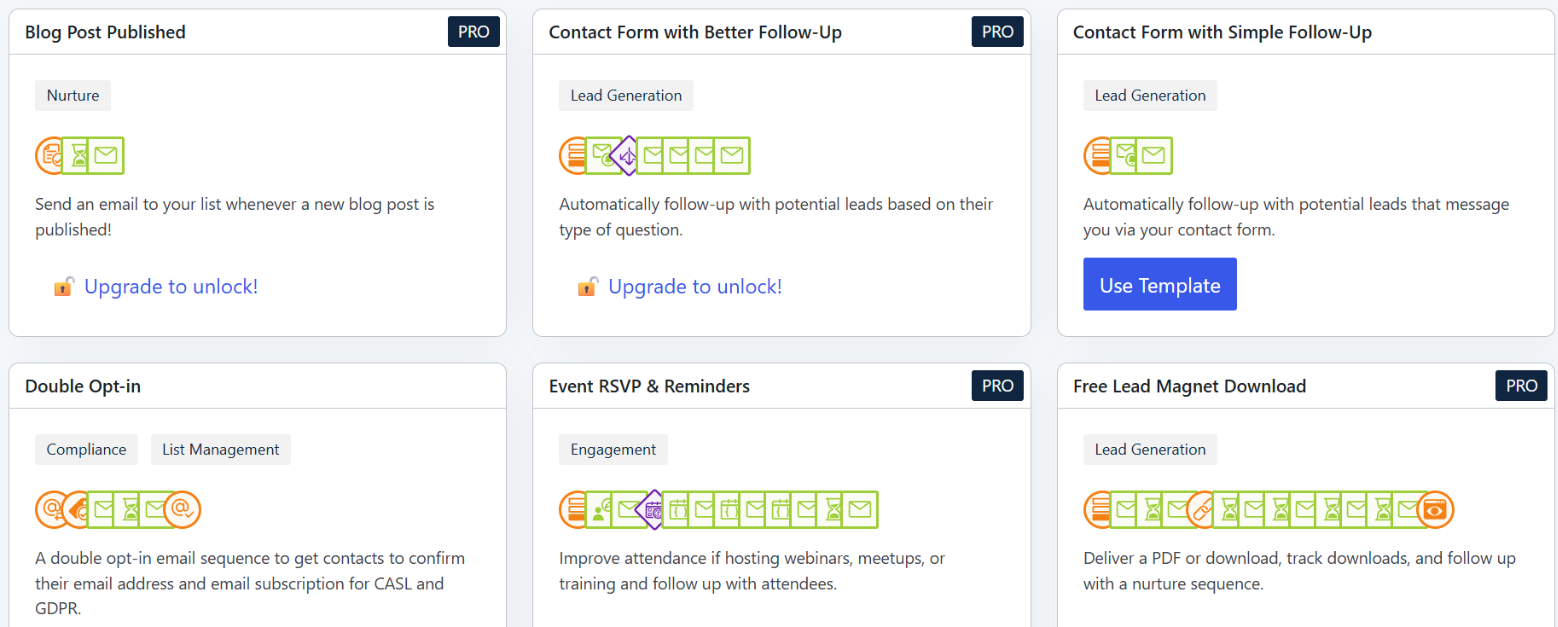
The reasoning is simple: the best time to tell someone about a feature is when they’re trying to do the thing that feature does. Someone building a flow who needs a step we only have in Pro wants to know it exists. Someone writing a blog post doesn’t.
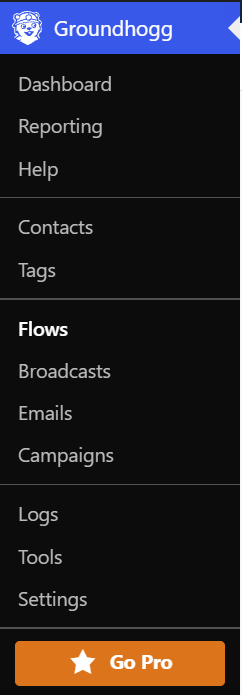
There is also one Go Pro link at the bottom of the Groundhogg menu. That’s it for the menu.
Tip for developers: put the upgrade in the feature list, not on top of it. Show paid options in context, make them clearly labelled, and let people ignore them.
2. Ask for a review after a win, and only once it’s earned
We do ask for reviews. Groundhogg grows mostly through word of mouth, and WordPress.org reviews matter a lot. But the ask is hidden until it’s earned. You’ll only see it once all of these are true:
- You can install plugins (so you’re the person who would actually leave the review).
- You’ve sent at least 2 broadcasts, or have at least 1 active flow.
- Groundhogg has completed at least 100 automation events on your site.
- You haven’t already reviewed, said no, or asked us to remind you later in the last 14 days.
In other words, we only ask people who have actually used Groundhogg for real work.
Where the ask shows up matters too. One of the places is right after you schedule a broadcast, under “Your broadcast is being scheduled in the background!” That’s the moment you’ve just finished something, which is when people are most likely to feel good about the tool that helped.
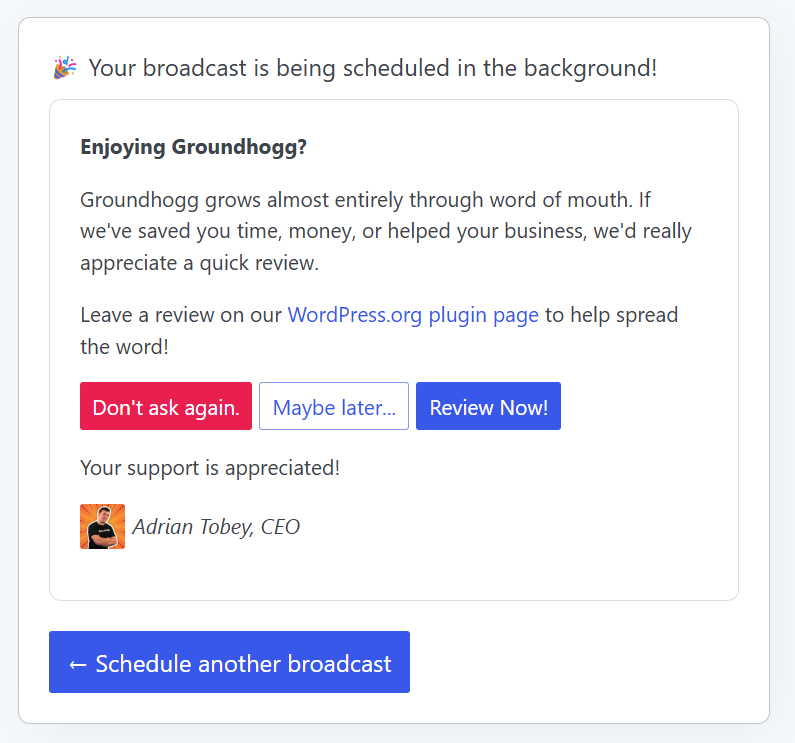
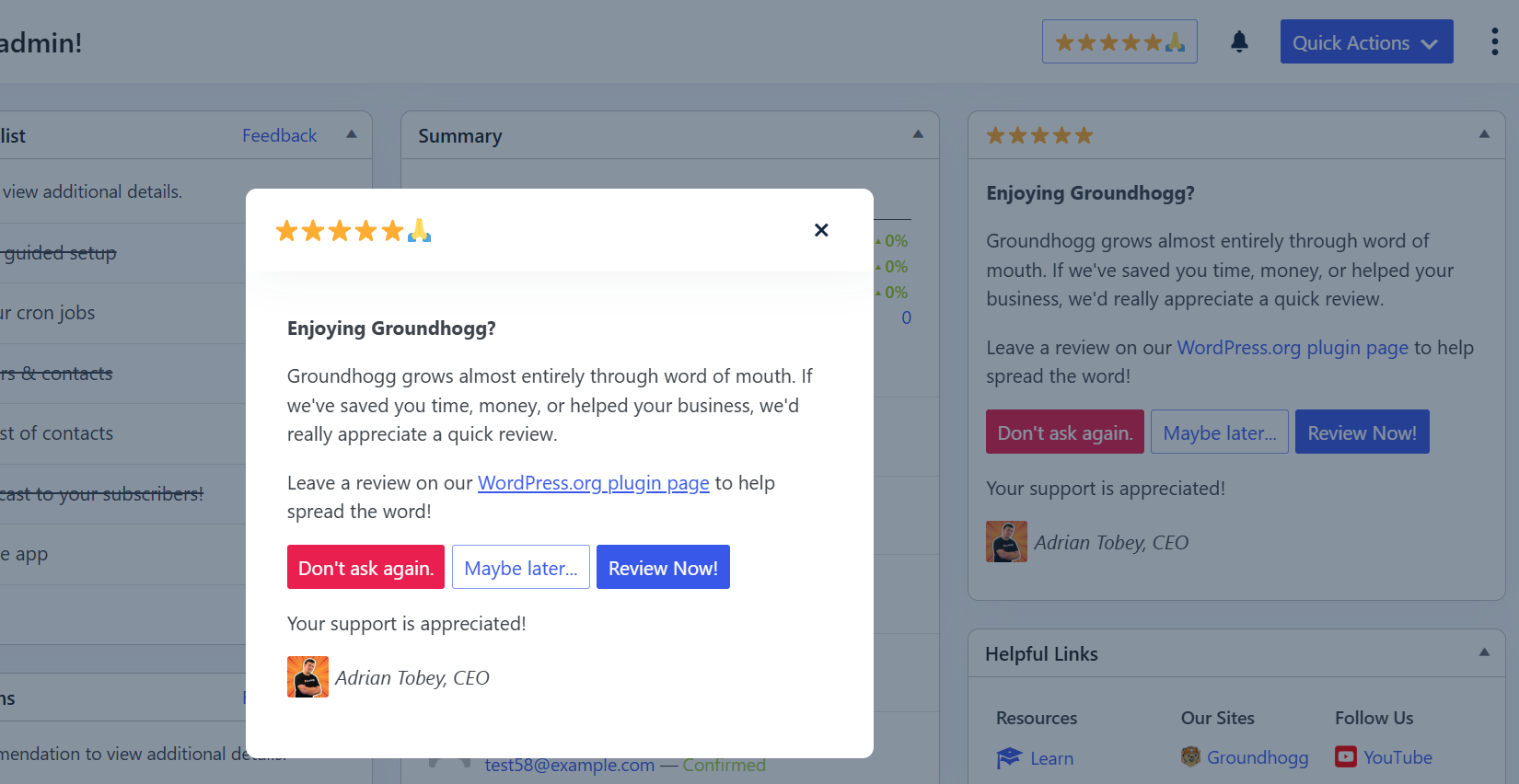
The ask is also available from a small ⭐⭐⭐⭐⭐ button in the header of Groundhogg pages and a widget on the Groundhogg dashboard. Every version uses the same prompt with three answers:
- Review Now! opens the WordPress.org review page, and we never ask again.
- Maybe later… hides it for 14 days.
- Don’t ask again. means exactly that, everywhere.
We never offer anything in exchange for a review.
Tip for developers: gate your review ask on real usage, show it right after a success, and always include a permanent “no”.
3. Make recommendations a checklist that does real work
The Groundhogg dashboard has a Recommendations widget. Most items are practical setup tasks: configure your cron jobs, set up conversion tracking, add your email signature, get email summaries, connect a verified sending service.
A couple of them are promotional: “Upgrade to premium” and “Get more leads with HollerBox” (our free popup plugin). They sit in the same list, look the same, and follow the same rules.
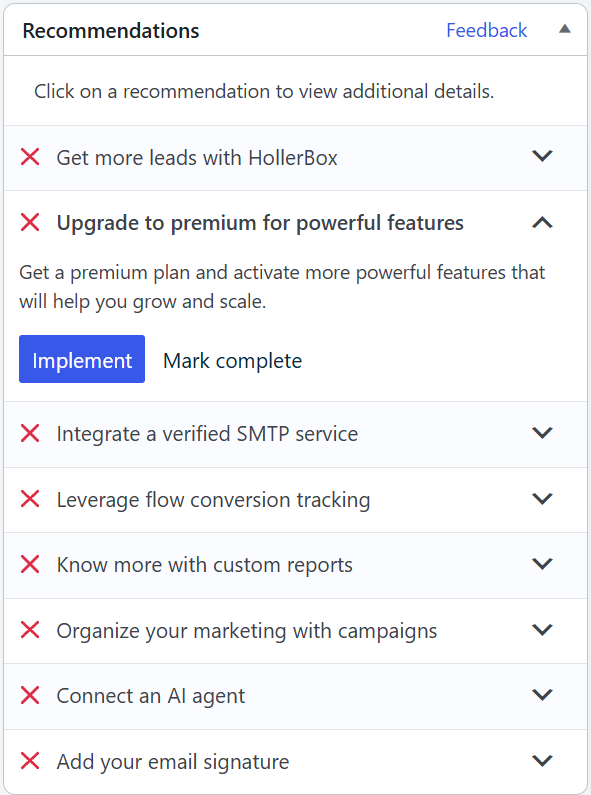
Every item ticks itself off once it’s done. Activate a license and the upgrade item disappears. Install HollerBox and that one goes away too. Connect any sending service, ours or someone else’s, and the SMTP recommendation is marked complete. You can also press Mark complete on any item, or hide the whole widget under the dashboard’s Preferences.
Tip for developers: if your onboarding checklist is actually useful, people will read it, and a promotional item or two in it reads as a suggestion rather than an ad.
4. Offer help where the pain is
The Cron Jobs page is the most technical screen in Groundhogg. It’s where people set up a real server cron so their automations run on time, and it’s where some people get stuck.
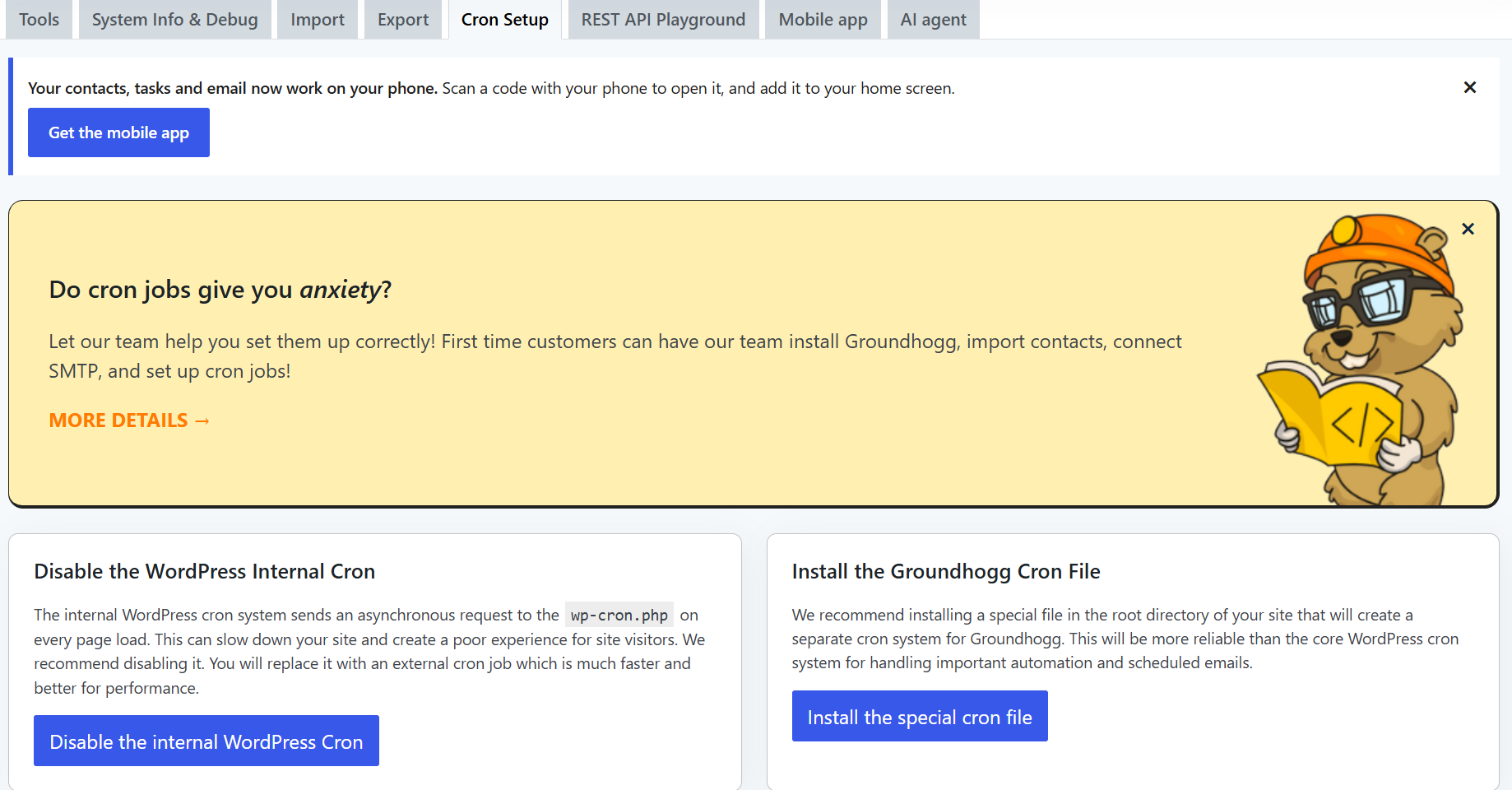
So that’s the one place we promote our done-for-you setup service, with a single card: “Do cron jobs give you anxiety? Let our team help you set them up correctly!” It has an × to dismiss it for good.
Tip for developers: a paid service offer on the screen where someone is struggling is help. The same offer on the WordPress dashboard is an ad.
5. Be upfront in the setup wizard
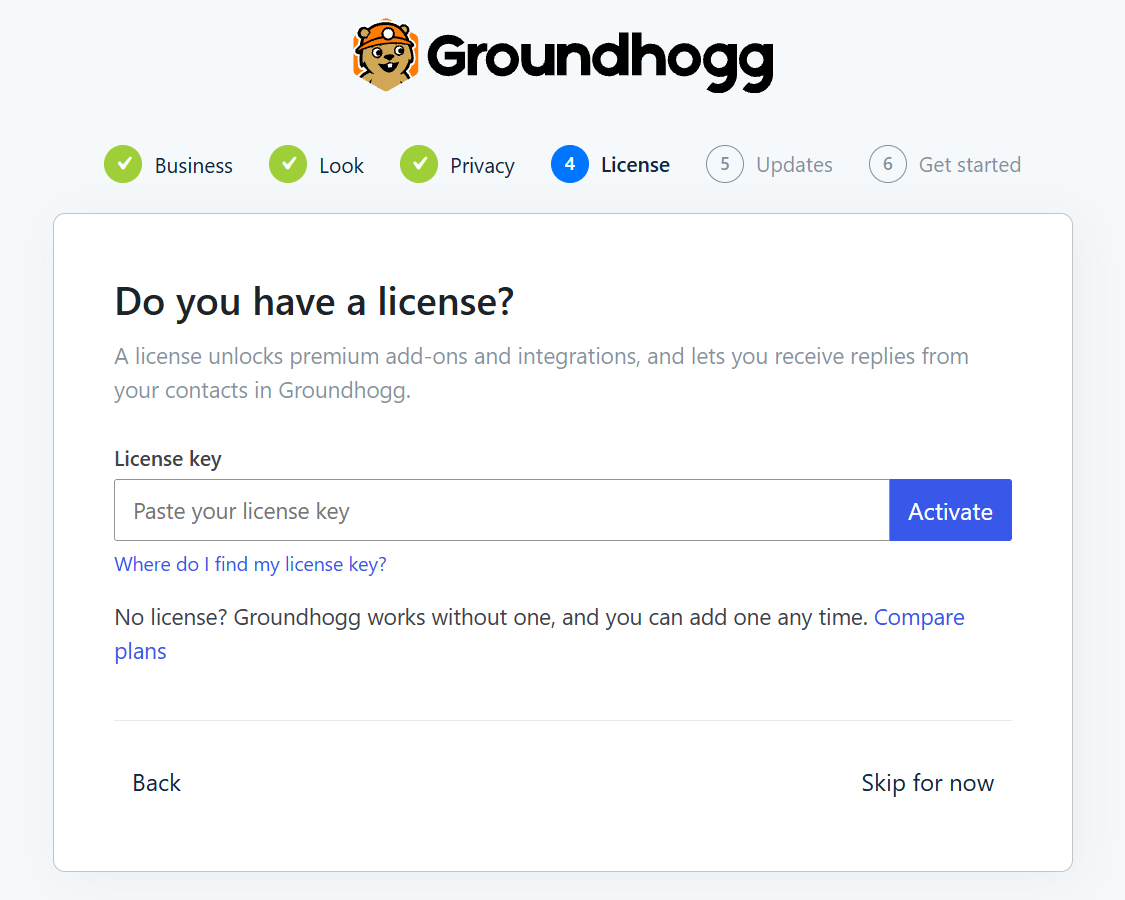
The guided setup asks if you have a license. The copy says plainly: “No license? Groundhogg works without one, and you can add one any time.” There’s a Skip for now button right there.
Later, the “Stay in the loop” step offers our newsletter and the option to share how you use Groundhogg (weekly counts of things like active flows, new contacts, broadcasts and installed add-ons, plus your email address, but never your contacts or what’s in your emails). Both boxes start unchecked. If you choose to share, we give you a 15% discount on your first year of a premium plan, and we tell you that up front.
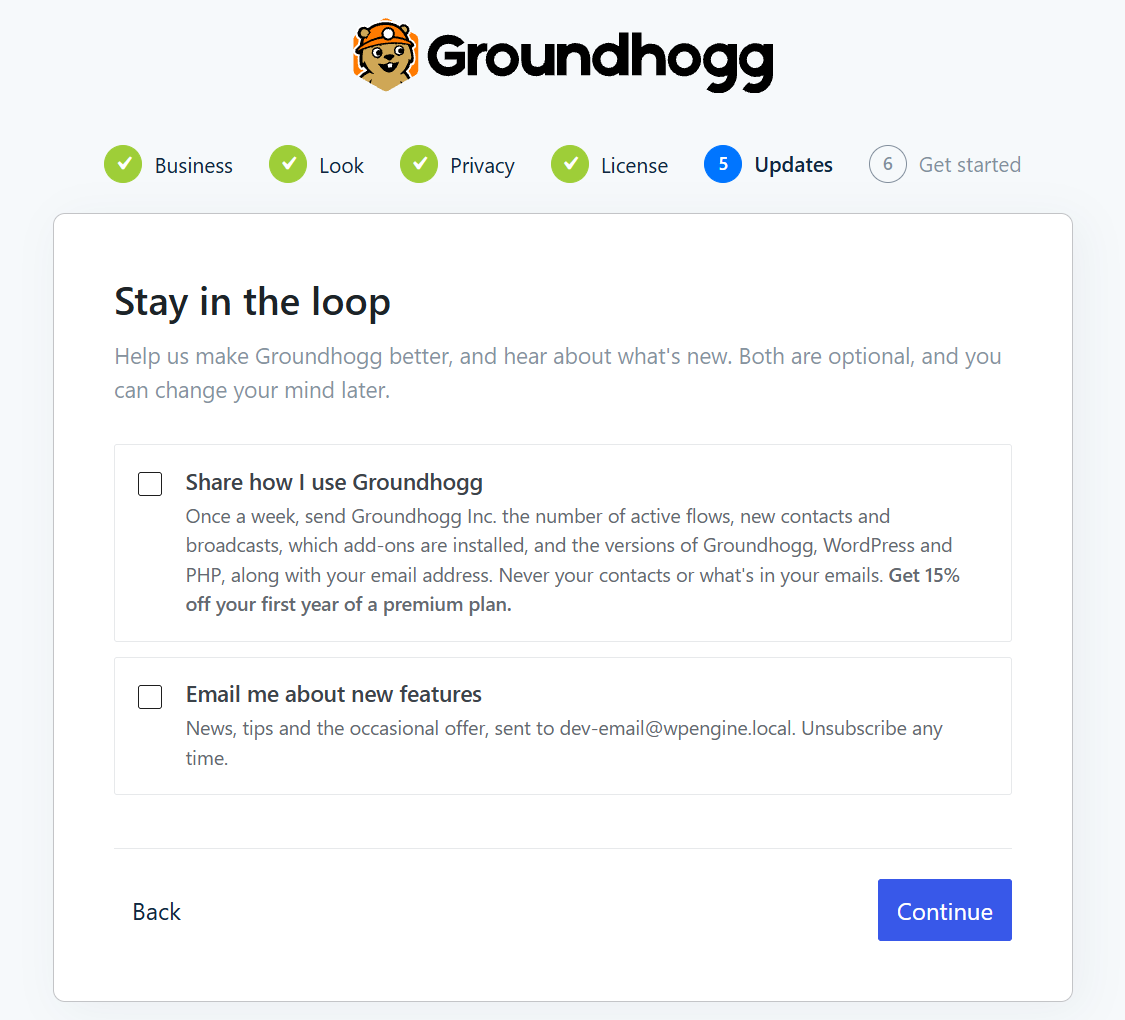
Tip for developers: pre-checked boxes get you more sign-ups and less trust. Unchecked boxes with an honest reason to tick them work fine.
6. Keep notifications inside the plugin
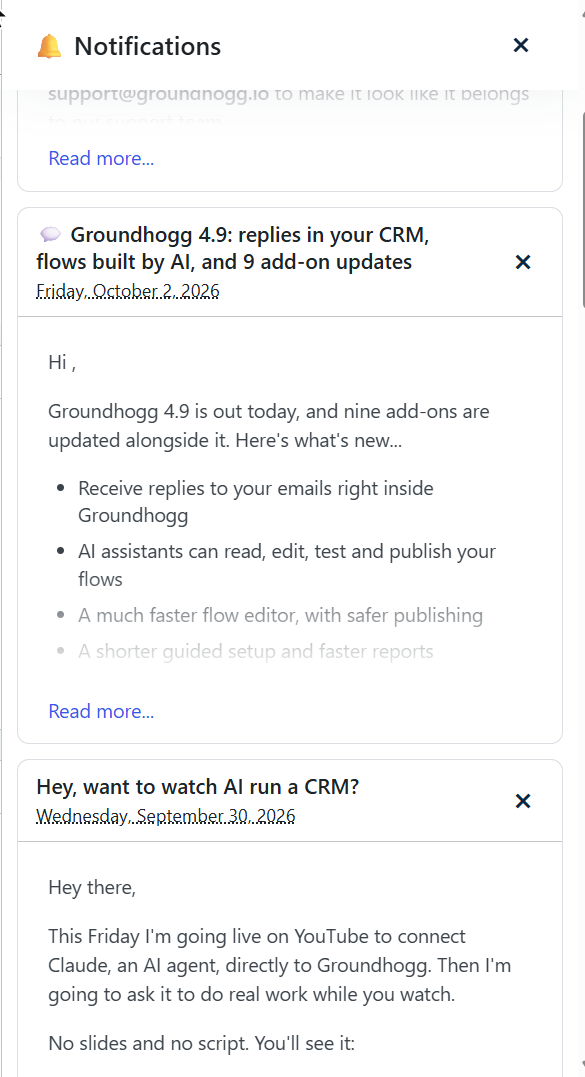
Groundhogg pages have a notification bell in the header. It’s where we post release notes, upcoming lives and the occasional important notice. It only appears on Groundhogg’s own pages, never across the WordPress admin, and you can dismiss each item.
The one announcement we do show as a banner right now is for the free Groundhogg mobile app (“Your contacts, tasks and email now work on your phone”). It only appears on Groundhogg pages, has an × to dismiss it, and goes away once you’ve used the app. You can see it at the top of the Cron Jobs screenshot above.
The dashboard also has a News widget with our latest blog posts. Like every dashboard widget, you can turn it off under Preferences.
Email summaries (My Day, broadcast results, and the weekly or monthly performance overview) are opt-in per user, and every one of them has its own unsubscribe link.
For Groundhogg users: how to quiet things down
If you’d rather see less of us, here’s the quick reference:
- Review prompt: click Don’t ask again (or just Review Now! if you’re feeling generous).
- Dashboard widgets: open the Groundhogg dashboard Preferences and switch off Recommendations, News, the review widget or Helpful Links.
- Recommendations: Mark complete on any item you don’t want.
- Cron Jobs service card: click the ×.
- Bell items and the mobile app banner: dismiss them with the ×.
- Email summaries: unsubscribe from the link in the email, or from your profile.
- Agencies: the white label option removes nearly all of our branding and promotion for your clients.
For plugin developers: what to steal
Brad asked what else you can do besides admin notices. Here’s what’s worked for us:
- Never promote outside your own screens. Your plugin’s pages are yours. The rest of the WordPress admin belongs to the site owner.
- Show paid features where they’d be used. A labelled PRO option in a feature list is useful information. A banner is an interruption.
- Ask for reviews after a win, from people who’ve earned it. Gate the ask on real usage and show it right after someone finishes something.
- Give every ask a permanent no. Maybe later and Don’t ask again are what make the ask feel respectful.
- Make your checklist useful first. Promotional items inside a helpful checklist read as suggestions, especially when they tick themselves off.
- Sell help where people struggle. One dismissible card on your hardest screen beats ten notices on easy ones.
- Keep opt-ins unchecked and honest. If you offer a reward for opting in, say so.
- Clear the clutter on your own screens. If you remove other plugins’ notices from your editors, users notice how calm your plugin feels.
None of this is perfect, and we’re still adjusting it. The rule we keep coming back to is that every promotion has to earn its place on the screen, either by being useful in that moment or by being easy to make go away.
Thanks to Brad for asking the question in public. If you’re a plugin developer with your own approach, I’d love to hear it.