
Postmark
Overview
Groundhogg integrates with Postmark to provide ultra-fast, reliable delivery of transactional and marketing emails. This guide walks you through installing the integration, connecting your Postmark API credentials, and configuring bounce and complaint handling.
How Fast Is Postmark?
Postmark is designed for speed and delivers most emails in under a second. Groundhogg’s integration typically sends up to 500 emails per second, depending on your hosting environment and API limits.
Install the Integration
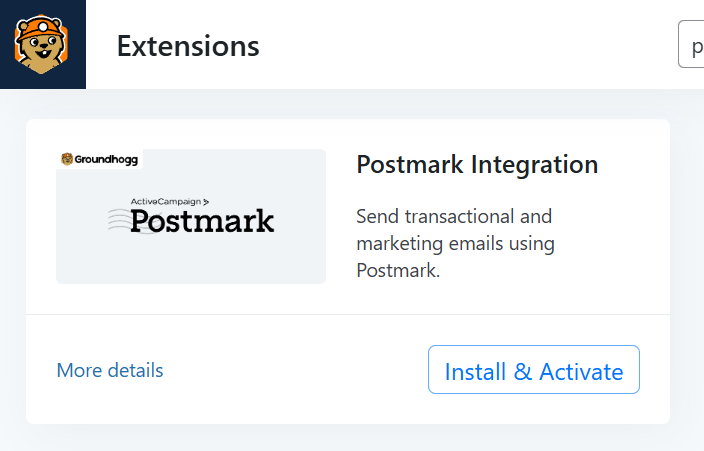
You can install the Postmark integration using the Groundhogg Helper plugin or manually upload the plugin files. Once the integration is installed, Postmark settings will appear in Groundhogg » Settings » Email.
Important: This requires Groundhogg’s own Postmark Integration add-on. The official Postmark for WordPress plugin from the WordPress.org plugin repository is a separate plugin and will not add Postmark to Groundhogg’s email settings. If you only have the official Postmark plugin installed, you won’t see a Postmark option in Groundhogg » Settings » Email. You can keep the official Postmark plugin active alongside Groundhogg’s integration if you’re also using it for other transactional email — they don’t conflict.
Get Your API Credentials
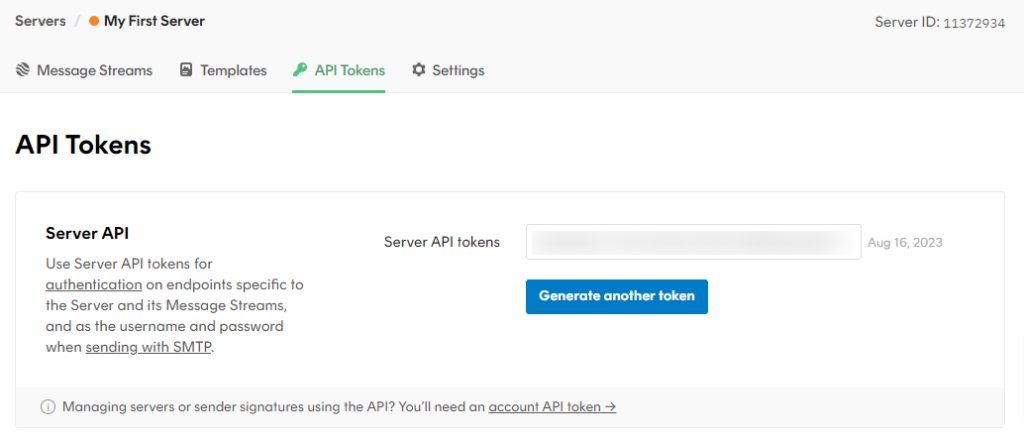
- Log in to your Postmark Dashboard.
- Go to Servers and select the server you want to use.
- Click on the API Tokens tab.
- Copy the Server API Token.
If you haven’t created a server yet, create one and associate it with your verified sending domain before proceeding.
Connect Groundhogg to Postmark
- In your WordPress admin, go to Groundhogg » Settings » Email.
- Scroll down to the Postmark settings section.
- Paste your Server API Token into the field provided.
- Save your changes—the page will reload.
- Click Test API Connection to send a test email and confirm the setup is working.
Groundhogg can now use Postmark to send emails through your selected server.
Prefer not to store the token in the database? Add it to your wp-config.php file instead and it will be used in place of the saved setting:
define( 'GH_POSTMARK_API_KEY', 'your-server-api-token' );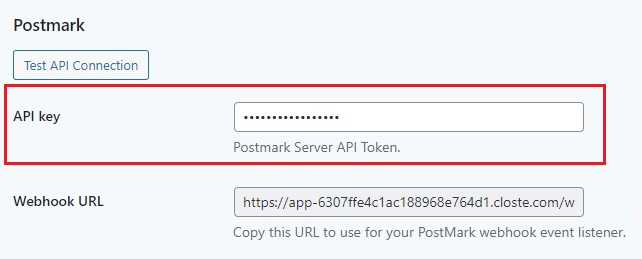
Message Streams: Transactional vs. Marketing
You only need one Postmark server and one API token — Groundhogg automatically picks the right message stream for each email it sends, based on the stream IDs in Groundhogg » Settings » Email » Postmark:
- Marketing emails (broadcasts and flow emails marked as Marketing) are sent on the stream set in Marketing Stream ID. The default is
broadcast. - Transactional emails, admin notifications, and other WordPress emails are sent on the stream set in Transactional Stream ID. The default is
outbound(Postmark’s default transactional stream).
If you leave either field blank, the default is used. Every Postmark server already has a default transactional stream with the ID outbound, but a Broadcasts stream with the ID broadcast is not created by default. You have two options:
- Create a stream with the default ID. In your Postmark server, go to Message Streams, add a new stream of type Broadcasts, and set its ID to exactly
broadcast. The ID can’t be edited after creation, so if you already created a Broadcasts stream with a different ID, use the next option or create a new one. - Use a stream you already have. Enter that stream’s ID (not its name) in Marketing Stream ID and/or Transactional Stream ID, then save your changes.
Whenever you change a stream ID, Groundhogg shows a notice reminding you to create the webhooks again for the new stream (see below). Until the marketing stream exists in Postmark, marketing emails sent through Postmark will be rejected.
Bounce and Complaint Handling
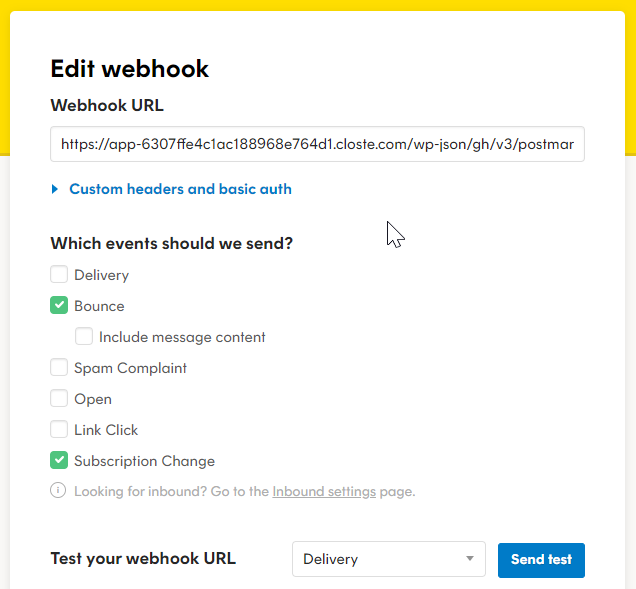
You don’t need to set up Postmark webhooks by hand. Once your message streams exist, click Create Webhooks next to Test API Connection. Groundhogg automatically creates a webhook in Postmark for each stream, pointing at the Webhook URL shown in Groundhogg » Settings » Email » Postmark, with these event types enabled:
- Bounce
- Spam Complaint
- Subscription Change
These are the only events Groundhogg processes: bounces and spam complaints update the contact’s status, and unsubscribes or suppressions reported by Postmark mark the contact accordingly. Leave Delivery, Open, and Link Click off — Groundhogg does its own open and click tracking, so it doesn’t use those events.
If you change a stream ID later, click Create Webhooks again so the new stream gets its webhook. The webhook for the old stream stays in Postmark, so delete it there if you no longer need it. If you already added a webhook to a stream manually with the same URL, delete it too so events aren’t sent to Groundhogg twice.
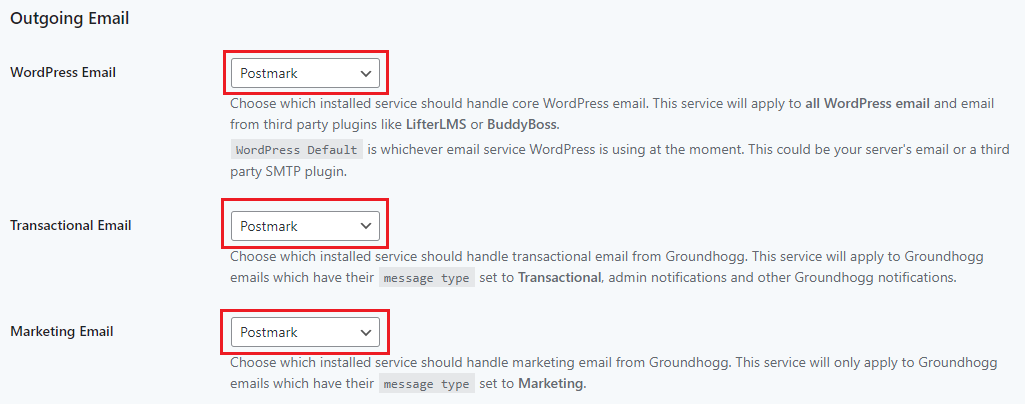
Tell Groundhogg To Use Postmark
Groundhogg will not use Postmark automatically. You must specify which types of email should be sent through Postmark.
At the top of Groundhogg » Settings » Email, choose Postmark for:
- Marketing Email
- Transactional Email
- WordPress Email
Disable Link Tracking (Optional)
To avoid conflicts with Groundhogg’s built-in tracking:
- Go to your Postmark server settings.
- Under Track Opens and Track Links, disable both options.
- Save changes.
Disabling tracking ensures Groundhogg remains in full control of engagement tracking and avoids duplicated analytics.
Troubleshooting
“The message stream for the provided ‘ID’ was not found.” This error appears at the top of Groundhogg » Settings » Email after clicking Create Webhooks. Postmark returns it when your server doesn’t have a stream matching the Marketing Stream ID or Transactional Stream ID (by default, broadcast and outbound). Check that the IDs in Groundhogg match the IDs of streams on the Postmark server your API token belongs to, or create the missing stream. See Message Streams: Transactional vs. Marketing above, then click Create Webhooks again.